35
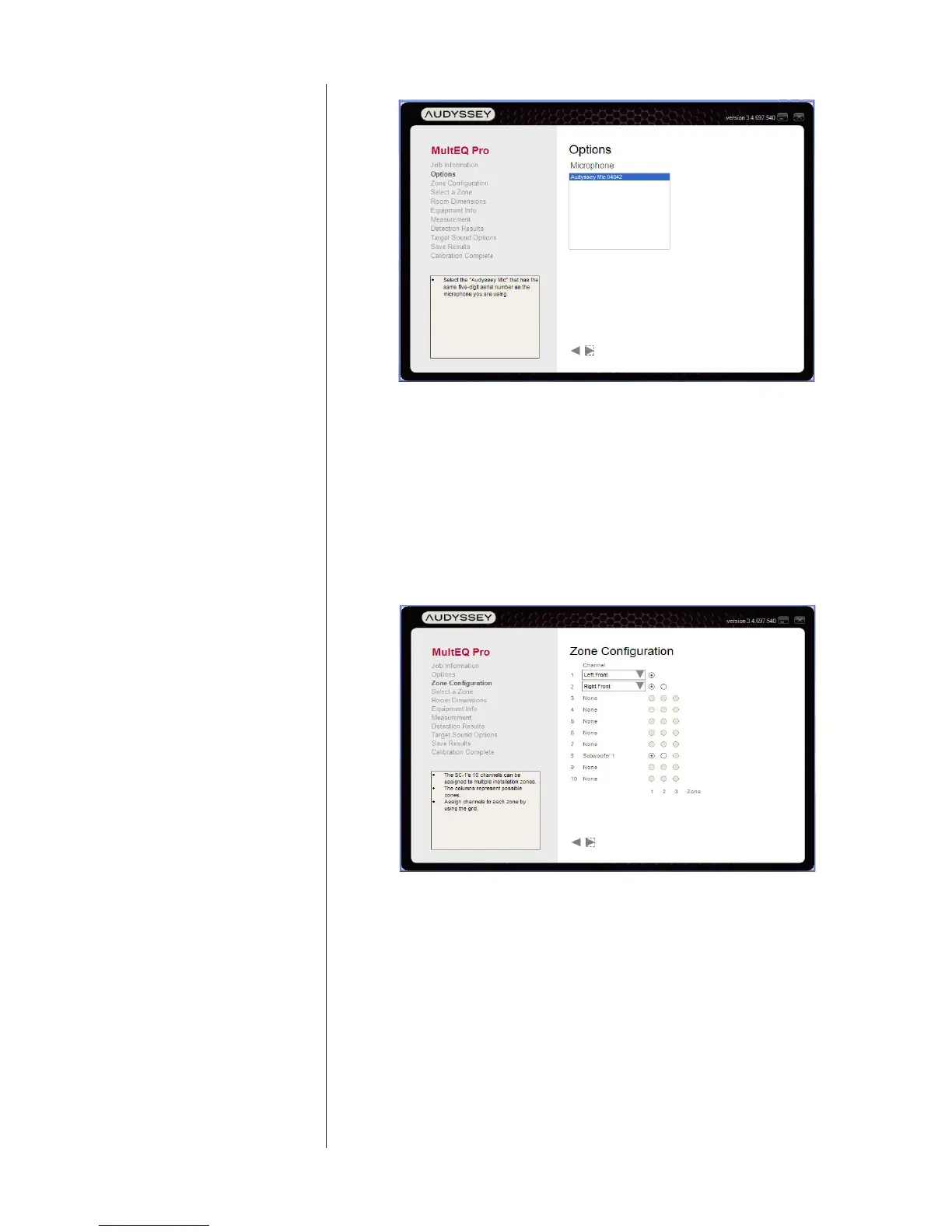
Options/Microphone Selection
Important:choosetheserialnumberofthemicrophoneyouareusing.Allmea-
surementsarelteredthroughacalibrationlethatensurestheiraccuracy.
Multi-Zone Setup (part 2) InSystemConguration,youestablishedthetotalnumberofmainandsub-
wooferchannelsbeingused.(Seepages26-27.)Inourexample,Zone1had5.1
channels,andZone2had2.1channels,foratotalof7.2channelsused(outof
the7.3thattheSC-1supports).MultEQProinitiallyassumesthatallspeakersare
inZone1,asshownbelow.
Zone Conguration
TheZoneCongurationscreenallowsyoutoreassignspecicchannelstoeither
asecondorathirdzone,usingtheradiobuttonsandpulldownmenus.Inthis
case,forexample,youmightputchannels5,6,and9intoZone2.Thiswould
giveyoua5.1systemforyourmaintheaterthatusestheLeft,Center,Right,and
SurroundoutputsalongwithSubwoofer1,whilethesecondzoneutilizedthe
“Back”channelsandSubwoofer2.
ThisZoneCongurationprocessiscritical,sinceitdeneswhenthespeakers
are“chirped”formeasurementsbybreakingthemintogroups.Youcanthus
“chirp”allofZone1andthenmovethemicrophonetothesecondzonebefore
resumingwiththemeasurements.



 To Next Page