11
PLAY WITH CHiP™ - CHiP SMARTBAND™
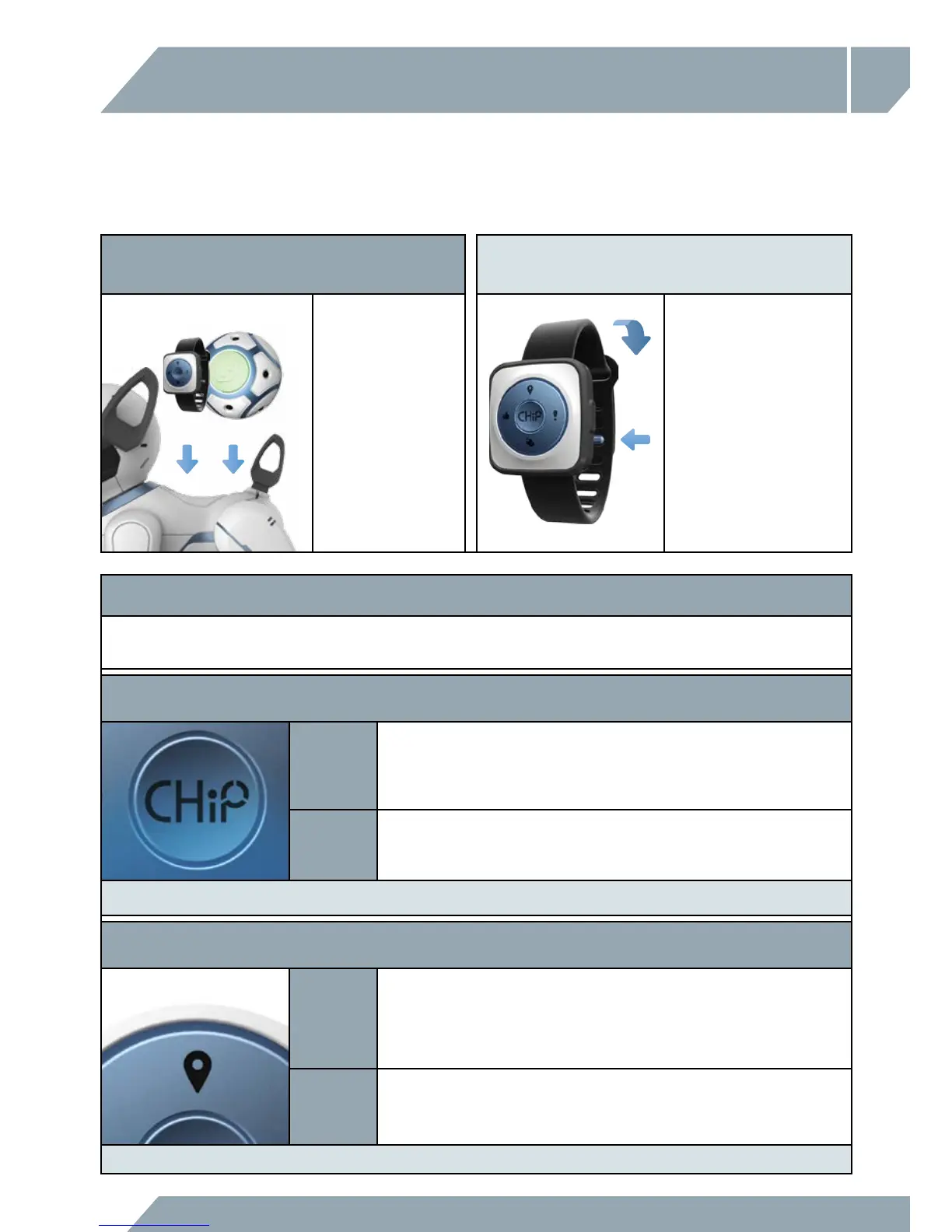
PAIRING THE CHIP SMARTBALL™ AND
CHIP SMARTBAND™
WEARING THE CHIP SMARTBAND™
The first time you use
CHiP™, you might have
to pair him with the
CHiP SmartBall™ and
CHiP SmartBand™. To
do so, turn it on and
then hold it on CHiP™’s
back for a few seconds.
The LED will stop flashing
once the item is paired
with CHiP™. It is
advisable to try pairing
the items with CHiP™
one at a time.
To put on the CHiP SmartBand™,
push the strap through the
large loop and then tighten the
CHiP SmartBand™ comfortably
around you wrist. Fasten it by
pushing the blue catch through
one of the smaller loops on
the strap.
GETTING STARTED
The CHiP SmartBand™ is a key part of the CHiP™ experience. When you wear it, you and CHiP™
are connected.
CHIP SMARTBAND™ LAYOUT
There are 2 ways to use each button on your CHiP SmartBand™, either through a light tap, or by pushing and holding it.
The CHiP™ Button:
The CHiP™ button is like almost like saying “heel”.
TAP
When you tap the CHiP™ button, it means you want CHiP™ to stop, look and listen.
Whether CHiP™ is following you, chasing a ball, finding his bed, or doing a dance.
- If you want him to stop what he’s doing immediately and listen up, tap the CHiP™ button.
HOLD
When you hold the CHiP™ button your band turns into a remote control. Think of the buttons
like a joystick. The buttons indicate forward/backward/left and right. You can also get
CHiP™ to spin if you hit the empty spaces on the band.
NOTE: Simply hold the CHiP™ button again for 2 seconds to exit Drive Mode.
The Location Pin Button:
Follow Me CHiP™!! The Location Pin button serves two functions: come and follow.
TAP
When you tap the Location Pin button on the band, CHiP™’s eyes will turn teal blue, and
he will come right over to you. Once he’s close, tap the CHiP™ button to make him stop in
place. A key hint here is to always have the light on the band pointed at CHiP™’s eyes. If
ever it appears as though CHiP™ isn’t listening, make sure CHiP™ is in range, and that his
eyes can properly see the light on your CHiP SmartBand™.
HOLD
When you hold the Location Pin button on the band, CHiP™’s eyes will turn teal as well
only this time he’ll follow you around. Again, it’s key to make sure the light on the band is
visible to CHiP™’s eyes. If ever you want to leave follow-me mode, all you need to do is
hit the CHiP™ button.
NOTE: Pressing the CHiP™ button will stop CHiP™ from coming to / following you.



 To Next Page