EasyManua.ls Logo

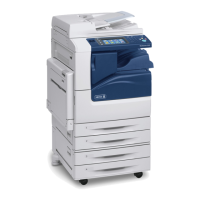
Xerox WorkCentre Pro 123 - User Manual

Xerox WorkCentre Pro 123
360 pages
Print Icon
To Next Page IconTo Next Page
Loading...
WorkCentre ProWorkCentreCopyCentre
C123/C128 M123/M128 123/128
User Guide
604P17457

Table of Contents

Other manuals for Xerox WorkCentre Pro 123

Questions and Answers

  • B
    Brian FlemingAug 30, 2025
    How to fix uneven print quality on Xerox All in One Printer?
    • E
      Eric WilsonAug 30, 2025
      To fix uneven print quality on your Xerox All in One Printer, try replacing the drum cartridge. If the screen displays a message for replacement, replace the toner cartridge as well.
  • W
    weaverchelseaSep 8, 2025
    How to fix paper stacking issues in Xerox All in One Printer?
    • G
      Greg ChenSep 8, 2025
      If paper delivered to an output tray is not properly stacked up on your Xerox All in One Printer, try flipping over the paper stack in the paper tray, or rotate it head to toe.
  • T
    Travis GarzaAug 29, 2025
    How to adjust print darkness on Xerox All in One Printer?
    • C
      Craig StephensAug 29, 2025
      If the output from your Xerox All in One Printer is too light or too dark, try loading fresh paper and check the quality of the original document. You can also select the Lighten/Darken option on the touch screen. Run off more prints to see if the copy quality improves. If the issue persists, consider replacing the drum cartridge.
  • J
    Joseph LiuSep 18, 2025
    What to do if my Xerox All in One Printer output does not reflect the selections made on the touch screen?
    • M
      Melinda PayneSep 19, 2025
      If the output from your Xerox All in One Printer does not reflect the selections made on the touch screen, select [Save] after each selection on the touch screen, if one exists.
  • A
    Alice DonovanSep 9, 2025
    How to fix Xerox All in One Printer that will not power on?
    • A
      andrew87Sep 9, 2025
      If your Xerox All in One Printer won't power on, please check the following: * Ensure the power cord is properly connected. * Verify the power switch is in the ON position. * Make sure the RESET button on the back of the machine is not tripped (popped up); push it to reset. * Confirm the AC outlet is supplying voltage by connecting another appliance.
  • T
    tony34Sep 12, 2025
    Why is my Xerox All in One Printer producing uneven prints?
    • D
      Denise CochranSep 12, 2025
      If your Xerox All in One Printer is producing uneven prints: * Replace the drum cartridge. * Replace the toner cartridge if the screen message for replacement is displayed.
  • R
    robertdixonSep 18, 2025
    What to do if my Xerox All in One Printer is producing ghosting?
    • L
      lcohenSep 18, 2025
      If your Xerox All in One Printer is producing ghosting: * Check the quality of the documents. * If transparencies are used, select [Transparency] in [Paper Type]. The machine automatically adjusts the quality for transparencies. * Feed the document SEF. * Replace the drum cartridge.
  • S
    Stephen BranchAug 27, 2025
    What to do if I cannot store a document for secure polling on my Xerox All in One Printer due to full memory?
    • V
      Vanessa DiazAug 27, 2025
      If you cannot store a document for secure polling on your Xerox All in One Printer due to full memory, cancel the operation and try again later when additional memory is available.
  • L
    Lisa HansonAug 26, 2025
    What to do if my Xerox All in One Printer displays a memory full error message?
    • N
      Nathan HoweAug 26, 2025
      If your Xerox All in One Printer displays a memory full error message: * Check with the Key Operator about available memory. * Divide the remaining pages of the job into several small jobs and run the job again.
  • L
    lhallAug 25, 2025
    What to do if Xerox All in One Printer cannot store document due to full memory?
    • B
      bridgestimothyAug 26, 2025
      If you cannot store a document for secure polling on your Xerox All in One Printer due to full memory, cancel the operation and try again later when additional memory is available.

Summary

Before Using the Machine

Conventions

Explains terminology and formatting used throughout the user guide for clarity.

Safety Notes

Essential safety instructions for operating the machine correctly and safely.

Product Overview

Machine Components

Details the physical parts and modules of the machine for user familiarity.

Services and Features

Outlines the various functions and services the machine offers, like Copy, E-mail, Fax.

Copy

Copying Procedure

Step-by-step guide on how to perform basic copying operations on the machine.

Basic Copying

Covers fundamental copying features such as Reduce/Enlarge and Paper Supply options.

Fax;Internet Fax

Fax;Internet Fax Procedure

Explains the basic steps for sending faxes and Internet faxes.

Specifying Destinations

Details methods for entering fax numbers or email addresses for sending documents.

Scan;E-mail

Scanning Procedure

Outlines the basic steps for scanning documents and sending them as e-mail attachments.

E-mail

Covers how to scan documents and send them as email attachments using the screen keyboard or address book.

Print

Print Driver Features

Explains the various options available when sending print jobs from a PC.

Setups

System Settings Procedure

Guides the user through accessing and customizing system settings on the machine.

Common Settings

Details machine settings common to copy, fax, and scan features like Clock/Timers and Audio Tones.

Problem Solving

Fault Clearance Procedure

Provides guidance on identifying and resolving machine faults and error messages.

Paper Jams

Step-by-step instructions on how to clear paper jams from different locations within the machine.

Fault Codes

Lists common fault codes and their corresponding remedies for troubleshooting.

Specifications

Machine Specifications

Lists the technical capabilities and configurations of the machine.

Specifications for the Fax Feature

Details the technical specifications specifically for the fax functionality.

Xerox WorkCentre Pro 123 Specifications

General IconGeneral
Printing TechnologyLaser
Max Printing Resolution (B/W)600 x 600 dpi
Print Resolution600 x 600 dpi
Max Copying Resolution (B/W)600 x 600 dpi
Copy Resolution600 x 600 dpi
Scan Resolution600 x 600 dpi
Fax Transmission Speed33.6 Kbps
Weight178.6 lbs
FunctionsCopier, Fax, Printer, Scanner
Supported Media TypePlain, Label, Envelope, Transparency
InterfaceUSB, Parallel
ConnectivityUSB, Parallel
Supported Operating SystemsWindows

Related product manuals