10
Method 1:
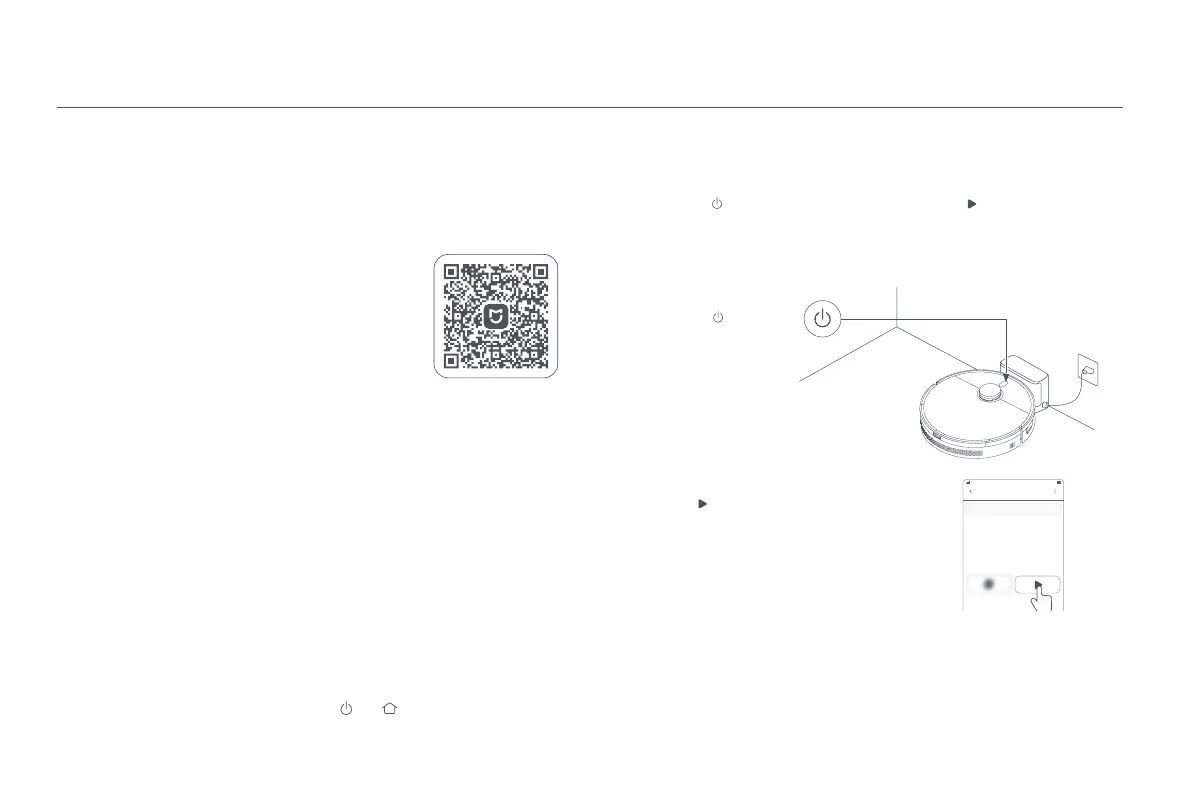
Press the button on
the robot vacuum to
start cleaning.
Method 2:
Tap the button in the app to start cleaning.
Connect with Mi Home/Xiaomi Home App
This product works with the Mi Home/Xiaomi Home app*. Use the Mi Home/
Xiaomi Home app to control your device, and to interact with other smart home
devices.
Scan the QR code to download and install the app. You
will be directed to the connection setup page if the
app is installed already. Or search for "Mi Home/Xiaomi
Home" in the app store to download and install it.
Open the Mi Home/Xiaomi Home app, tap "+" on the
upper right, and then follow the instructions to add your
device.
* The app is referred to as Xiaomi Home app in Europe
(except for Russia). The name of the app displayed on
your device should be taken as the default.
· This robot vacuum works with the Mi Home/Xiaomi Home app, and it supports Android 9.0 &
iOS 12.0 or above.
· Only 2.4 GHz Wi-Fi networks are supported.
· The version of the app might have been updated, please follow the instructions based on the
current app version.
· When the robot vacuum connects with the Xiaomi Home app successfully, it connects with the
network successfully. You can have a reset of Wi-Fi to disconnect it from the network.
How to Use
Reset Wi-Fi
Start Cleaning
3. When the Wi-Fi indicator blinks, the Wi-Fi connection has been reset
successfully.
Press the button on the robot vacuum or tap the button in the app, and the
robot vacuum will clean all areas by first cleaning along edges and walls and
then in an S-shape pattern. Once the cleaning is complete, the robot vacuum will
automatically return to the charging dock to charge.
· Before a cleaning task, make sure the robot vacuum is on the charging dock and fully charged.
Do not move the robot vacuum during cleaning.
· When using the robot vacuum for the first time, it is recommended to follow the robot vacuum
and remove any obstacles on the ground. If the robot vacuum may get stuck or scratch the
surface of the furniture in some areas, you can set restricted areas in the app to prevent the
robot vacuum from entering those areas.
When there is a connection loss between your phone and the robot vacuum due to
the router reconfiguration, wrong password or so, please follow the steps below:
1. Open the cover of the robot vacuum so that you can see the Wi-Fi indicator.
2. Simultaneously press and hold the buttons and until you hear a voice to
indicate that the robot vacuum is waiting for the network configuration.
178CE85E
Notes:
Notes:





 To Next Page