30
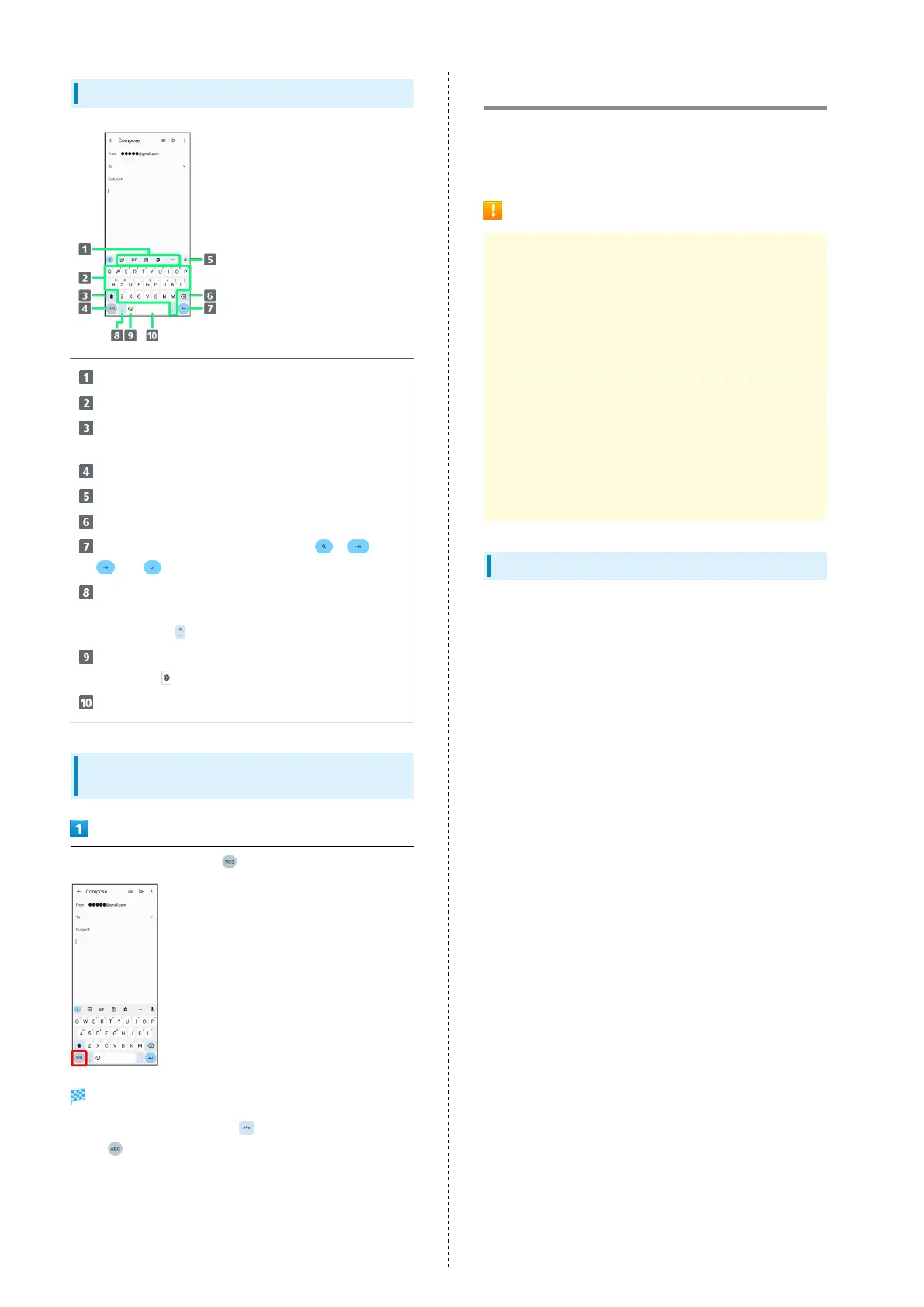
QWERTY Keyboard Layout
Use the keyboard option menu (Toolbar).
Enter a character.
Switch between all lower case and sentence case.
Double-Tap for all upper case.
Toggle entry modes.
Use voice input.
Delete a character before cursor.
Confirm text input or enter line break. , ,
, or appears depending on application.
Enter a comma. Touch & Hold for text entry settings
or to set one-handed mode. With several set keyboards,
Touch & Hold for emoji, emoticons, etc.
Show emoji, emoticons, etc. With several set
keyboards, to switch between keyboards.
Enter a space.
Switching Character Types (Entry
Modes)
In QWERTY keyboard, Tap
Entry mode is changed to number and symbol mode.
・
To enter more symbols, Tap .
・
Tap to back to alphabet mode.
Updating Software
Steps to update software depend on what is being updated in
the software. Checking/updating does not incur transmission
fees.
Software Update Cautions
Signal Reception
Operate handset where signal reception is good and
without changing location. Also operate with adequate
battery charge. Signal becoming weak or Internal Battery
becoming low during an update may cause an update
failure. An update failure may disable handset.
Saved Data/Settings
Saved data may be lost depending on condition of handset
(malfunctioning, damaged, water exposure, etc.). SoftBank
Corp. is not responsible for damages from loss of data.
Updating software may revert some settings to their
defaults.
Updating Software Automatically
Update software automatically.
When the update is complete, Tap the notification in the
Notifications Window and restart handset.



 To Next Page