MX Series — MX36 Operating Instructions Page 33
t
x
Start The Update!
Just before you press the “Load” button — please close any other applications running on the
PC — interruptions in the process could render your unit inoperable. Do not disconnect the
cable, turn off the power or attempt to close the loader app once loading has begun!
Now that you have been warned (!) — press the “Load” button. Confirm the load, and the unit
will mute and begin to load the new firmware. Progress of the loading is indicated on the LED
sections within the Line Monitoring section.
Upon completion, the app will close, and your unit will restart — that’s it!
What If It All Goes Wrong…
Don’t panic! Your unit can be recovered, but please be aware that this will involve taking the
top cover off and exposing potentially dangerous mains voltages. If you are unsure about
doing this, then please do nothing and email us for further information.
Otherwise, disconnect your unit completely from the incoming mains supply.
It is now safe to remove the top cover - be careful not to drop any screws inside!
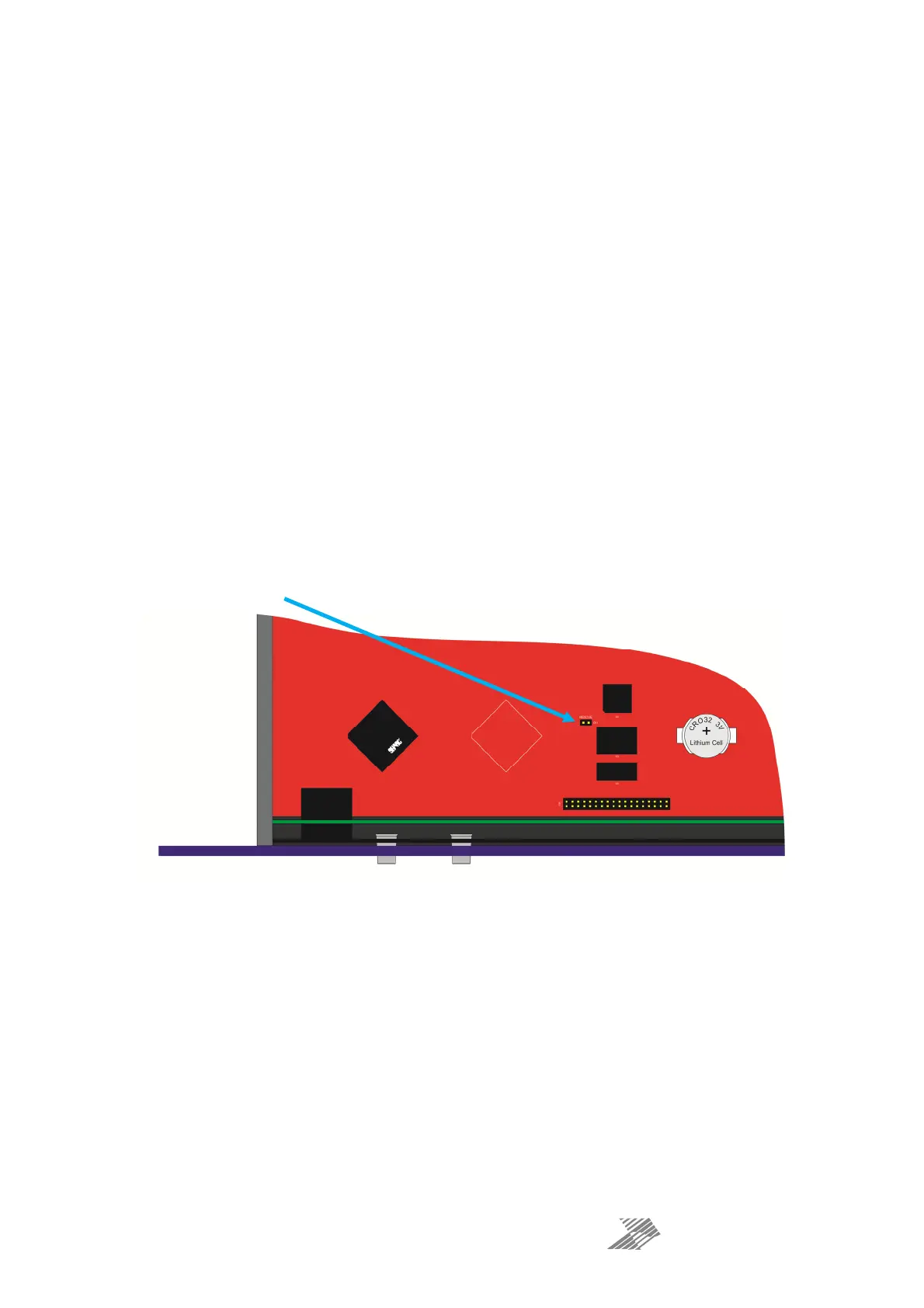
Locate the “Rescue” link CN1 — between ICs U2 and U3 on the front circuit board - and remove
it. This will make your unit run in recovery mode — the original firmware version loaded at the
factory will now be active.
Replace the top cover temporarily, reapply mains power and switch on. Once booted, perform
a program update again using the Flash Loader application.
Upon completion, the app will close. Disconnect the power and remove top cover and replace
the “Rescue Recovery” link once more.
Replace top cover and screw into place.
Your unit should now be fully operational again — no settings will have been lost in the
process.



 To Next Page