Basic Operation
Data Backup
CVP-305/303/301 Owner’s Manual
71
Data Backup
For maximum data security Yamaha recommends
that you copy or save your important data to separate
storage media, such as a SmartMedia card or USB
storage device. This provides a convenient backup if
the internal memory is damaged.
The backup procedure is different for the data types
in 1 and 2 above.
Backup procedure
1
Insert/connect the backup media (desti-
nation), such as a SmartMedia card or USB
storage device.
2
Call up the display containing the desired
file to be copied.
Song:
Press the [SONG SELECT] button.
Style:
Press the [STYLE SELECT] button.
Registration Memory Bank:
Press the [REGIST. BANK] button.
Voice:
Press one of the VOICE buttons.
3
Select the USER tab by using the TAB [
√
]/
[
®
] buttons.
4
Press the [3
††
††
] (COPY) button to copy the
file/folder.
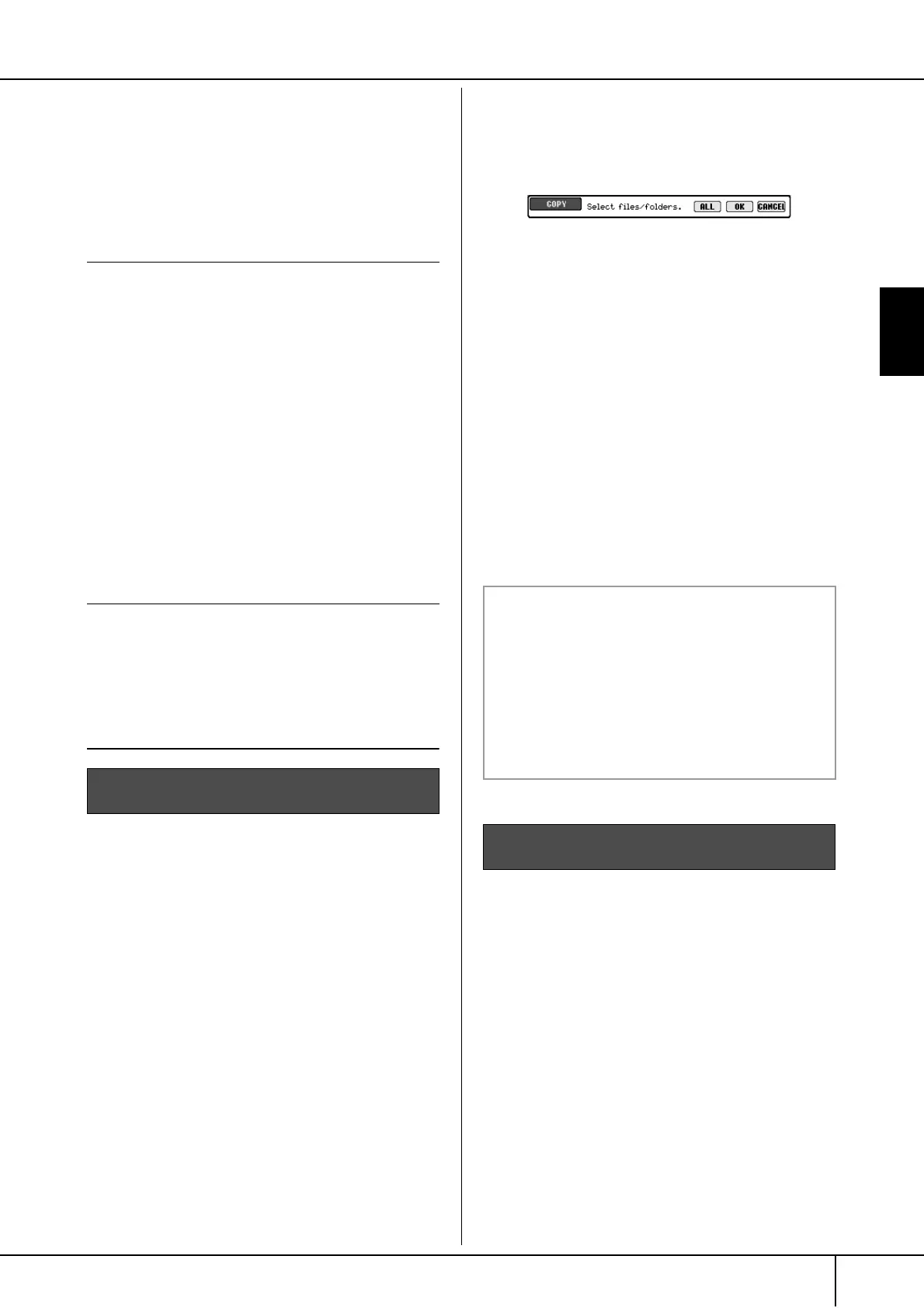
The pop-up window for the Copy operation
appears at the bottom of the display.
5
Press the [6
††
††
] (ALL) button to select all
files/folders indicated on the current dis-
play and all other pages.
To cancel the selection, press the [6
†
] (ALL
OFF) button again.
6
Press the [7
††
††
] (OK) button to confirm the
file/folder selection.
To cancel the Copy operation, press the [8
†
]
(CANCEL) button.
7
Select the destination Tab (CARD or USB)
to which the file/folder is to be copied, by
using the TAB [
√
]/[
®
] buttons.
8
Press the [4
††
††
] (PASTE) button to paste
the file/folder.
1
Insert/connect the backup media (desti-
nation), such as a SmartMedia card or USB
storage device.
2
Call up the operation display.
[FUNCTION]
→
[I] UTILITY
→
TAB [
√
]/[
®
]
SYSTEM RESET
3
Press one of the [F]–[I] buttons to call up
the relevant display for saving your data.
4
Select the appropriate tab (CARD or USB)
to which you want to save the data by
using the TAB [
√
]/[
®
] buttons.
5
Save your data (page 63).
Data that can be saved
1
Song*, Style, Registration Memory Bank and
Voice
2
Music Finder Record, Effect**, MIDI Template
and System File
* Protected Songs (those with a “Prot.1/Prot.2” indi-
cation at the upper left of the file name) cannot be
saved.
However, Songs with a “Prot.2” indication can be
moved (cut-and-paste operation) to a SmartMedia
card with ID. Songs with a “Prot.1” indication can-
not be moved to external media.
**Effect data includes the following:
- Edited or saved data in the Mixing Console
“EFFECT/EQ.”
-
(CVP-305/303)
Edited or saved data of the Vocal
Harmony type.
Song, Style, Registration Memory Bank and
Voice Data
Music Finder Record, Effect, MIDI Template
and System Data
If a message appears indicating data
cannot be copied
Protected Songs (“Prot. 1/Prot.2” is indicated
at the upper left side of the file names) are
included in the copied files. These protected
Songs cannot be copied. However, Songs
with a “Prot.2” indication can be moved
(cut-and-paste operation) to a SmartMedia
card with ID.




 To Next Page