p/n 4000087299 v.I
The Mark as Good menu allows you to take a copy of the currently running firmware and
configuration and store it as a "Known Good" image in a separate part of the unit. This firmware and
configuration can then be restored using the "Revert to Known Good"-menu at a later date. If you
choose to create a new "Known Good" image using the "Mark as Good" menu, the 6200 will reboot,
and make a copy of the firmware and configuration. After this has completed, the 6200 unit will
reboot into the regular firmware.
2.4.4.6.3 FXO Tuning
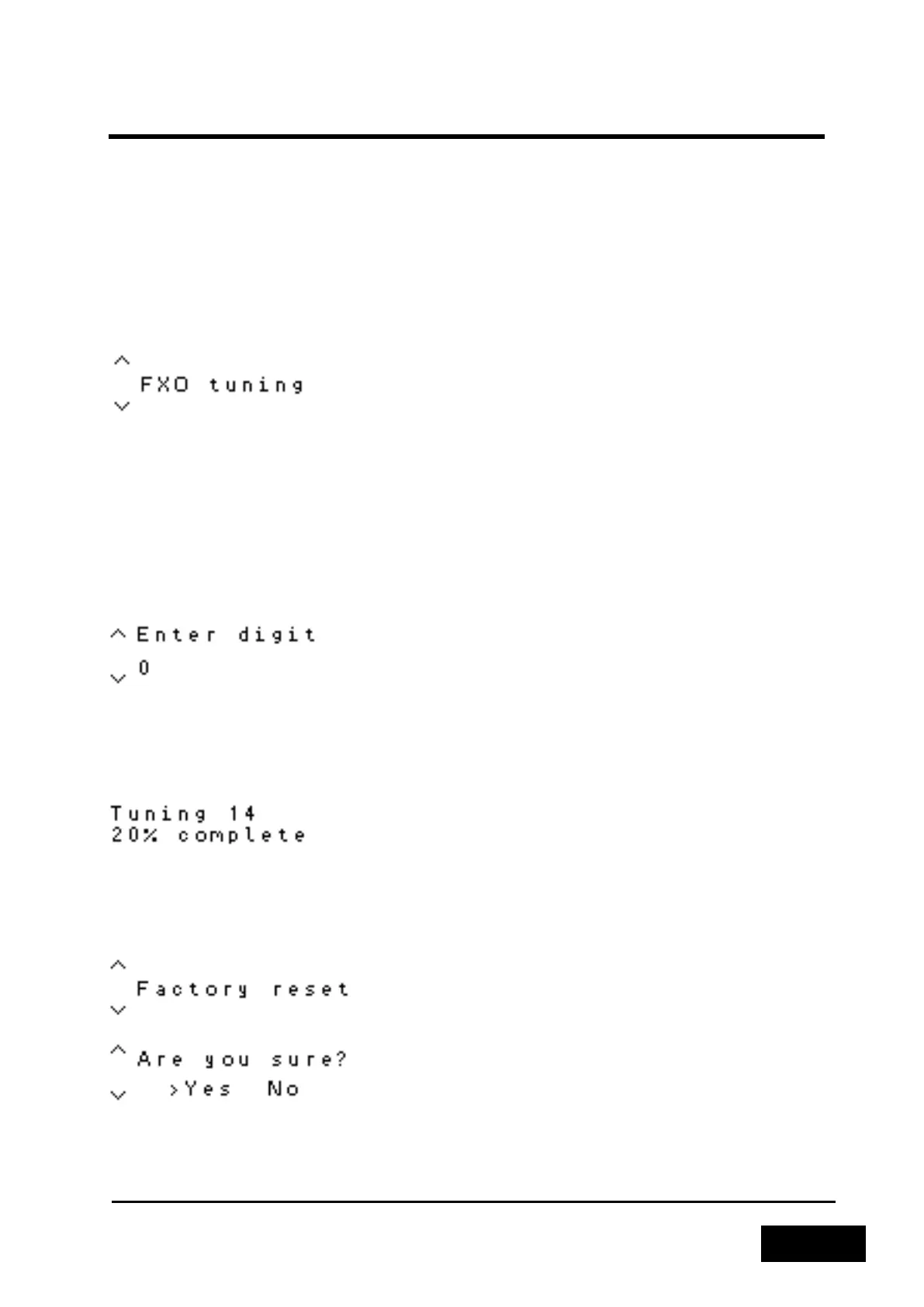
Figure 2-90 - FXO Tuning Menu
Note: This sub menu is not available on the Storage units as they do not have any line modules.
The FXO Tuning menu allows you to automatically tune several parameters related to the FXO
modules installed in your system. The tuning procedure is designed to help you reduce or eliminate
unwanted echo that may occur when connecting to other telephony systems. Please note that the
tuning procedure will cut off ongoing calls on the unit.
To start the tuning procedure, select the "FXO tuning" option. In order for the tuning procedure to
work, you must supply a digit which will clear the dial-tone on the unit at the other end.
Figure 2-91 - Entering a single digit to stop the dial tone
The tuning procedure will tune each port of every FXO module that is installed in the Phontech 6200
unit. This process will take a few minutes. After it has completed, the Phontech 6200 unit will reboot,
and the freshly tuned parameters will be applied.
Figure 2-92 - Tuning in Progress
2.4.4.6.4 Factory Reset
Figure 2-93 - Factory Reset Menu
Figure 2-94 - Selecting the Factory Reset Menu
The Factory Reset function allows you to discard all configuration data and settings stored on the
6200 and restore it to a pristine factory state. Once this has been performed, the Phontech 6200 unit
will reboot, and present you with the first run setup wizard.


 To Next Page