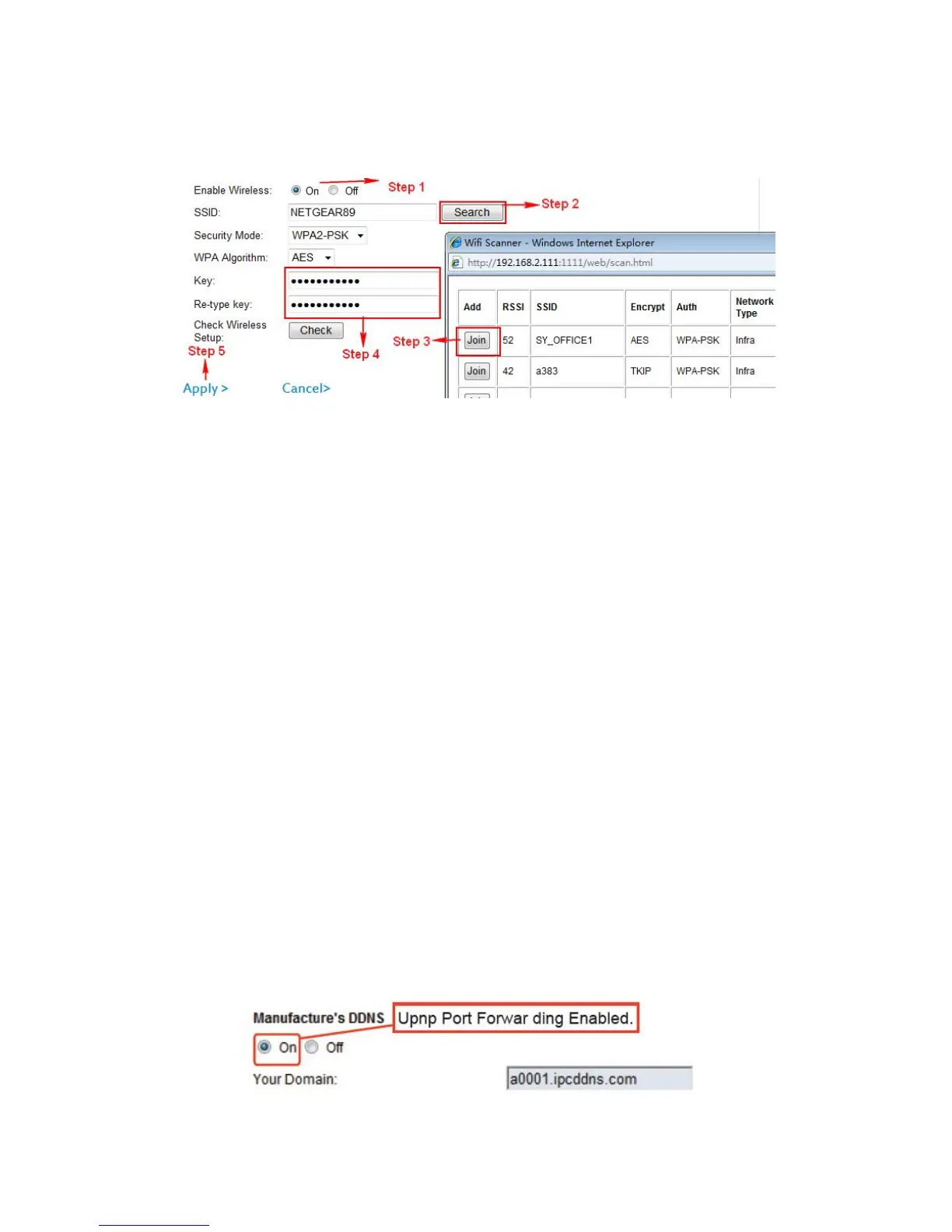
3.2.2 WIFI Settings (Two connection ways)
1. Connected by browsers
1) Step 1, Enable wireless
2) Step 2, Click “Search”
3) Step 3, Choose and Join your router at pop up new window
4) Step 4, Fill in user name and password of your router
5) Step 5, Click Apply
2. Connected via WPS
1) Please make sure your wireless router has WPS/QSS.
2) Press WPS/QSS button of the router two seconds and check if WPS signal light
blinking.
3) Press the WPS button of camera 5 ~ 10 seconds, the camera will start WPS/QSS
function, and connect your router within 60 seconds automatically.
Note: WPS light long time bright means the camera is connecting router.
WPS light blinking quickly means the camera connected router failed
WPS light blinking slowly means the camera connected router successful.
Note: Matching over 60 seconds means not successful, Please try above procedure
again. If still failed, please try to connect wifi by browser or mobile phone. .
3.2.3 Remote access settings
1. Two ways of Port Forwarding
1) Automatic Port forwarding



 To Next Page