Touchscreen User Manual – Issue 1
Zytronic X-Y Controller (Serial and USB) 33
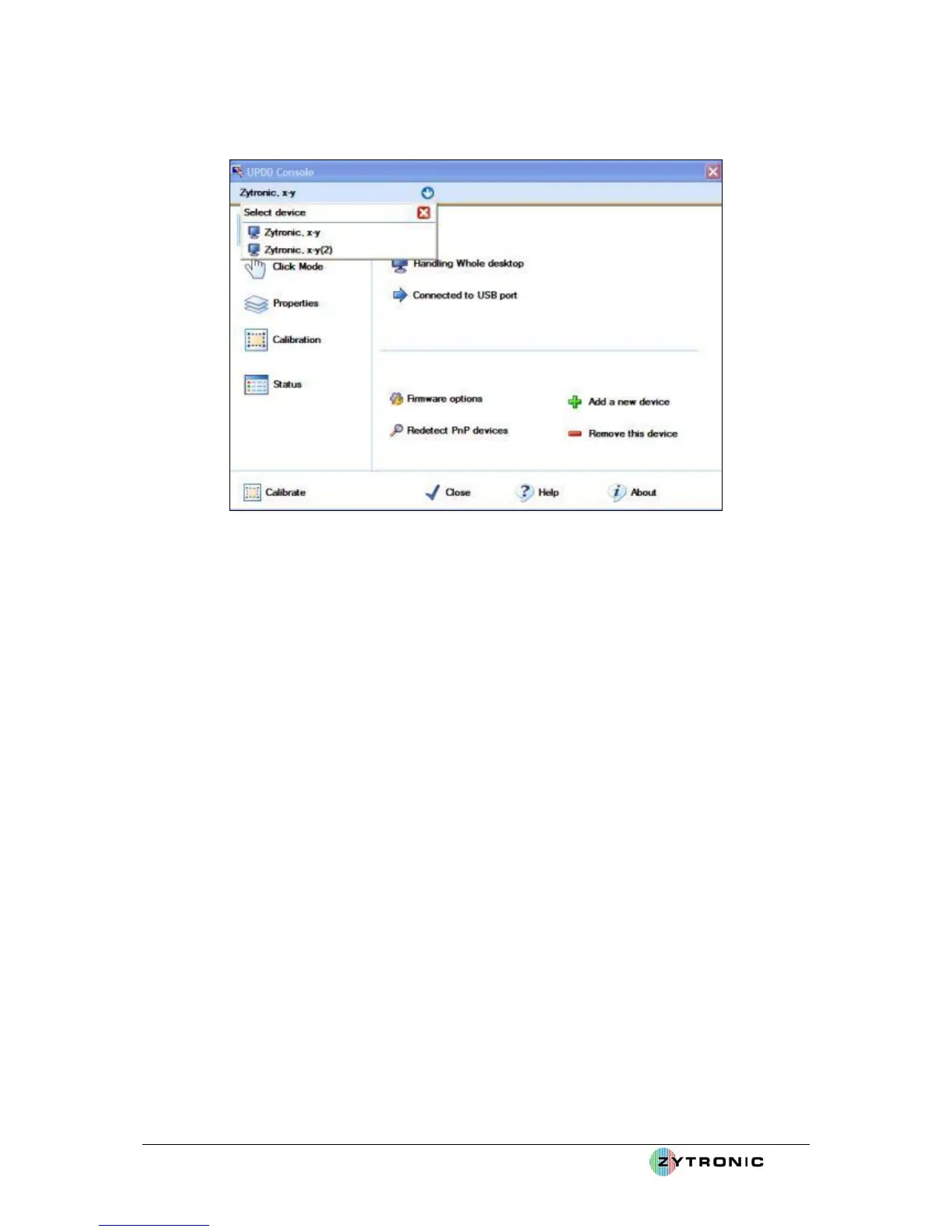
from the blue arrow drop down menu located at the top of the Hardware page, as shown in
Figure 30.
Figure 30: Two controller entries detected
From Figure 30, it can be seen that the two controller entries in this scenario are called Zytronic, x-y
and Zytronic, x-y(2). These are the two touchscreen devices connected to the same host computer.
From this drop down menu if you now click on device Zytronic, x-y this will show a UPDD console
and all the adjustable parameters just for this device, if you then click on Zytronic, x-y(2), this will
show a UPDD console and all the adjustable parameters for device 2. Both devices should be
selected in turn and set up in the same way as described at the beginning of this user manual section
(i.e. threshold set, calibrated etc).
Having set up each of the individual touchscreen parameters you now need to allocate each individual
touchscreen to the relative monitor it s mounted in, i.e. touchscreen 1 (Zytronic x-y) is mounted in
monitor 1 and touchscreen (Zytronic x-y(2)) is mounted in monitor 2 for example.
Allocating each touchscreen to the relevant monitor is done by going to the Hardware page within the
UPDD console then clicking on the Handling Whole Desktop icon. This opens a Desktop Area
window associated with specified touchscreen. On this page, from the drop down menu the selected
touchscreen can be allocated to its relevant monitor, as shown in Figure 31. Having selected the
associated monitor, now close the window and repeat the same procedure for the second touchscreen
by selecting Zytronic x-y(2) from the blue arrow drop down menu on the Hardware page and
repeating the above and allocate touchscreen Zytronic x-y(2) to its associated monitor number.
Having implemented the above both touchscreens should be operational and allocated to their relevant
monitors.



 To Next Page