Touchscreen User Manual – Issue 1
Zytronic X-Y Controller (Serial and USB) 32
4.3 EEPROM Calibration Data Storage
Both the Serial and USB controllers support on board EEPROM storage of the calibration data if the
option is required.
The default Calibration storage method is storage of the calibration information within the Windows
registry.
If in certain application it is deemed not desirable to store the calibration data within the Windows
registry (i.e. embedded applications) then the option can be selected to store the calibration data on
board the controller via the EEPROM storage.
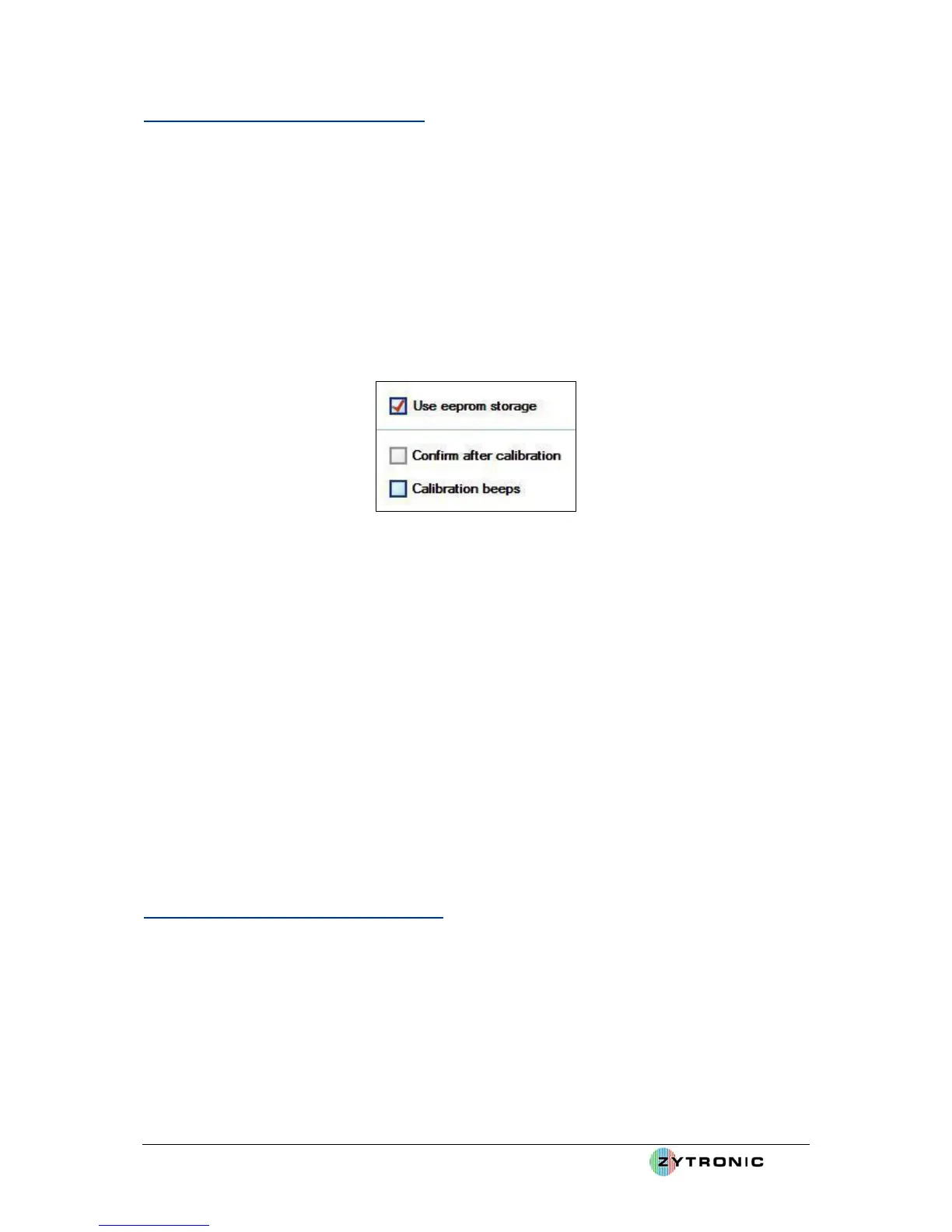
This option can be selected by simply selecting the checking the Use eeprom storage box located on
the Calibration page of the UPDD console, as shown in Figure 29.
Figure 29: Use EEPROM Storage
With the EEPROM mode selected this means that after a calibration routine is complete instead of
storing the collected calibration information into the Windows Registry the Driver will pass the
collected calibration data to the controller to be stored in its on board memory.
In an embedded system to recall the calibration data stored on board the controller the following
command must be called from a command line prompt:
tbcalib device=n eeprom
(where n is the touchscreen device number connected i.e. =1 if one touchscreen is connected)
The Diver recognises this call function and retrieves the stored calibration data from the on board
controller memory and places into the Windows Registry.
It is recommended to use the on board EEPROM storage only if required. In most cases this will not
be required.
4.4 Multi-Monitor Touchscreen Operation
Both Serial and USB controllers also support multi monitor applications. This is where several
displays/touchscreen are driven from one host computer.
To use the multi monitor/touchscreen function your host computer must be able to support and driver
two monitors or more. In this scenario if you have two monitors with integrated touchscreens, both
touchscreens need to be plugged into the sample host computer and registered with the UPDD Driver.
With two touchscreens plugged in and registered on the host computer if you now go to the Hardware
page within the UPDD console there is effectively now two controller name entries which can be seen



 To Next Page