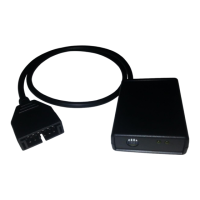
1320 Electronics LLC ALDL Bluetooth Adapter
User’s Guide
6. If it is desired to log the current data session, click the ‘Save Data (3.5” disk)’ button. The app status
will change to ‘Ready to log’. Logged data will be stored to the ‘ALDL’ directory on the Android device in
three files; analog data, malfunction code data, and raw data. The filenames will be the time at which
communication was started. The filenames will end with the extension of ‘.csv’.
7. Press the ‘Start/Stop(opposing arrows)’ button to begin communication over the ALDL connection.
The ‘Status’ should reflect ‘Communicating’ or ‘Logging Data’ in the Android app.
8. The communication can be stopped if necessary by pressing the ‘Start/Stop(opposing arrows)’
button again. Communication can be resumed by pressing the ‘Start/Stop(opposing arrows)’ button.
The ‘Status’ should reflect ‘Ready to Log’ or ‘Logging off’ in the Android app.
9. Pressing the ‘MALF Codes’ tab will make the malfunction code list visible. If a radio button is lit, the
malfunction code is ON.
10. Pressing the ‘Analog’ tab will make the analog data values reappear.
11. The user can ‘pinch and zoom’ with two finger gestures on the screen to change the font size.
12. Once complete, press the ‘Exit’ button to return to the main menu.


 To Next Page