5352
Vibrating Alarms
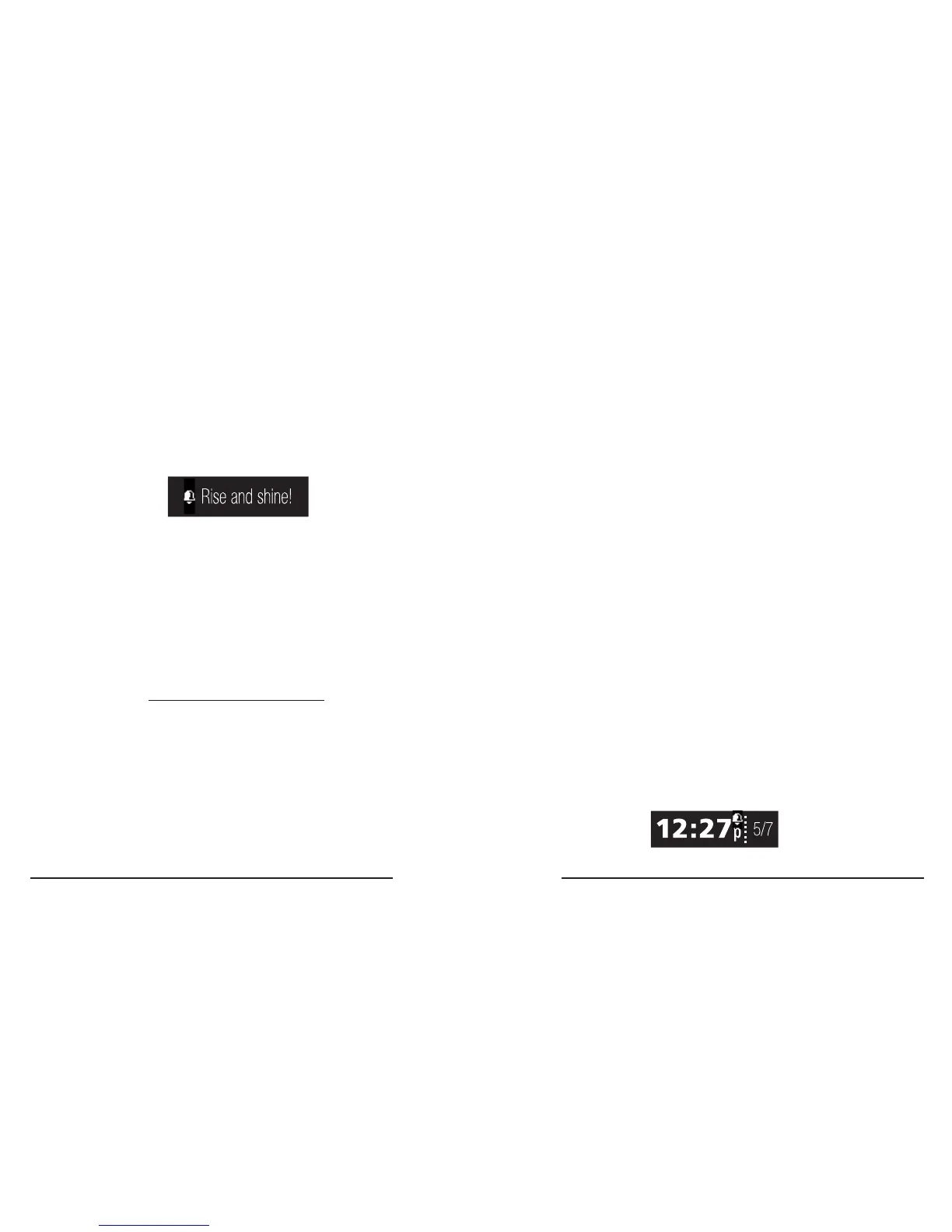
Set up to 10 vibrating alarms that display a
customized message on your tracker.
• Alarms vibrate for 15 seconds and then
snooze automatically.
• Alarms repeat 45 seconds after snoozing
and repeat a maximum of 6 times�
• Alarm can be set for specic days of the week.
How to add new alarms
1� Open 3Plus Activity Tracker app on your
smartphone or tablet�
2� On the app’s Home screen, touch the
Device tile to enter the Device Info screen�
(The Device tile features an image of the
3Plus Swipe C tracker.)
3� On the Device Info screen, scroll down the
list of options and touch‘Vibrating Alarm’�
4� On the Vibrating Alarm screen, press the
‘+’ to add a new alarm�
5� Set the time and day(s) of your new alarm�
6. To customize an alarm’s message, touch
the ‘name’ or ‘label’ of the alarm on the
Vibrating Alarm screen to edit the text
(15 characters max)�
7� Press ‘Save’ to save your new alarm�
8� Create more alarms if you wish
(10 alarms max)�
9� Press the sync button (represented by a
oppy disk icon) to sync the alarm(s)
from your 3Plus Activity Tracker app to
your 3Plus Swipe C tracker�
10� A bell icon will appear on the Clock screen
of your tracker once alarms have synced�



 To Next Page