+33 4 7642 9550 www.aaton.com Cantar-X User Manual v2.26 (r13) 2009 April 27
p.9
p.9
In TEST, PPR and REC, depending on the [SoloMixPan]
slider position, the [routing] button displays the input routing
templates called In-Grids or the active output routings called
Out-Maps.
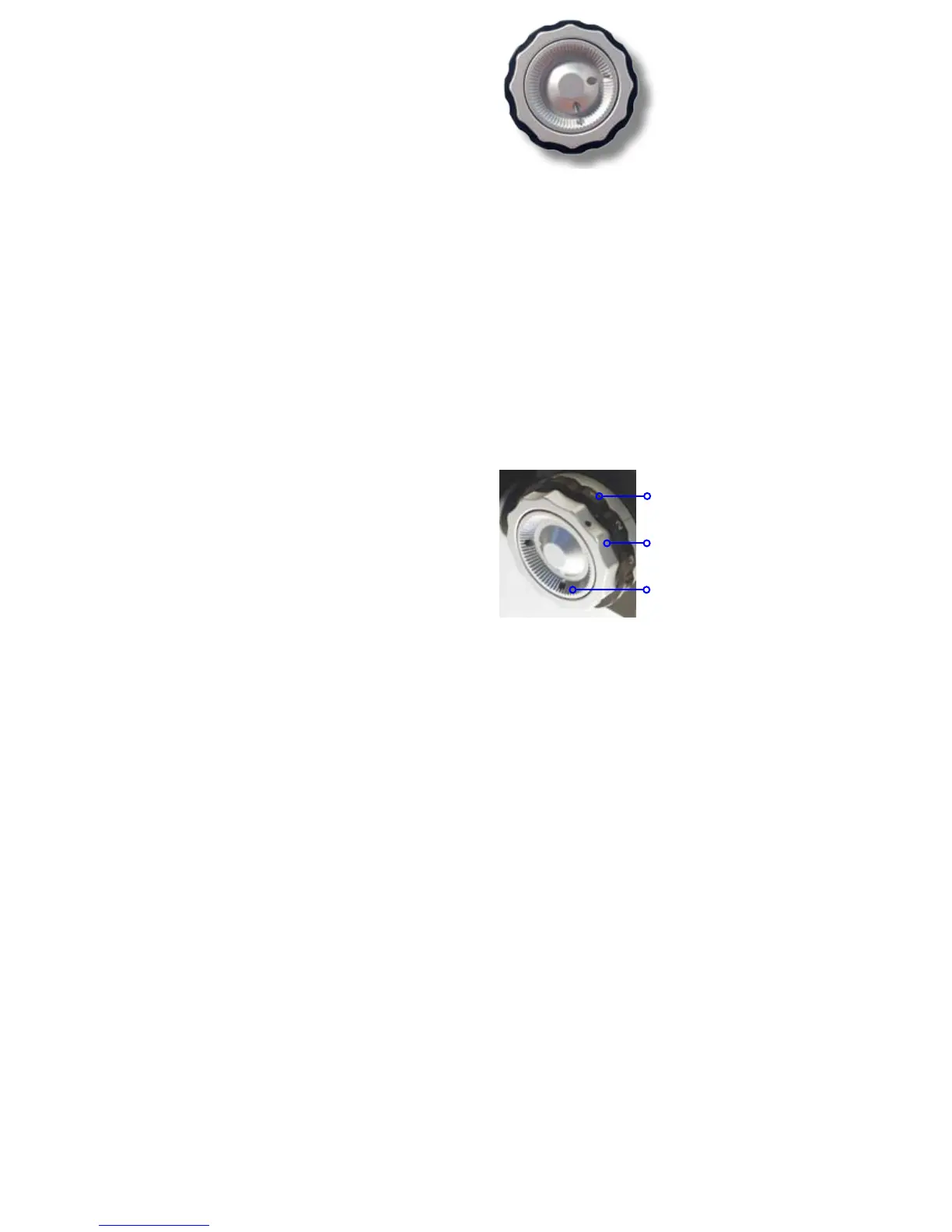
The large all weather triple crown is used to check and se-
lect the routings with only one hand.
note: to create routings, see p.27 to p.30.
Monitor Crown
1 So mic, line, digi-ins, active tracks and combinations of
the mixer outputs directly sent to the headphones as 'solos'.
2
Ph seventeen user configurable maps (A to Q) plus the
stereo mixer output to headphones.
3
Lo nine user configurable maps (R–Z) plus the stereo
mixer output to dual line-out (XLR 5).
4
Fb nine user configurable maps (R to Z) plus the stereo
mixer output to dual foldback out (mini XLR 3).
5
Do nine user configurable maps (R to Z) plus the stereo
mixer output to digi-out on AES7&8.
The headphones also receive the signal sent to the output
being selected/configured.
Config Crown
In-Grids
To check and select the In-Grids, PUSH the [SoloMixPan]
slider to the battery side and press or click-in/click-out the
[routing] button. The silver [config] crown gives sequential
access to fifteen In-Grids, the last in use is displayed first.
Out-Maps
To check the Out-Maps for each Ph, Lo, Fb and Do out-
puts, PULL the [SoloMixPan] slider to the operator's side, and
press or click-in/click out the [routing] button with the thumb
and rotate the black [monitor] crown.
To browse the Out-Maps and select another one, rotate the
silver [config] crown, the active map will be the one displayed
when closing the [routing] command.
note: selecting a different Out-Map while recording doesn't
affect the recorded signal.
Jog Crown
The [jog] is used: to move the cursor in the routing circular
screens; to edit scene, take and comments; to select high
pass filters; to adjust the backlight's intensity; to control the
pan-pots; and to scrub the player in fast forward/reverse.
Both the [jog] and [config] crowns increment time and operand
values while rotating clockwise.
note1: [shift] [jog] accelerates the speed 10x.
note2: the Operand's middle and bottom rows of the rect-
angular screen can be browsed by the [>] [<] arrows just
as easily as with the [jog].
DESCRIPTION 6. TRIPLE CROWN
config
jog
monitor



 To Next Page