13
Interface Overview
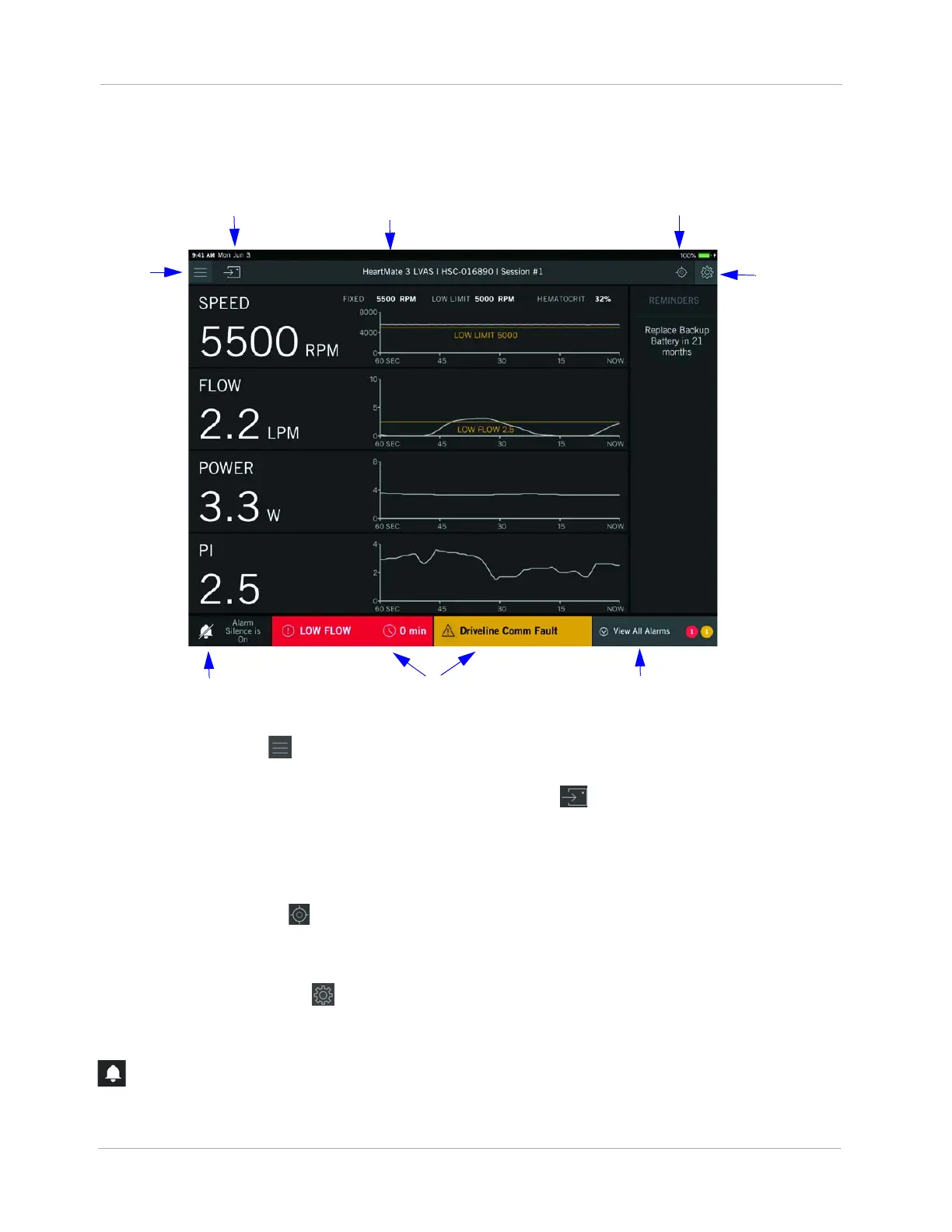
The regions discussed on this page are displayed in all views (Clinical, Monitor, Historical).
1 Menu. Tap Menu ( ). You can then choose from these views: Clinical, Monitor, Historical. You
can also disconnect the wireless communication.
2 Communication Icon. The flashing communication icon ( ) indicates active communication
between the System Controller and HeartMate Touch App. If the icon is not flashing or has
disappeared, restart the connection.
3 Connected Device Information. Displays the System Controller serial
number (HeartMate 3 only) and the current session name.
4 Locate. Tap Locate ( ) and the HeartMate Touch Wireless Adapter to which you are
connected will blink blue and white. This feature helps identify the device to which you are
connected.
5 Settings. Tap Settings ( ) to access the Pump, Controller, and Backup Battery settings and
information.
6 Alarm Silence. Displays the alarm silence status. You can also silence active alarms by tapping
Silence Alarms.
7 Alarm Status. Displays the top two priority active alarms.




 To Next Page