2-4 Chapter2
SL6
2-3. Installing System Memory
This motherboard provides three 168-pin DIMM sites for memory expansion. The DIMM
sockets support 8Mx64 (64MB), 16Mx64 (128MB), 32Mx64 and (256MB) DIMM
modules. Minimum memory size is 64MB and maximum memory size is 512MB SDRAM.
In order to create a memory array, certain rules must be followed. The following set of rules
allows for optimum configurations.
! The memory array is 64 or 72 bits wide. (depending on with or without parity)
! Those modules can be populated in any order.
! Supports single and double density DIMMS.
Table 2-1. Valid Memory Configurations
Bank Memory Module Total Memory
Bank 0, 1
(DIMM1)
8MB, 16MB, 32MB,
64MB, 128MB
8MB ~ 512MB
Bank 2, 3
(DIMM2)
8MB, 16MB, 32MB,
64MB, 128MB
8MB ~ 512MB
Bank 4, 5
(DIMM3)
8MB, 16MB, 32MB,
64MB, 128MB
8MB ~ 512MB
Total System Memory
8MB ~ 512MB
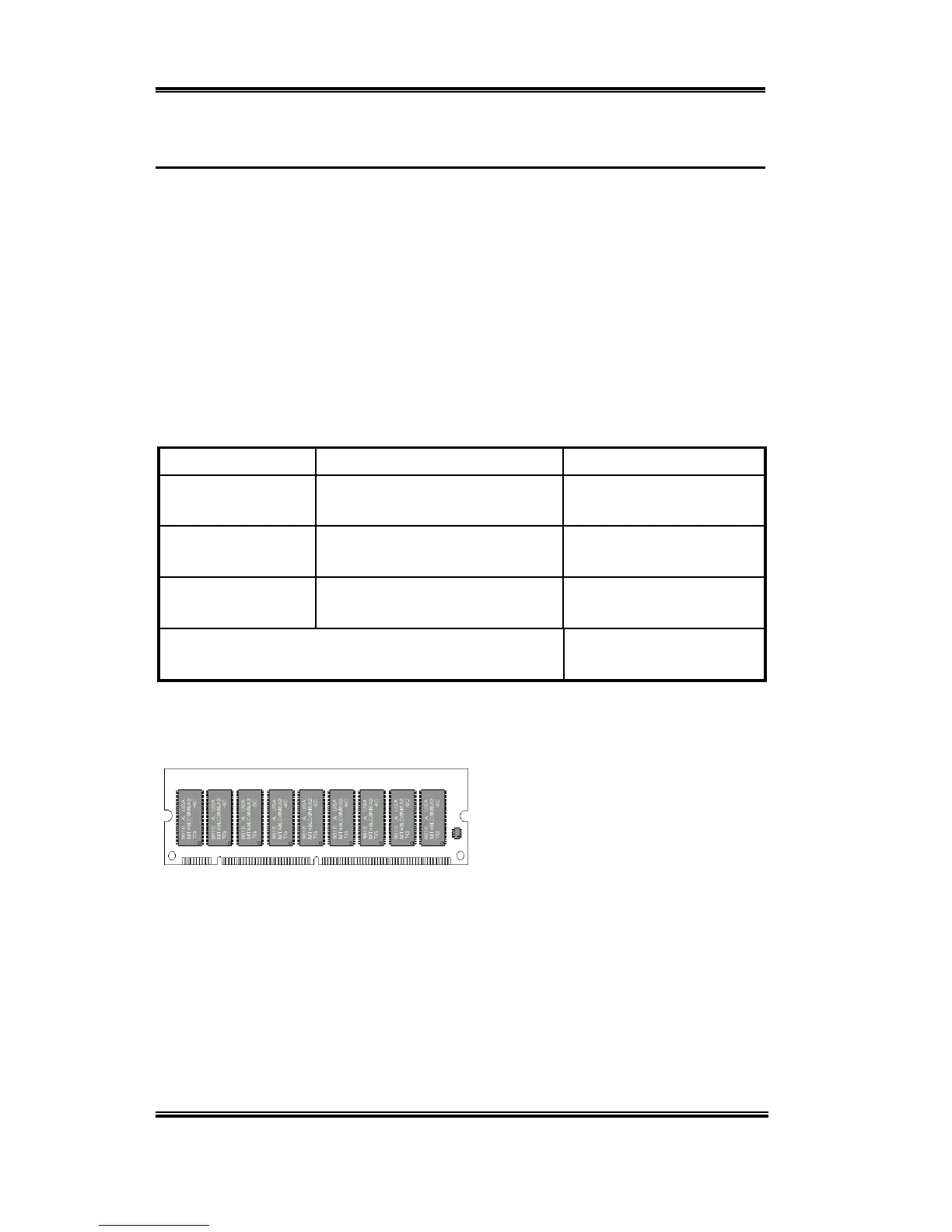
Generally, installing SDRAM modules to your motherboard is an easy thing to do. You can
refer to figure 2-3 to see what a 168-pin PC100 & PC133 SDRAM module looks like.
DIMMs may be "snapped" directly into
the socket. Note: Certain DIMM sockets
have minor physical differences. If your
module doesn't seem to fit, please do not
force it into the socket as you may
damaged your memory module or
DIMM socket.
The following procedure will show you how to install a DIMM module into a DIMM socket.
Step 1. Before you install the memory module, please place the computer power switch in
the off position and disconnect the AC power cord.
Step 2. Remove the computer’s chassis cover.
Figure 2-3 PC100/PC133/VCM Module and
Component Mark


 To Next Page