4.3 Control options and operation
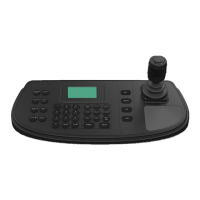
4.3.1 Keyboard
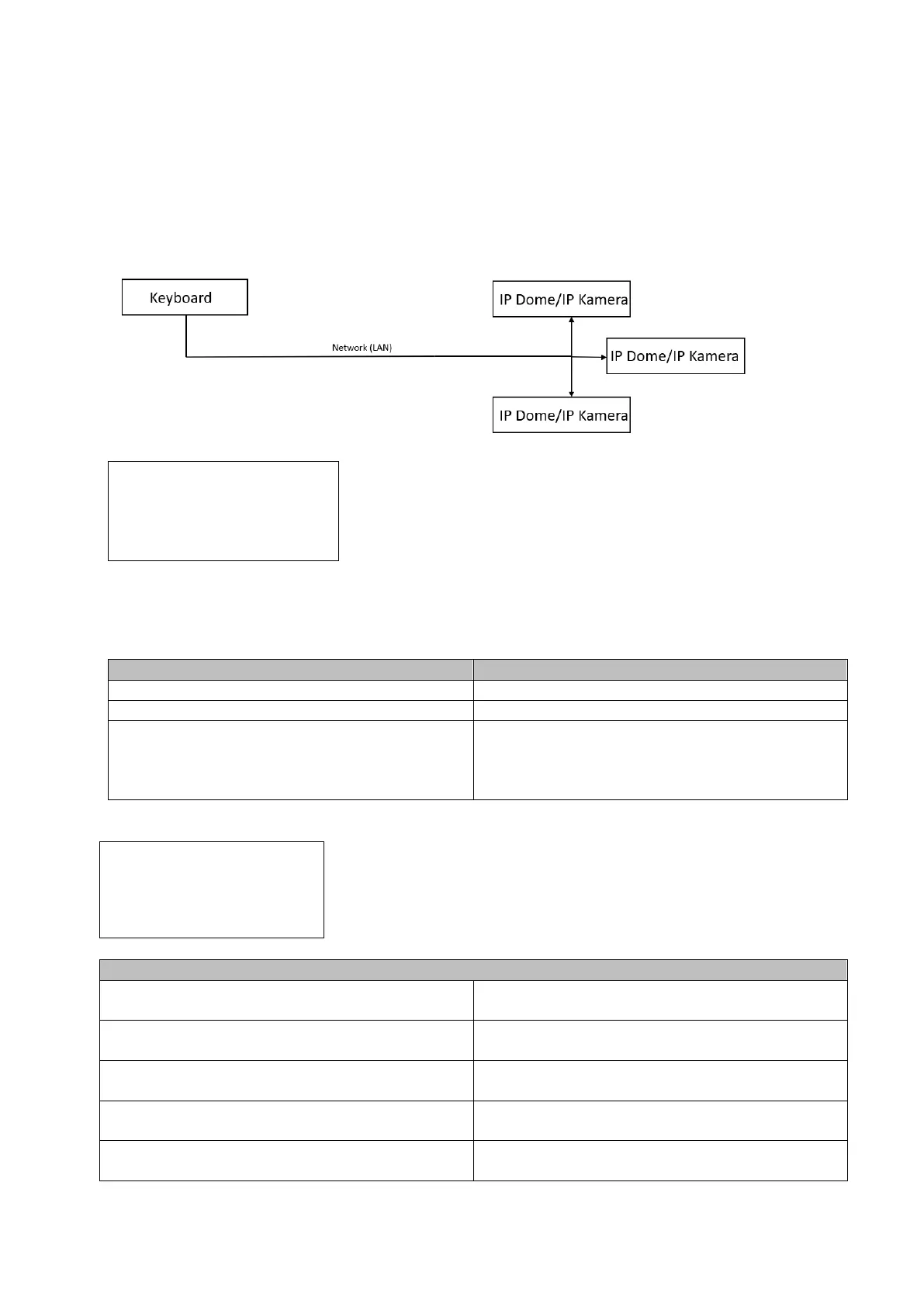
Connect the control panel via network to an IP camera/IP dome.
DEV: 0 WALL: 1
MON: 0 [ ]
CAM: 0
Example: 1: Add a camera via web interface
2: Go to the "Keyboard" menu on the control panel
3: Enter the ID of the added one on the control panel and then click CAM
Here you must enter the assigned ID of the
camera. This ID is assigned automatically and
can be read out in the web interface of the
keyboard.
Here an IP Dome with the ID 1 was added
Control layout PTZ dome / camera
Call up your previously set presets by pressing
a number and then the Preset button
Recall your previously set Patrol by pressing a
number and then the Patrol button
You can use the zoom by turning the joystick
or with the Zoom+/Zoom- buttons
You can adjust the focus using the
Focus+/Focus- buttons
Switch quickly between cameras
You can switch between the input channels
with the PREV/NEXT buttons


 To Next Page