Accent 1400 Hardware Manual for Dedicated Devices Page 33
Using the Cameras
The front and rear cameras allow you to take pictures to use as icons and visual scenes. These icons and
scenes help personalize an individual’s communication. For example, a picture of the individual’s mom
could be used as an icon on a “Mom” key. This would help the individual specify his or her mom, as
distinguished from moms in general. To learn how to change or create an icon or visual scene, refer to the
NuVoice Software Manual.
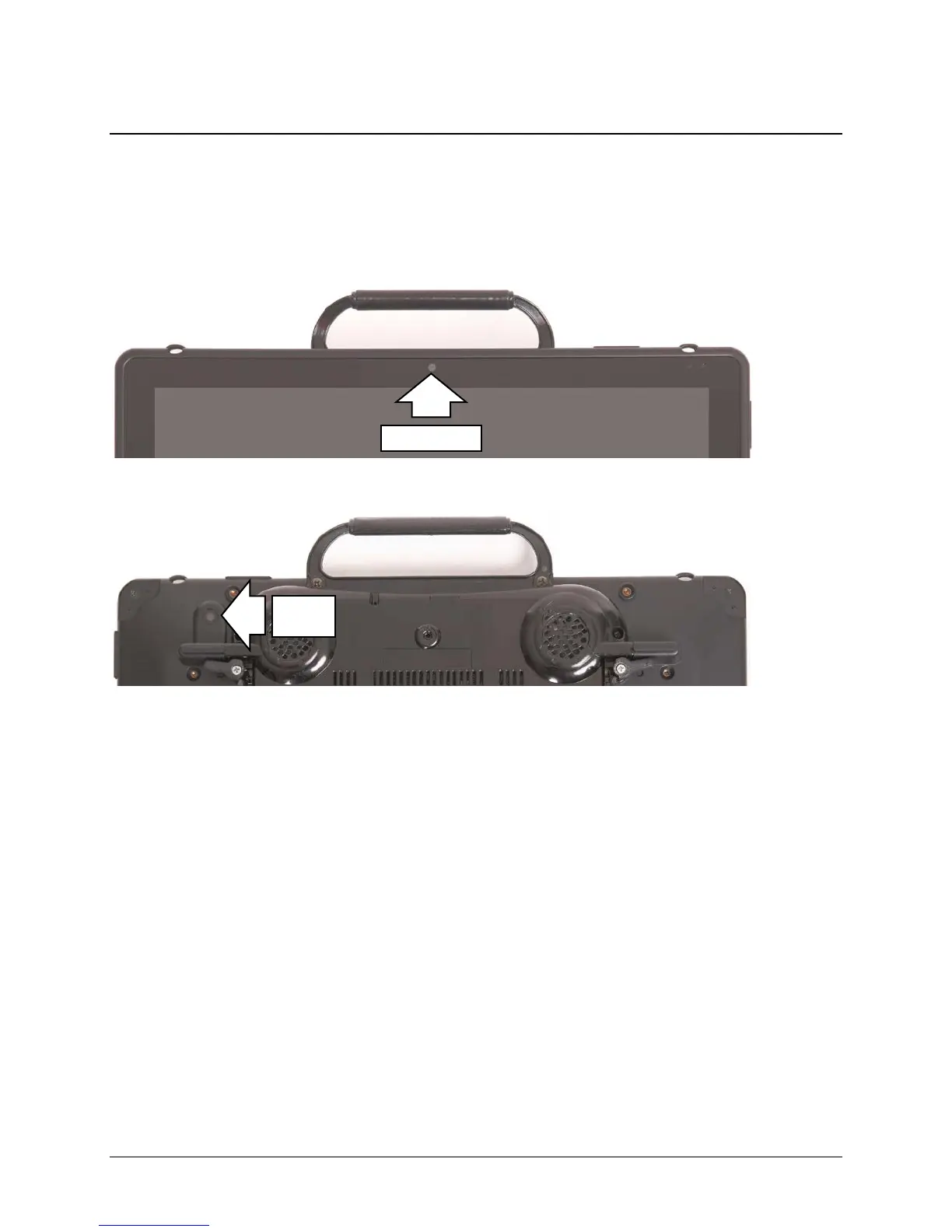
The front camera is located in the center of the device at the top of the display.
The rear camera is located on the upper left side on the back of the device.
The NuVoice Toolbox contains a Camera Menu. Your vocabulary may also have a camera page or
camera activity that contains the Camera Menu. The Camera Menu provides an option to zoom in or
pan in any direction.
Hold a photograph 6-8 inches away from the lens and take a picture of the photo and use it as an icon or
visual scene.
To switch between the front and rear cameras, select the Change Camera icon in the lower left corner
of the Camera toolbar.
To Use the Cameras in NuVoice
1. Select the Tools key to the right of the text display area.
2. Open the Toolbox.
3. Select Camera Menu.
4. To switch between the front and rear cameras, select Choose Camera.
5. Select Front Camera or Rear Camera.
Camera


 To Next Page