50
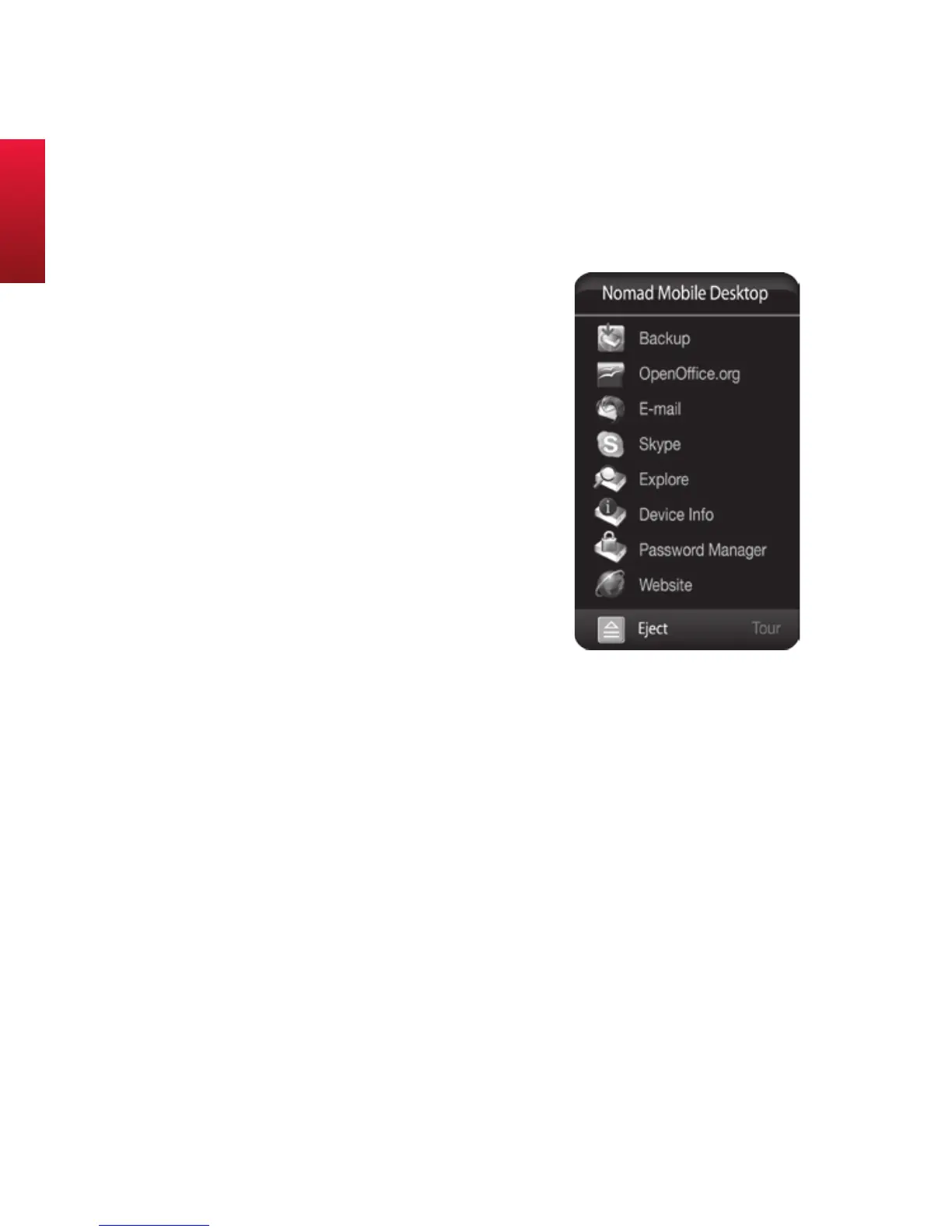
Viewing the Mobile Desktop
If Nomad was activated, the Mobile
Desktop will appear on screen
whenever the Drive mounts to your
system. It will disappear if you click
on another part of the screen or after
a period of inactivity.
To view the Nomad Mobile Desktop
at any time, click on the Nomad icon
in the Taskbar.
Take the Tour!
Click 'Tour' on the Nomad Mobile Desktop to view a short pre-
sentation that will quickly explains Nomad's features.
Setting applications to auto-launch
You can set the main applications on the Mobile Desktop to
auto-launch whenever you connect your HybridDrive to a PC.
For example, let's say the first thing you do after you mount
your Drive is check your e-mail. Rather than manually launch-
ing Thunderbird every time, Thunderbird can be set to launch
automatically when the Drive mounts.
Using Nomad


 To Next Page