13
ActronAir
®
is constantly seeking ways to improve the design of it’s products, therefore specications are subject to change without notice. Please check prior to purchase.
Copyright © 2016 Actron Engineering Pty. Ltd.
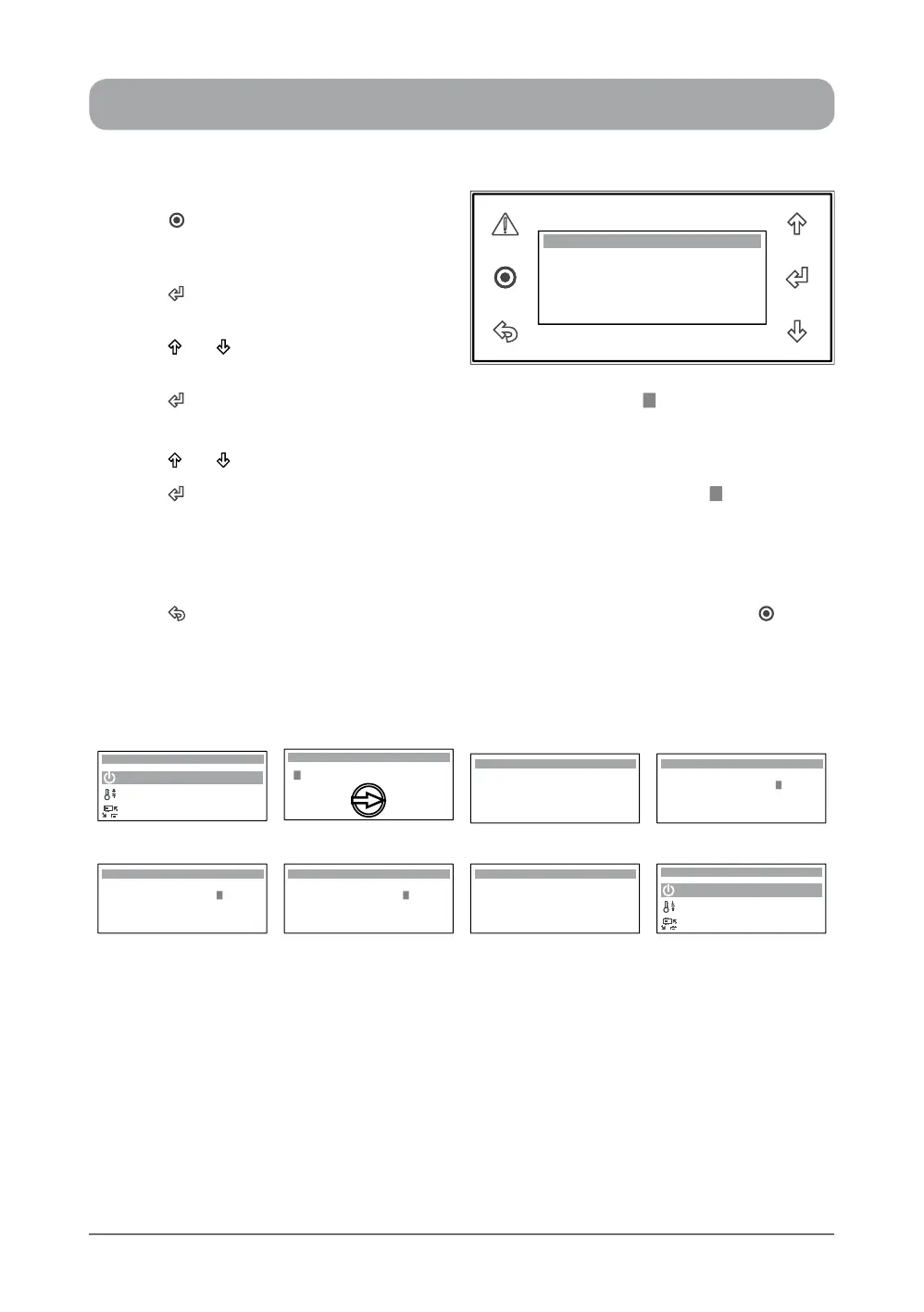
1. Press “ ” Button to get into the Main
Menu. Display will show Main Menu and
highlighted Sub-Menu A. On / Off Unit.
2. Press “ ” Button to enter Sub-Menu A. On
/ Off Unit.
3. Press “ ” or “ ” Button to get into the
Display Backlight sub-level menu.
4. Press “ ” Button to select the Display Backlight page and the cursor “ ” will appear on the rst
letter of the current display backlight setting.
5. Press “ ” or “ ” Button to select the backlight setting from either "AUTO", "ON" or "OFF".
6. Press “ ” Button to lock-in the selected display backlight setting and the cursor “ ” will
disappear. The backlight will imediately Turn ON / OFF, depending on the selected mode.
NOTES: On AUTO mode, the Backlight will Turn Off in 5 minutes after the last button is pressed.
Backlight will instantly Turn ON / OFF when either of the mode is selected.
TO RETURN TO THE MAIN MENU
7. Press “ ” (Escape / Return) Button twice to return to the Main Menu. Otherwise press “ ”
Button.
Display Backlight : AUTO
On / Off Unit 02
BACKLIGHT
Display Progression
A. On / Off Unit
B. Setpoint
Main Menu 1/8
C. Mode of Operation
On / Off Unit
ON OFF
FAN ONLY
On / Off Unit 02
Display Backlight : AUTO
On / Off Unit 02
Display Backlight : AUTO
Step 1 Step 2 Step 3 Step 4
On / Off Unit 02
Display Backlight : ON
On / Off Unit 02
Display Backlight : OFF
On / Off Unit 02
Display Backlight : ON
A. On / Off Unit
B. Setpoint
Main Menu 1/8
C. Mode of Operation
Step 5 Step 6 Step 7


 To Next Page