CHAPTER 10: Working with Preflight Custom Rules 146
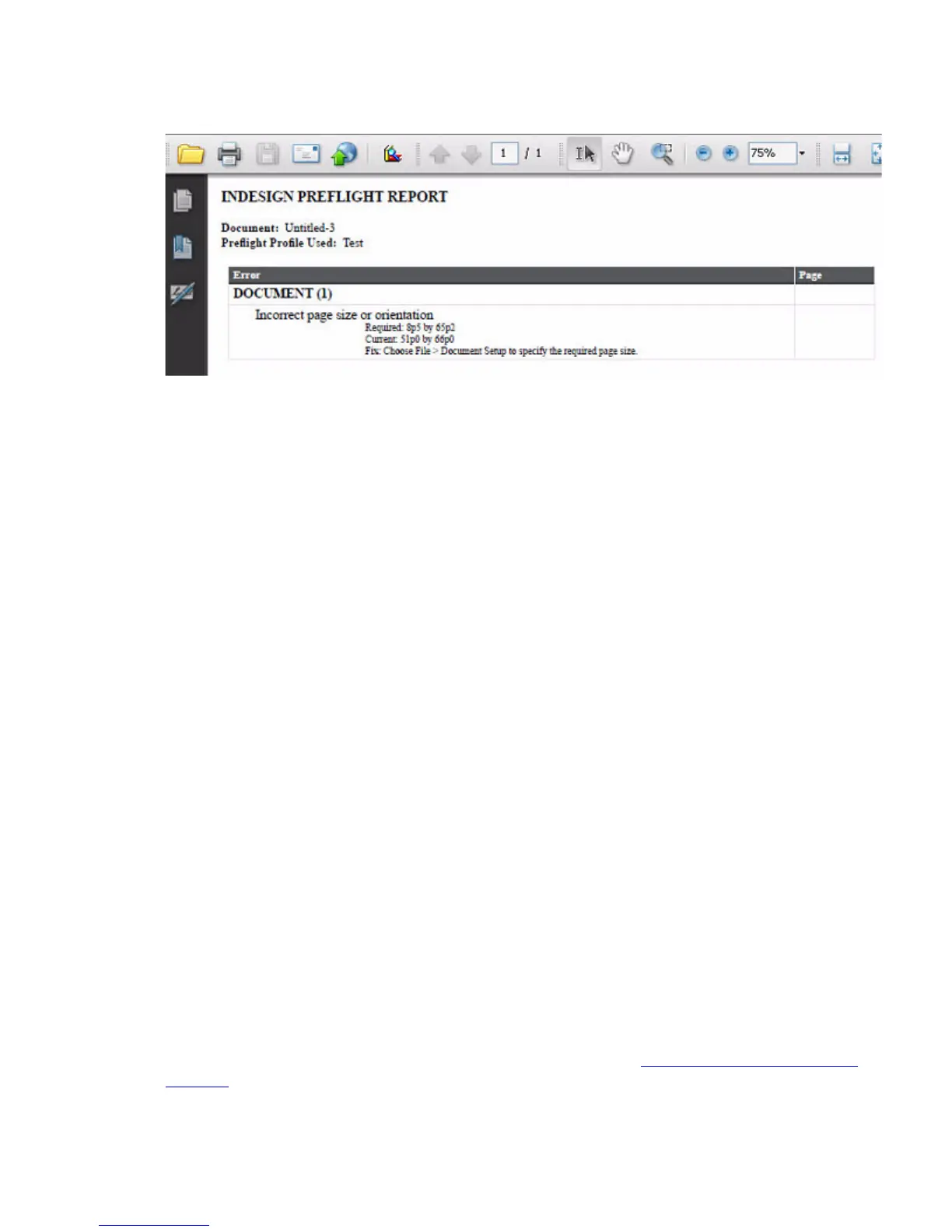
If you would rather produce a text file, simply name your output file with a .txt extension.
Alternately, you may prefer to iterate the errors yourself. The following demonstrates how to access the
errors array. For the complete script, see ProcessPreflightProfileShowErrors.
//If errors were found
if (myResults != "None")
{
// array containing detailed results
var errors = myProcess.aggregatedResults
// Show the errors in a message box.
var str = "Document: " + errors[0] + ", Profile: " + errors[1] + ", Results: ["
var errorResults = errors[2]
for (var i = 0; i < errorResults.length; i++)
{
if (i > 1)
{
str += ", "
}
str += errorResults[i][1]
}
str = str + "]"
alert(str)
}
Custom Rules
It is not possible to create custom rules through the Preflight panel or scripting; however, this can be done
through a C++ plug-in. The InDesign Products SDK contains a sample, PreflightRule, that demonstrates
how to add custom rules with a plug-in.
Available Rules
One of the hardest aspects of scripting rules is discovering rule names and properties. Due to the dynamic
nature of rules (they really are just strings), specific rule names and properties do not appear in the Extend
Script Tool Kit’s Object Model Viewer. To discover this information, see “Exploring Preflight Profiles” on
page 140. For your convenience, the DumpPreflightRules.jsx script is provided in the SDK to produce
the following output as an HTML file (SDK\docs\references\PreflightRules.html). If you use a plug-in that
adds custom rules, you can run the script to extract the new names and properties.



 To Next Page