Version 15.0 AF-5000 Series Pilot Guide 100
Direct-To
Proceeding Direct-To an intermediate waypoint: Use the cursor to highlight the waypoint to proceed to, press
the [DIRECT] button. The EFIS will then sequence to the selected waypoint.
Fly-Leg
The Fly-Leg features is used to fly a leg between two intermediate waypoints. For example, a flight plan has
A, B, C, and D intersections before the destination and the pilots wants to skip A and fly the leg between B
and C (an airway). Use the cursor to highlight the second of the two legs and press [FLY LEG].
Suspending a Flight Plan
The [SUSPEND] button will freeze the current flight plan and cause the HDG and ALT bugs to sync to the
current heading and altitude. It will also change the AP/FD mode to LAT: HDG | VER: ALT, meaning the
autopilot will take-over and maintain the current heading and altitude. This is useful when ATC gives an
amended clearance and time is needed to modify the flight plan.
Vertical Navigation using the internal Flight Plan
Using the internal flight plan, the EFIS can descend to preset altitudes at each waypoint. For example, if the
aircraft is at 10,000ft (set by the ALT BUG), a user can program 8,000ft for the first waypoint, 6,000ft for the
second waypoint, 3,000ft for the third waypoint..etc. To enter a crossing altitude, edit a waypoint and enter a
distance from the waypoint to cross at and an altitude. Perform this procedure for all waypoints a crossing
altitude is desired and press [ACTIVATE].
Note: If no crossing altitudes are entered, the EFIS will follow the ALT bug.
Rubber Band Edit of Internal Flight Plan
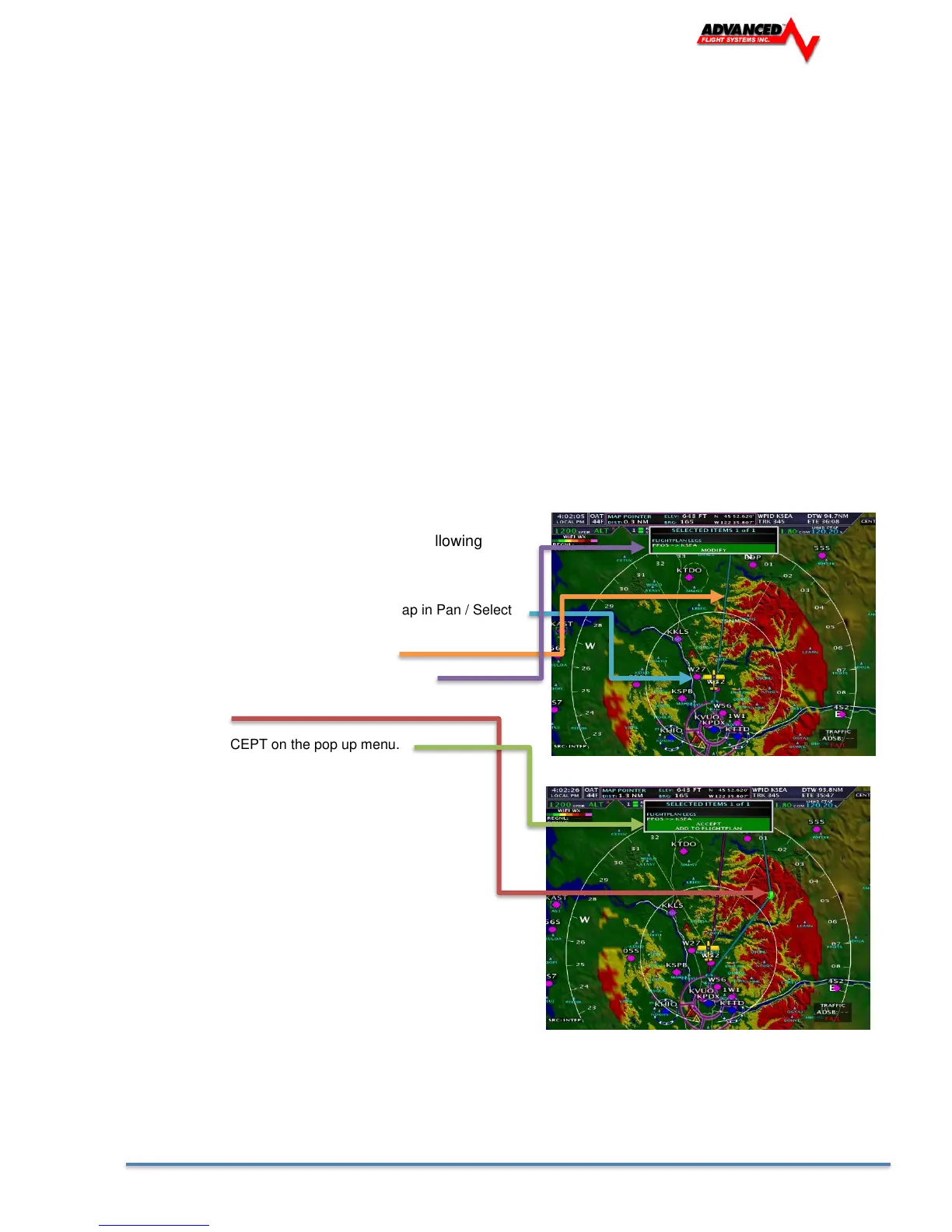
You can edit the internal flight plan using the following
procedure:
1. Touch the Airplane ICON to put the Map in Pan / Select
Mode
2. Touch the Flight Plan leg to edit.
3. Touch MODIFY from the pop up menu
4. Move the green pointer to the new edit point on the touch
screen.
5. Touch ACCEPT on the pop up menu.


 To Next Page