28
Aermec cod. INRLLSIY 13_01. 4086991_00
NRL 800 - 1800
GB
User Interface (PGD1)
The unit control panel allow the quick se ng and
display of the unit’s opera ng parameters. The board
memorises all the default se ngs and any modifi ca-
ons. By installing the remote control panel PGD1 it is
possible to remotely replicate all the func ons and the
se ngs available on the unit. A er a power failure the
unit is capable of an automa c restart, retaining the
original se ngs.
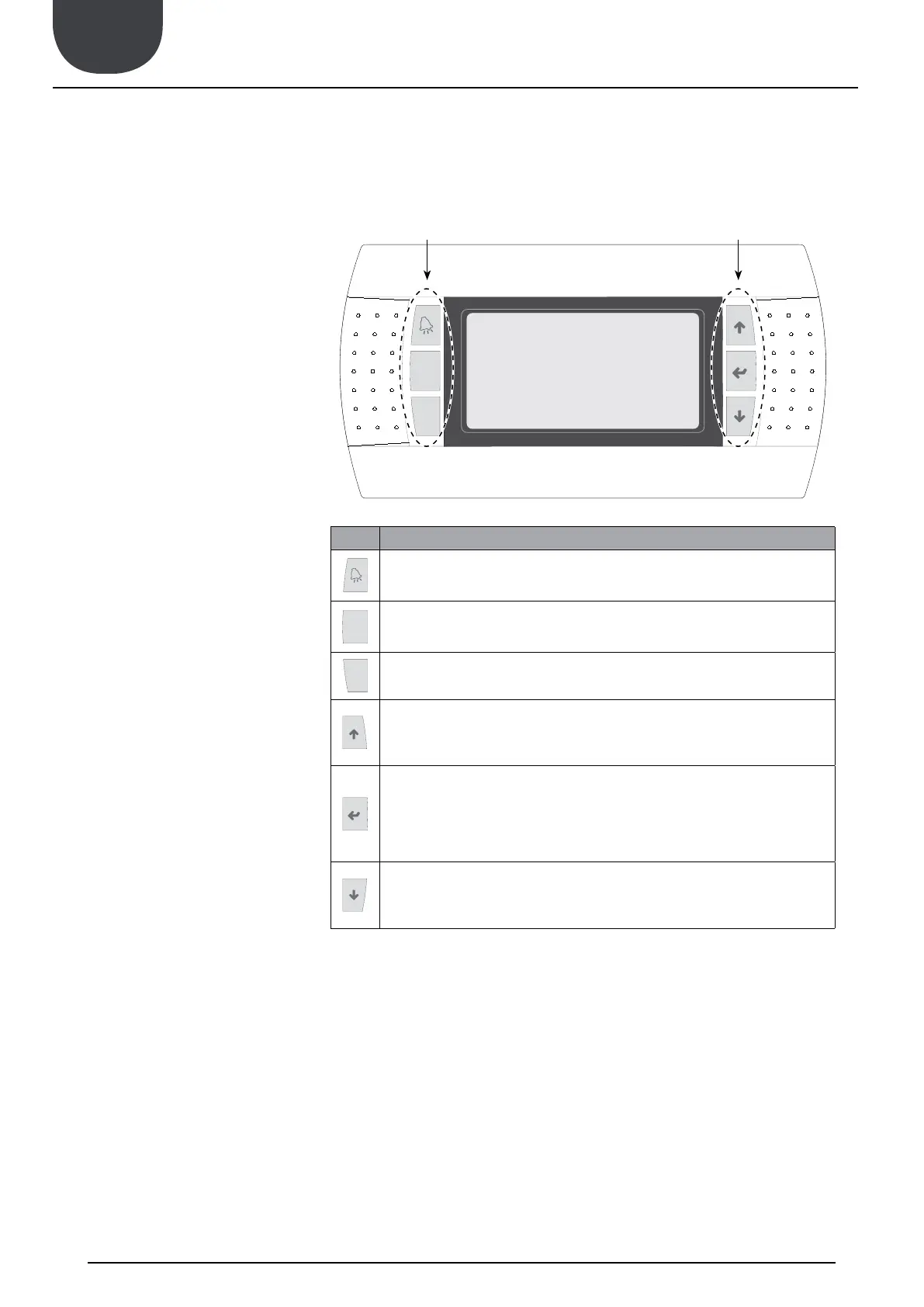
The user interface consists of a graphic display with
six naviga on keys; the display is arranged through a
menu hierarchy, ac vated by pressing the naviga on
keys. The default display of these menus is the main
screen. The naviga on between the various parame-
ters is by using the arrow keys located to the right of
the display. These keys are also used for the modifi ca-
on of the selected parameter.
Key Fucntion
ALARM key
Displays the list of active and historical alarms
(red LED on = active alarm)
MENU ACTIVATION key
• Pressing this key activates the navigation between menus
(orange LED on = winter operating mode active)
EXIT MENU key
• Pressing this key returns to the previous menu
NAVIGATION (+) key
• Pressing this key when modifying a parameter increases the value of the selected parameter
NAVIGATION (enter) key
• Pressing this key when navigating between menus allows entry to the selected menu
• Pressing this key when navigating between parameters allows selection of the parameter
displayed to modify it
• Pressing the key when modifying a parameter confirms the modification of the parameter value
selected
NAVIGATION (-) key
parameter
• Pressing this key when modifying a parameter decreases the value of the selected parameter
Control Keys
INTERFACE CONTROL KEYS
Control Keys
13. USER INTERFACE (PGD1)


 To Next Page