Chapter 3: Configuring Buttons on your PC (SnapScan e50) 28
10
Click Close.
You return to the Configure Buttons window.
11
Select My Scan Image to File (autoselect) from the drop-down list next to the e-mail button.
12
Click OK.
Pushing the e-mail button will send the scanned image to a file instead of to your mail
recipient.
# Note: For low quality originals (originals that are too bright or too dark), we advice you to
select the PhotoGenie checkbox, which will enhance the colors.
Creating a New Configuration (SnapScan e50)
It is possible to create a new configuration and assign it to one of the four buttons of your SnapScan
e50. The following example will show you how this is done.
In this example we will create a new configuration and assign it to the e-mail button.
1
Open the Agfa ScanWise software.
2
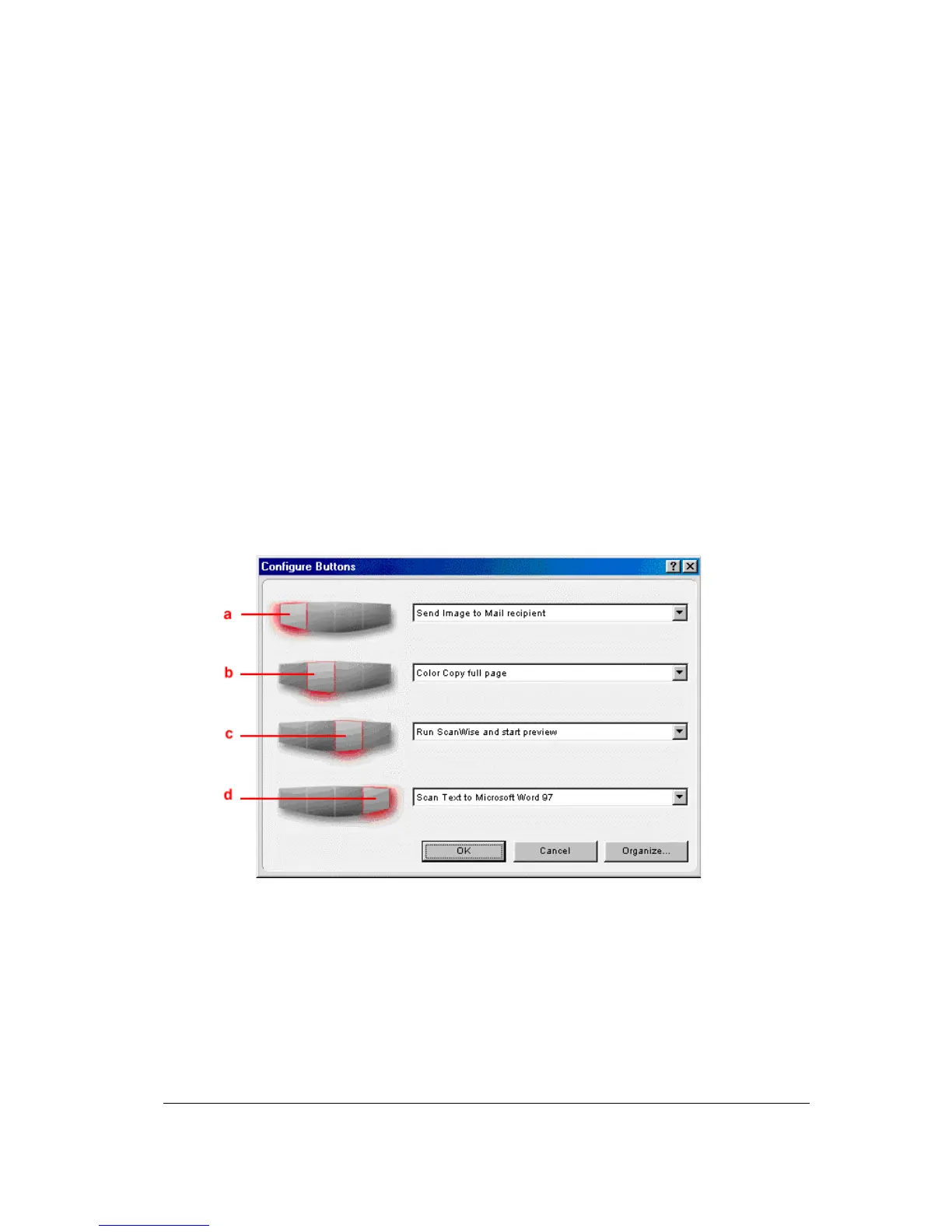
Select Configure Buttons from the Tools menu.
The Configure Buttons window appears.
a. e-mail button
b. print button
c. ScanWise button
d. OCR button



 To Next Page