Chapter 4: Installing the Scanner for Macintosh 35
3
Click the up or down arrow to select your type of scanner (if needed).
4
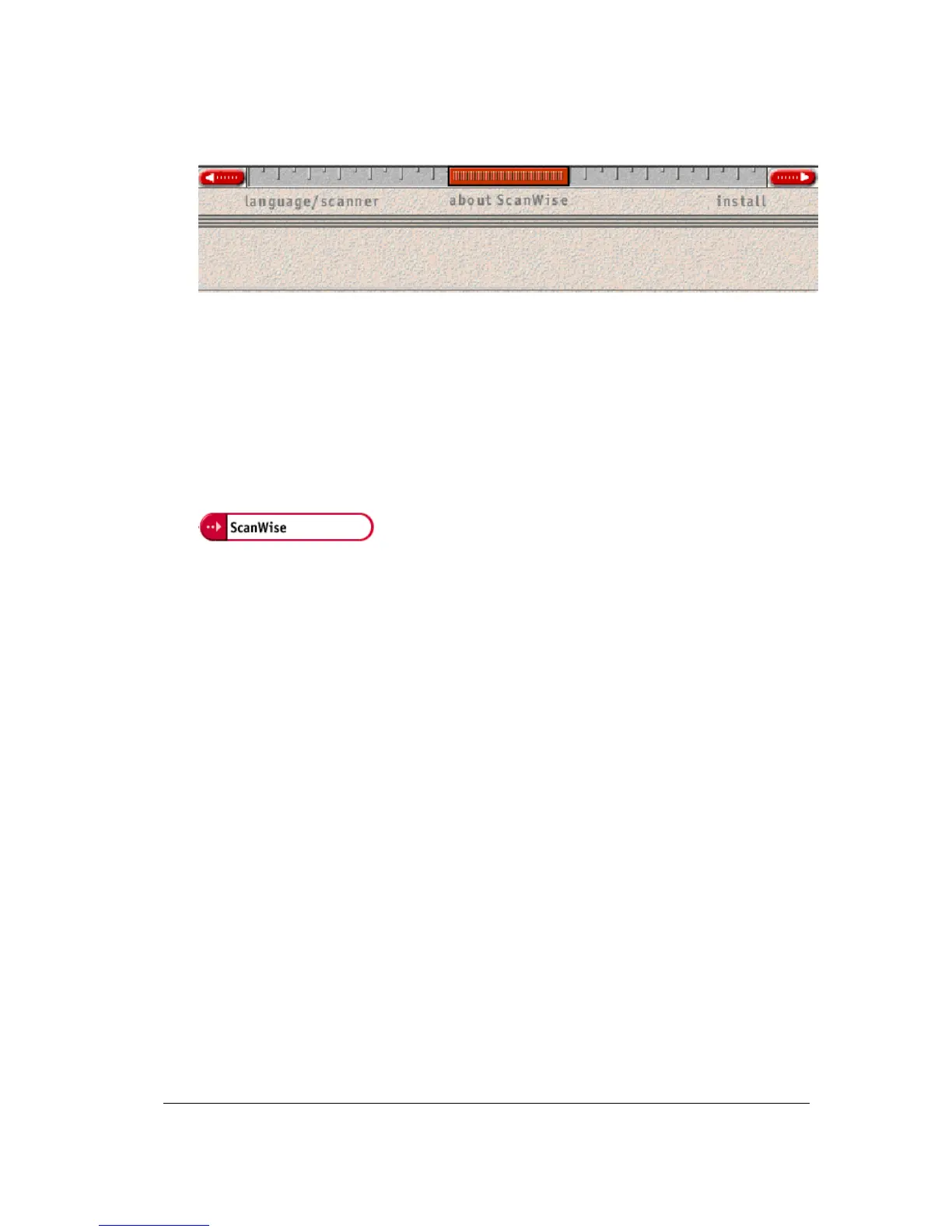
Click the dotted right arrow or move the slider to about ScanWise.
A demonstration of ScanWise will start.
5
Click the dotted right arrow or move the handle to Install.
6
Click Acrobat Reader to start the installation.
You need Acrobat Reader to read the documentation.
7
Follow the instructions on your screen.
When Acrobat Reader is installed you will be asked to restart your computer.
8
Click ScanWise to start the installation.
9
Follow the instructions on your screen.
# Note: After installation the Register ScanWise window appears.
$
Register now: If you choose to register now, the Agfa webpage opens. Here you can
register on line.
$
Register later: If you choose to register later, you can register afterwards by double-
clicking the ‘Product Registration’ icon in the ScanWise folder.
By registering on line, you will create your personal e-Service account and you will enjoy the
following benefits:
1. Customized self-help tools:
You have access to the following self-help tools which are customized according to your e-
service account profile:
1.
Software downloads
2.
Technical knowledge database (FAQ)
3.
On line manuals and documentation
4.
Access to third-party software support sites
2. Personalized one-to-one technical support:
Agfa assists you on line if you have additional questions about technical issues.
3. Automatic e-mail notification:
Agfa notifies you immediately when new software and upgrades are available for downloading.
# Note: For support issues, go to http://support.agfa.com.



 To Next Page