Chapter 7: Using the Transparency Module (SnapScan e50) 51
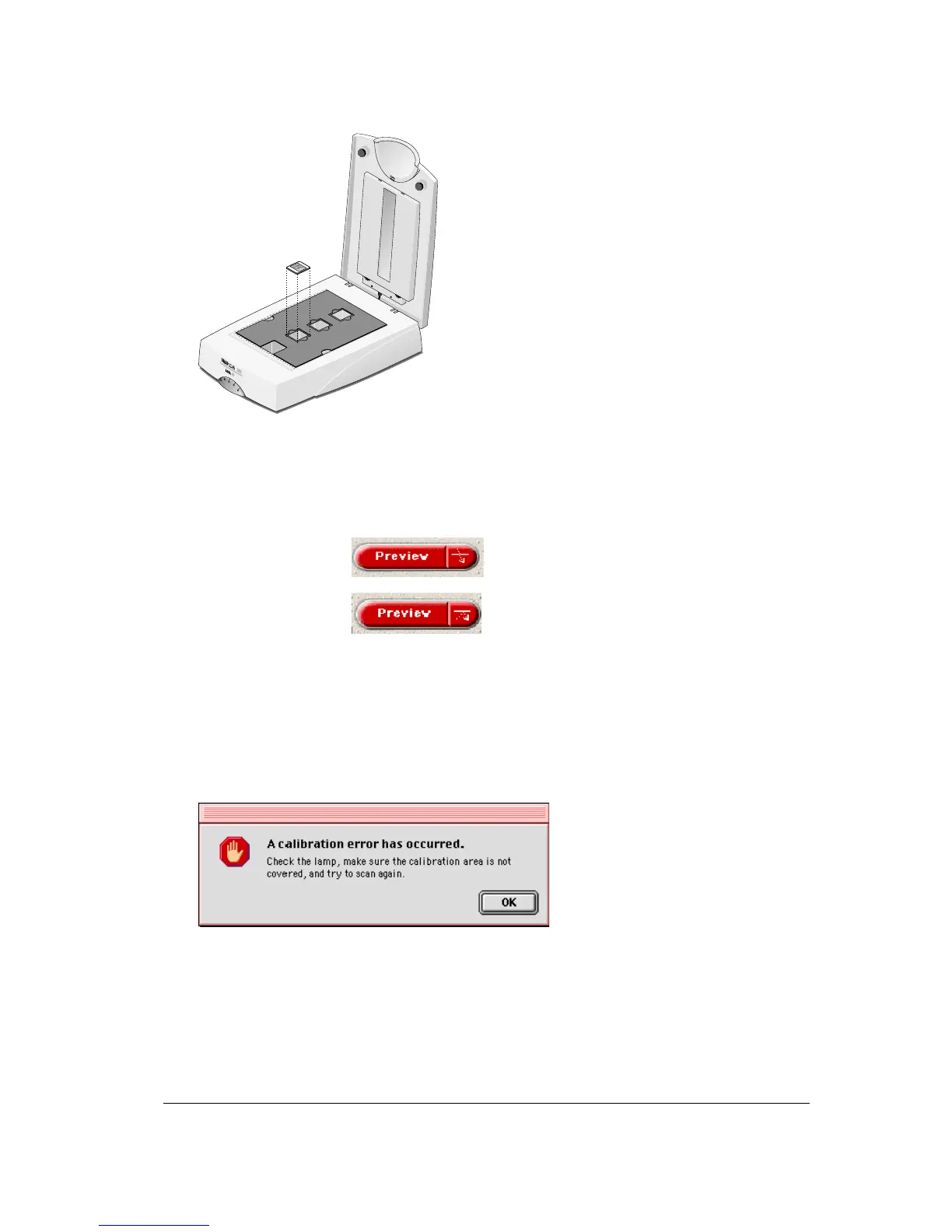
2 Position the original slide in the holder.
4
Close the document cover.
5
Click the ScanWise icon on your desktop.
The Agfa ScanWise window opens.
6
Click the arrow on the Preview button to switch between transparencies and reflectives.
Transparent scanning:
Reflective scanning:
7
In case ScanWise has not automatically recognized the original, select the correct original
from the list.
8
Click the Scan button.
The negatives, transparencies or slides will be scanned.
!
Note: Make sure the calibration area of the slide holder is NEVER covered. If the
calibration area is covered, the following message will appear:
!
Note: If you are working on a PC, a similar message for PC will be displayed.



 To Next Page