11. Lock up the curr ent image
Click “
” (or the shortcut key “E”) to lock up the current image, which would make it
impossible to adjust the image. Click the image again to cancel the lockup.
12.
more than 25
fram cond, so the video looks continuous and smooth. And this function adapt well to the
mbly.
AOI function
AOI provides the user with a function of high-speed, regional and consecutive video display
in real time. Users can select a region, to display it at high speed which reaches
es per se
sectors like processing and asse
Firstly, the user should click the button “
” in the Toolbar (or the shortcut ”) and
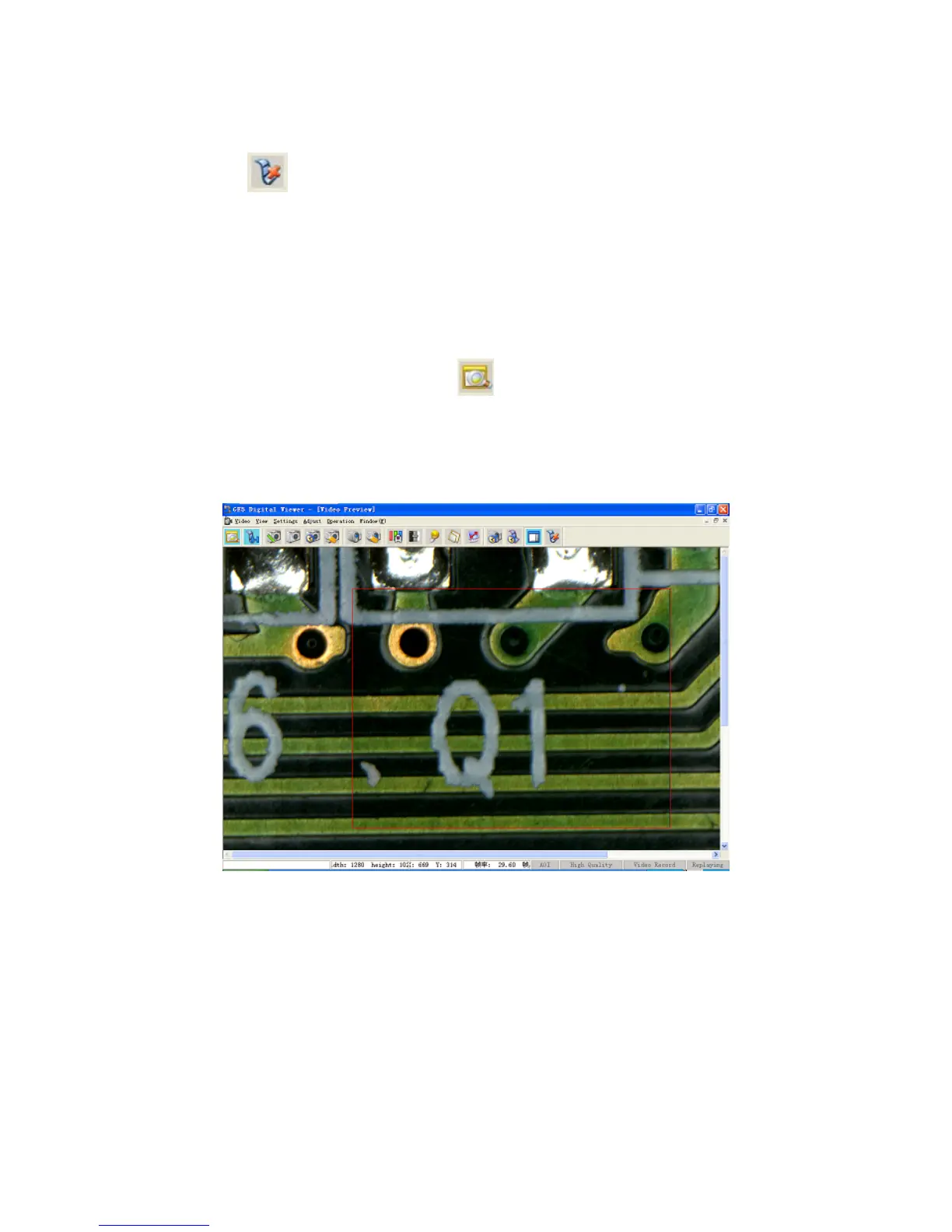
the mode of AOI; then the user should click the mouse in left at the parts of im hich it
is interested in; thus the region (within the red box) would be shifted to be the mode of high-speed
display with smooth and undisrupted images, and the rest of the image would be shifted to be
static display. See the following image:
key “A
enter ages w
The user could change the regions of high-ratio display at any time. When the user click the
ged b
Since some parts of the image are changed to be static display under the mode of AOI, image
ke shape in case of any move of lens or object. Just click the mouse in right at
the static parts in the image, and such displacement could be rectified. See the following image:
mouse in left at any new part of the image which it is interested in, this new area would be
displayed at more than 25fps and the original region would be chan ack to the status of static
display.
displacement may ta
20


 To Next Page