13
Edit: Change the name of a schedule.
Delete: Deletes an existing schedule (Not available for preset schedules).
Copy: You can copy a schedule to apply it in any other zone.
Remote zone icons
Exit zone. It closes the
zone and returns to the
main zone.
It returns to the list of
zones.
ZONE NAVIGATION
After pressing on the name of the zone, a list with all the zones will be displayed.
Each zone's status will be displayed. It is also possible to switch On/O the zones
from this screen.
After pressing on the zone name, all the parameters will be displayed to check
and/or modify them.
The “All zones” option will broadcast the changes to all the zones.
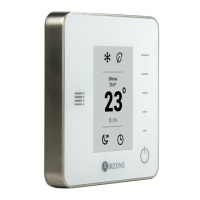
Edit names
Press and hold on the name
of the zone to access the
name editor. Then, change
the name.
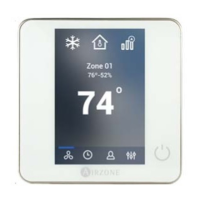
On/O.
Temperature control.
Local ventilation. Activation or deactivation.
Time schedules: create a time schedule or activate/deactivate an existing
one.
User settings.
Zone settings.
72º
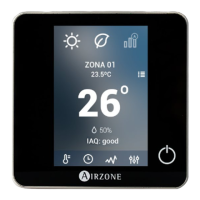
These settings control and edit all the basic functionalities. Touch once to display
the shortcuts. Press on each icon to access the parameters.
Language: Select your language.
Units: Select Celsius or Fahrenheit (by default) degrees.
Date and time: Press on the clock to set the time, the format type (12 or
24 hours) and enable daylight saving time. Press on the calendar to set the
date.
Brightness: Adjust the brightness, and enable or disable screen brightness
when the screen saver is active.
USER SETTINGS
º
U
To congure the schedule, press the desired schedule to access the edit setting
and then press the parameters to modify. Press and hold on any schedule, to see
all the available settings:
Keep in mind: If a wireless
zone is renamed, the name
will be displayed in the
wireless thermostat after 5
minutes of inactivity or after
the rst touch, whichever
occurs rst.


 To Next Page