9
SCREENSAVER
Zone Demand. This icon will be displayed if the zone is actively cooling or
heating the space.
Local Ventilation. This option allows activation or deactivation of the fan mode
in the selected zone when the system is no longer actively cooling or heating
the zones.
Time Schedule Programming. In this menu, you can program your system and
activate/deactivate time schedules.
User Settings. From this parameter you can control several functions such as
the language, the screen brightness, etc.
Zone Settings:
To change Local
Ventilation Value
- Press icon to change
To access Home Screen
With just one touch, the
thermostat goes from the
screensaver to home screen.
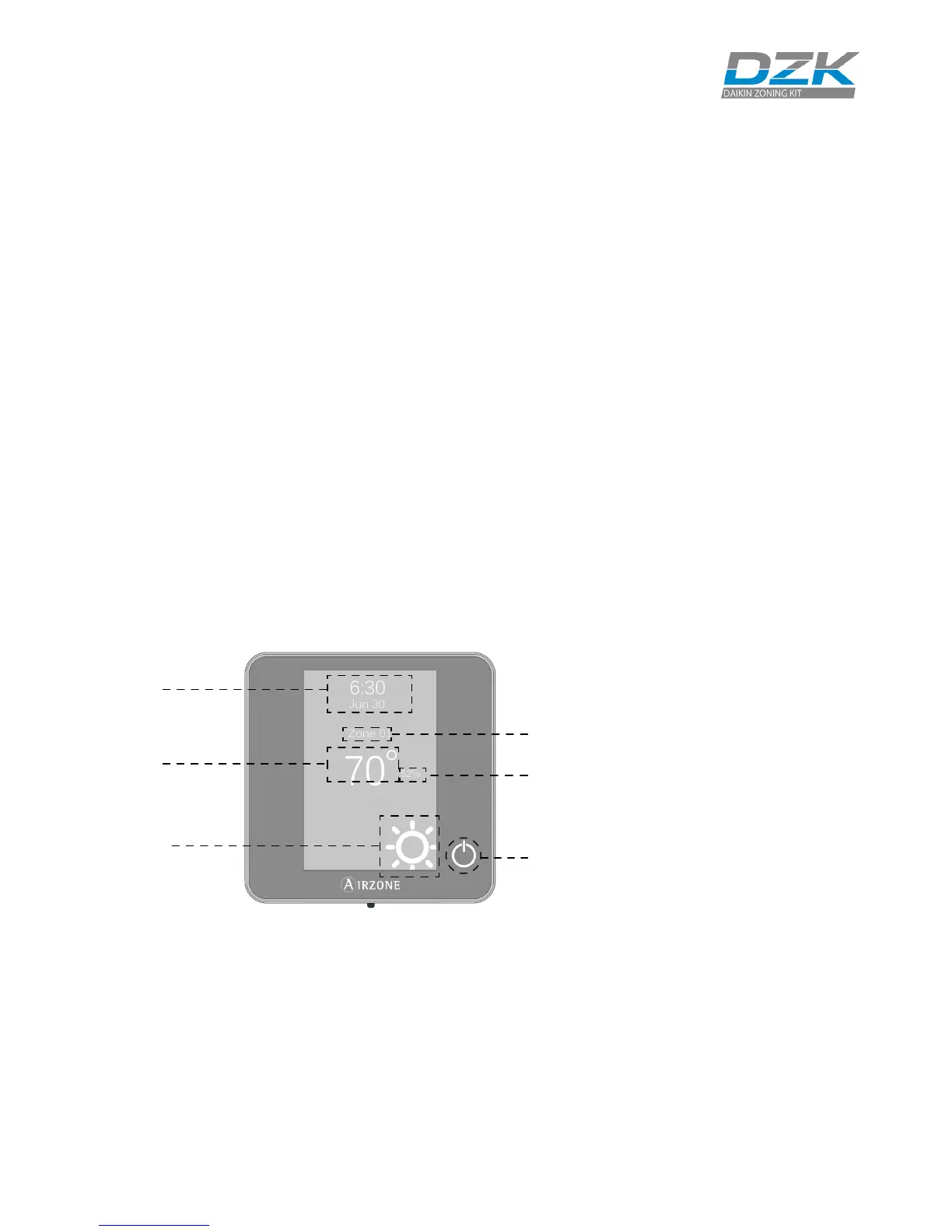
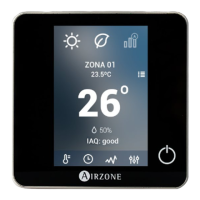
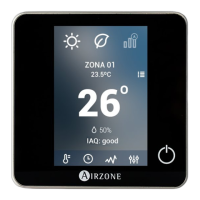
The screensaver activates after about 12 seconds of inactivity, displaying the
following information:
Time and Date. This information can be edited from the user settings menu.
Current Zone. Displays the current zone.
Current Room Temperature. Displays the current (measured) temperature in
the room where the thermostat is installed.
Relative Humidity. It indicates the humidity of the zone.
Operation Mode. Displays the current operation mode of the system.
On/O. Press to switch On/O the zone.
Time and date
Current room
temperature
Current
zone
Relative humidity
Operation mode
On/O
On/O. On and O of the zone where the thermostat is located.
Timer. Automatically switches o the zone after 30, 60 or 90 minutes.
Lite Settings. Available when navigating to a Wireless Lite Thermostat
from a Wired Thermostat.


 To Next Page