EasyManua.ls Logo

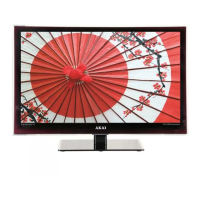
Akai 6 Series - User Manual

Akai 6 Series
52 pages
Print Icon
To Next Page IconTo Next Page
Loading...
User Manual
MODEL: AK7521S6WOS

Questions and Answers

  • C
    Craig WilliamsJul 29, 2025
    What to do if my Akai LCD TV won't turn on?
    • L
      Lori GordonJul 29, 2025
      If your Akai LCD TV won't turn on, ensure the AC power cord is securely plugged into the wall outlet. Verify the wall outlet is turned on and the power indicator at the bottom of the TV is lit. If you're using a multi-outlet, check if it's working properly by plugging the TV directly into a wall outlet. Also, try powering on the TV using the power button on the TV itself.
  • P
    pamelayatesAug 3, 2025
    How to fix no sound on Akai LCD TV?
    • E
      eric72Aug 3, 2025
      If there's no sound on your Akai LCD TV, first ensure the volume isn't muted and if it is, press the VOL+ button. If earphones are connected, unplug them. Verify that the connection to any external audio device is correct and all cables are fully inserted. Make sure the correct input source and audio settings have been selected on the external audio device. Also, move the TV away from electronic equipment that could cause interference. If you're using HDMI, ensure the device supports HDMI-ARC and the ARC setting is on. For optical cables, check that Menu > Sound > Sound Out > Select Optical and then Menu > Sound > Additional Settings > Digital Sound Out is set to PCM.
  • W
    William DonovanAug 8, 2025
    Why is my Akai LCD TV remote control not working?
    • D
      daniellemartinAug 8, 2025
      If your Akai LCD TV remote control isn't working, make sure the batteries are installed correctly with the proper polarity (+/–). Remove any obstacles between the remote and the remote control sensor on the TV. Check if the power indicator at the bottom of the TV blinks when you press the remote's power button; if not, replace the batteries. Try pointing the remote directly at the remote control sensor from 1.5-1.8m away.
  • M
    Melissa HallAug 12, 2025
    How to troubleshoot no picture or sound from external device on Akai LCD TV?
    • K
      krobinsonAug 13, 2025
      If you're experiencing no picture/sound or distorted picture/sound from an external device connected to your Akai LCD TV, ensure the connection to the device is correct and that all cables are fully inserted. Remove and reconnect all cables connected to the TV and the external devices. Try new cables if possible. Restart the connected devices by unplugging each device's power cord and then plugging it in again. If "No Signal" is displayed, ensure the correct input source has been selected. When using a 4K playback device, make sure you are using a High-Speed HDMI cable.
  • J
    Joel SmithNov 16, 2025
    How to fix no internet connection on Akai LCD TV?
    • K
      Kenneth MannNov 16, 2025
      If your Akai LCD TV has no or intermittent internet, and you're using Wi-Fi, ensure the Wi-Fi password is entered correctly. Turn off the access point, wait 2 minutes, and turn it back on. Ensure there are no obstacles between the TV and the access point, as appliances, cordless phones, and stone walls can decrease Wi-Fi strength. Reduce interference by turning off other wireless devices. If the Wi-Fi connection fails, connect the TV to the access point via a LAN cable. If the TV connects via the wired connection, there might be a problem with the Wi-Fi access point; try using a different one. When using a LAN cable, use one rated CAT 5 or higher and ensure it's plugged in at both ends. If using a static IP, ensure network addresses are entered correctly. If the problem persists, contact y...
  • D
    Danielle LozanoNov 22, 2025
    What to do if Akai LCD TV doesn't recognise USB storage device?
    • K
      katherinegoldenNov 22, 2025
      If your Akai LCD TV doesn't recognize a USB storage device or media files don't play properly: This TV has been tested with the majority of Flash memory-based devices and hard disks (media players with HDD) on the market however, it may not be compatible with certain devices. If the external hard drive has its own power adaptor, use it. Only use a USB storage device formatted in a FAT32 file system provided with the Windows operating system. If it is formatted by a different utility program that is not supported by Windows, it may not be recognised. The TV may not be able to recognise a USB device or read the files if it is connected with a USB extension cable The files that use an unsupported codec or container will not play on the TV. Some files may not play correctly if there is an erro...

Summary

Unpack and Prepare Your TV

Whats in the Box

Lists all items included in the TV packaging for user verification.

Attaching the TV Stand

Step-by-step instructions for securely attaching the TV stand.

Wall-Mounting Guidelines

Guidelines and requirements for safely mounting the TV on a wall.

Connecting to Power

Instructions for properly connecting the TV to the electrical power outlet.

Connecting Your Antenna

Guidance on connecting an antenna for receiving free-to-air TV signals.

TV Controls and Connections

TV Ports and Connectivity

Details all input and output ports available on the TV and their uses.

Remote Control Operations

Using the Remote Control Effectively

Guidance on pointing, range, and optimal usage of the remote control.

Remote Control Button Functions

Detailed explanation of each button's function on the remote.

Initial On-Screen Setup

First Time Setup Guide

Walks through the initial configuration steps upon first TV power-on.

Connecting to the Internet

Provides instructions for establishing a wired or wireless internet connection.

Advanced TV Settings Menus

Recording and Time-Shift

USB Media Playback

Troubleshooting Common Issues

Akai 6 Series Specifications

General IconGeneral
BrandAkai
Model6 Series
CategoryLCD TV
LanguageEnglish

Related product manuals