A-61904 September 2018 43
5 Troubleshooting
Calibrations
Scanner multifeed calibration requires assistance from Alaris Technical
Support personnel.
Contacting Technical Support
1. Visit www.AlarisWorld.com/go/IM to obtain the most current phone
number for your country.
2. When calling, please have the following information ready:
- A description of your problem.
- The scanner model and serial number.
- Computer configuration.
- Scanning application you are using.
Images have black background bleed-
through
If scanning in Black and White, adjust the contrast setting or change to
Draft (Fixed) in TWAIN or Fixed Processing in ISIS and adjust contrast
and threshold. If scanning in grayscale or color, see “Improving image
quality” on page 26.
Red, green or blue streaks are running
through a color photo
The scanner is dirty and needs to be cleaned. Refer to “Cleaning
procedures” on page 29.
Images have speckles Speckles happen because paper thickness is not uniform. See
“Improving image quality” on page 26.
Scanner is running slow • Your computer may not meet the minimum requirements for the
scanner. Refer to the page for your scanner model:
www.AlarisWorld.com/go/E1025
www.AlarisWorld.com/go/E1035
• Paper size or settings can slow the scanner. Experiment to find the
settings that work best for you.
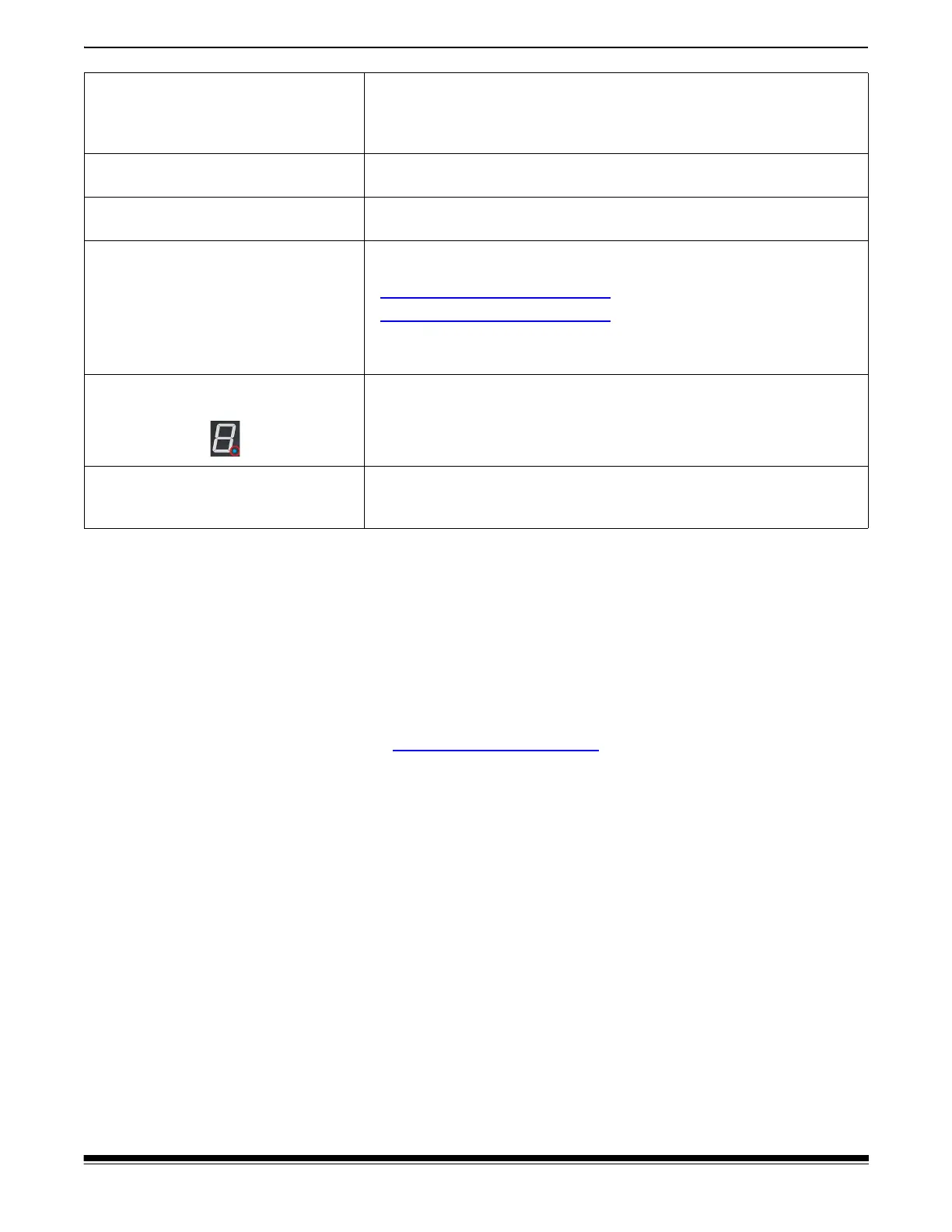
Dot is illuminated in the function
window
The scanner is in emulation mode.
NOTE: Downloading firmware is not supported with Emulation Mode
enabled and host drivers other than the E1000 drivers will be
required for scanning. Contact Support for more information.
Trouble accessing the scanner or
downloading firmware from the
computer to the scanner
Check to see if Emulation Mode has been enabled on the scanner. (See
above)



 To Next Page