14 815
14.2 Pairing the e-motion wheels with the control unit
• Start the e-motion Mobility app on your smartphone and connect to the e-motion wheels if you have not
already done so.
• Select the “Replace control unit” function in the Settings menu. The camera on your smartphone is started
automatically.
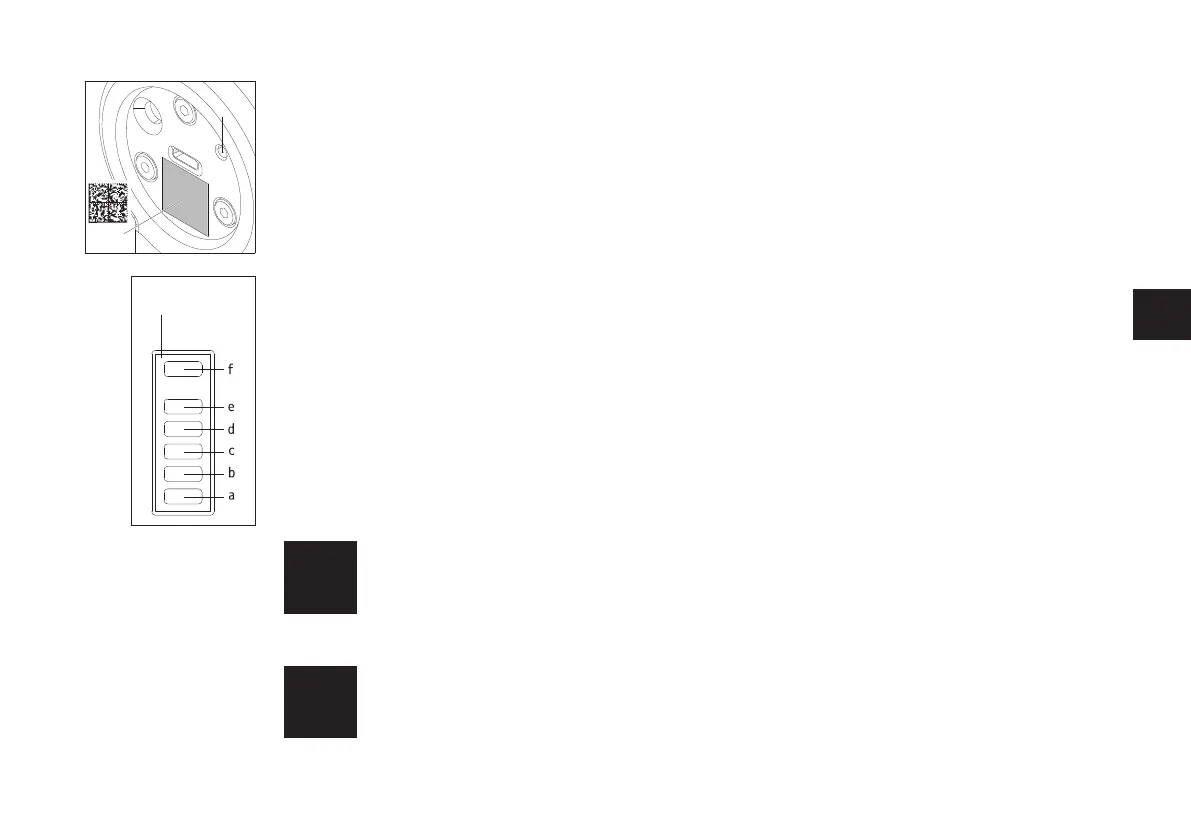
• Open the cover [18] on the back of the control unit and scan the QR code sticker [26].
• A new message appears in the app, which you must acknowledge with OK.
• All 5 segments of the LED battery display of both e-motion wheels then flash white.
You can now start pairing the control unit.
• Now switch on the control unit using the On/Off button (see Chapter 4).
• Immediately afterwards, press the pairing button [20] on the back of the control unit for at least three
seconds with a narrow but not pointed object (e.g. a ballpoint pen) until the LED [f] on the display [17]
flashes blue and the LEDs [b] and [d] flash white.
• As soon as both e-motion wheels have been detected by the control unit (this process can take several
seconds), the LED [f] lights up green. LEDs [a] through [e] show the battery status of the wheel with the
lowest capacity.
• The pairing process has been successfully completed and the control unit can now be used together with the
e-motion wheels.
The pairing process is only possible while the LED battery indicators of both e-motion wheels are
flashing. If the specified time is exceeded, please repeat the process. If you cannot find a QR code
on the e-motion wheels or the control unit or if they cannot be scanned, please contact your spe-
cialist dealer or the Alber Service Centre.
If you use the control unit on the left side of the wheelchair, a software setting by your specialist
dealer will be necessary.



 To Next Page