— 13 —— 12 —
INSTALLATION
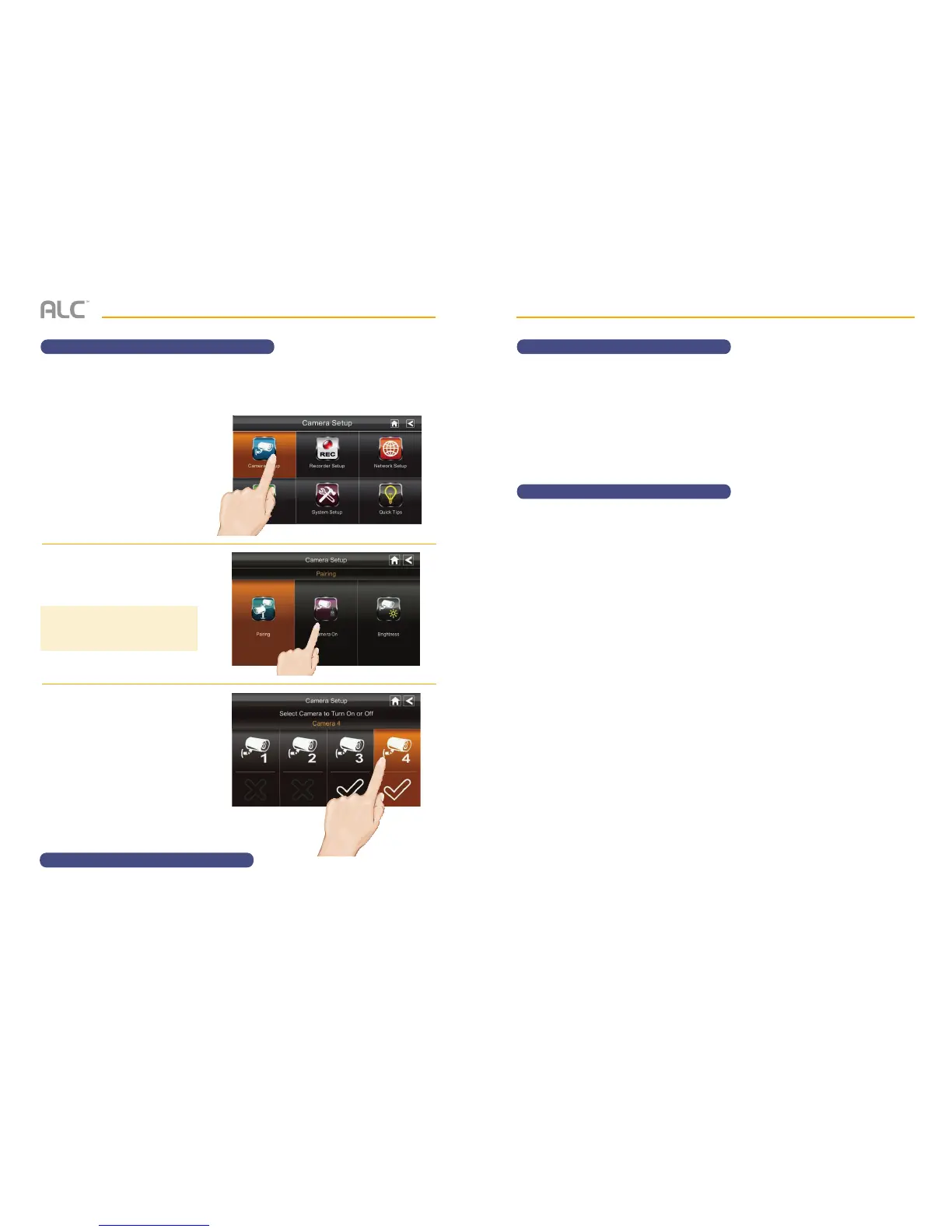
Turning the Camera On or Off
u
Follow steps 1 through 3 on page
10 to access the System Setup.
Tap Camera Setup to access
the Camera Setup screen.
v
Tap Camera On.
w
Tap the camera you want to turn
on or off.
Although the camera is turned off,
it is still powered but the monitor
will not receive video signals from
that camera.
After adding a camera, it will automatically be active (On) in this setting. To turn the camera on
or off, perform the following:
TIP: An X indicates a camera that is
turned off; a check mark indicates the
camera is turned on.
Additional Features
For additional features and setup, refer to the AWS3266 owner’s manual.
MAINTENANCE
Monitor
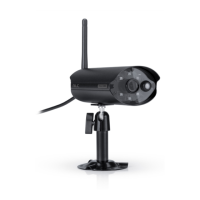
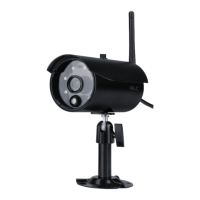
Camera
As you use your touch-screen monitor, fingerprints, etc. will appear on the screen. Keep the
screen clean by wiping it with a microfiber cloth. It is not recommended to use any chemicals or
harsh detergents on the touch screen.
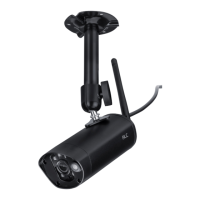
When dust and grime builds up on the camera lens and glass, it will affect the night vision
capability. The infrared light reflects off of the dust and grime, limiting the camera’s “vision.” Use
a microfiber cloth to regularly clean the cameras or when night vision video is cloudy or unclear.


 To Next Page