EasyManua.ls Logo

ALC AWFB15 - User Manual

ALC AWFB15
35 pages
Print Icon
To Next Page IconTo Next Page
Loading...
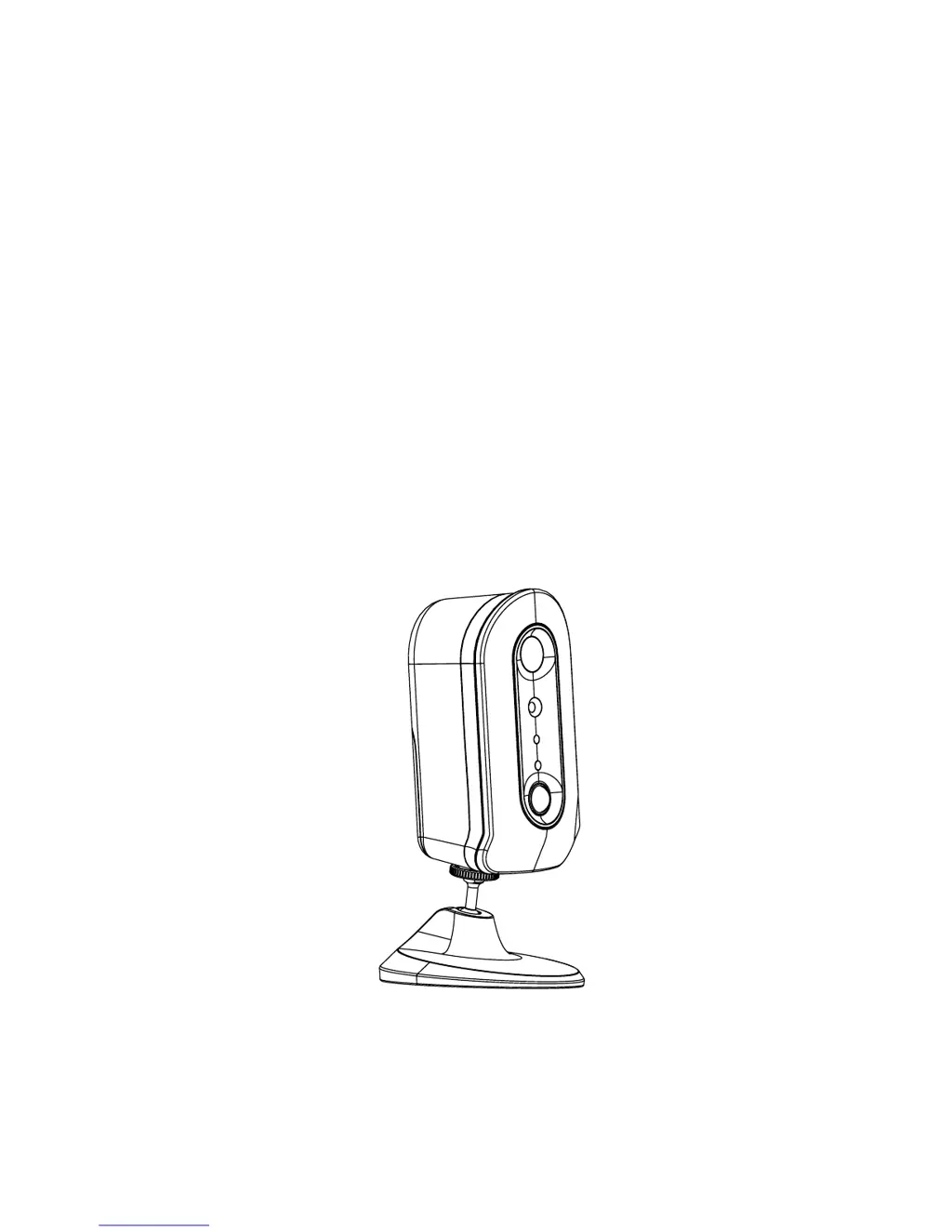
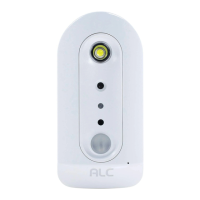
Wireless SAPP Camera
Installation and Operating Instructions
Model: AWFB15
Version 1.2
PLEASE READ THESE INSTRUCTIONS CAREFULLY BEFORE USING THIS PRODUCT
AND KEEP THIS MANUAL FOR FUTURE REFERENCE.

Questions and Answers

  • T
    Tiffany DavidAug 15, 2025
    What to do if no image appears on my ALC Security Camera?
    • M
      maxwellpowellAug 15, 2025
      If no image appears from your ALC Security Camera, ensure that the camera and the router are powered on. Also, check that the app is properly configured and that your smart device has an internet connection. Relocating the camera or router to improve reception might also resolve the issue.
  • D
    Donna PetersenAug 18, 2025
    Why my ALC Security Camera app cannot connect to the camera?
    • P
      Patrick BrayAug 18, 2025
      If the app cannot connect to your ALC Security Camera, verify that the router and the camera are powered on. Also, ensure that your router supports the DHCP protocol.
  • J
    James DeanAug 21, 2025
    How to fix motion detection not working on ALC AWFB15 Security Camera?
    • Y
      Yolanda ThompsonAug 21, 2025
      If the motion detection is not functioning on your ALC Security Camera, first ensure that the router and the camera are powered on. Then, verify that the motion detection function is activated in the app settings.
  • K
    Kenneth ShawAug 25, 2025
    Why are push notifications not working on my ALC Security Camera?
    • W
      Wanda GuerraAug 26, 2025
      If push notifications are not functioning for your ALC Security Camera, ensure that push notifications are enabled, including in the Admin settings. Also, make sure that the motion detection function is enabled, and that both the camera and the router are powered on.
  • A
    Adam HigginsAug 28, 2025
    What to do if ALC AWFB15 app cannot record video clips?
    • L
      Lori EvansAug 28, 2025
      If your ALC Security Camera app cannot record video clips or capture snapshots, verify that a memory card is inserted and has sufficient space. Also, ensure that the memory card is not damaged, is Class 10 rated, and that the motion detection function is enabled.
  • M
    Mary LewisAug 31, 2025
    How to improve wireless signal on ALC Security Camera?
    • L
      Lee MontesAug 31, 2025
      If you are experiencing low wireless signal and poor image quality with your ALC Security Camera, other wireless devices operating on the 2.4GHz frequency may be interfering with the camera or router's wireless transmission. Try relocating the camera or router for better reception, ensuring other wireless devices are not nearby or turning them off. Also, clean the camera lens using a lens cleaning cloth.
  • K
    Kimberly SchmidtSep 3, 2025
    Why is my Wi-Fi router not showing up on ALC Security Camera?
    • J
      johnsonjohnSep 4, 2025
      If your Wi-Fi router is not shown in the drop down list for your ALC Security Camera, ensure that the SSID broadcasting function is enabled in the Wi-Fi router settings. Additionally, change the wireless security protocol of your Wi-Fi router to WPA/WPA2/WPA2-PSK.
  • C
    Christina JohnsonSep 7, 2025
    How to fix a memory card error on ALC AWFB15?
    • J
      Jeremy VargasSep 7, 2025
      If you are getting a memory card error with your ALC Security Camera, make sure the memory card is inserted, formatted properly, and is Class 10 rated.
  • A
    Ashley WilliamsSep 12, 2025
    Why are there bright white spots in my ALC AWFB15 Security Camera videos?
    • G
      gomezstaceySep 12, 2025
      If bright white spots are appearing in the videos or snapshots from your ALC Security Camera, ensure that the camera is not pointing directly at an area or object that reflects light.

Summary

Introduction

Please Read Before You Start

Instructions to follow before commencing use of the camera equipment.

Wireless Devices Operating Range

Guidelines for optimal signal reception between the camera and the Wi-Fi router.

Installation and Camera Setting Tips

Maximizing Battery Power

Tips for extending battery life by optimizing camera settings and environment.

Important Safety Precautions

FCC;CE Compliance and Warnings

Disposal

Battery and Accumulator Disposal

Guidelines for the proper disposal of spent batteries and accumulators.

Kit Content

Camera Hardware Overview

Camera Installation

Setup the App

Download and Install the SensorCam App

Instructions for obtaining and installing the mobile application for camera control.

App Setup and Wi-Fi Network

Initial App Launch and First-Time Setup

Critical steps to perform before first use of the application.

Configuring Wi-Fi Network

Procedure for configuring the camera's Wi-Fi connection through the app.

App Setup and Wi-Fi Reset Procedure

Performing Wi-Fi Reset

How to reset the camera's Wi-Fi connection settings if needed.

Main Page Overview and Navigation

Navigating the Camera List

Overview of the main screen showing registered cameras and access to functions.

Camera Management Functions

Accessing Camera Information and Settings

Accessing detailed camera settings, renaming, and Wi-Fi configuration.

Deleting a Camera from the App

Steps to remove a camera from the app and its associated configuration.

Viewing Event List

How to access and review motion-triggered event recordings.

Setting Up PIN Lock

Push Notification Configuration

iOS Notification Setup

Configuring push notification alerts for iOS devices within the app.

Android Notification Setup

Configuring push notification alerts for Android devices within the app.

App and API Version Info

Accessing details about the application and its associated API versions.

Live View, Snapshot, and Video Recording

Detailed Live View

Managing Snapshots

iOS Snapshot Location

Location and naming convention for snapshots saved on iOS devices.

Android Snapshot Location

Location and naming convention for snapshots saved on Android devices.

Event Video Playback

Advanced Settings Overview

Admin Password

Security code required for accessing and managing advanced system settings.

Device Security Code

Password for remote access and operation of the camera.

Cloud Setting

Configuration for cloud storage services like Google Drive or Dropbox.

Wi-Fi Network Settings

Management of the camera's Wi-Fi network connection.

Push Notification Settings

Enabling or disabling push notification alerts for motion events.

Motion Detection Settings

Activating or deactivating the camera's motion detection feature.

LED Light Control

Enabling or disabling the camera's LED indicator light.

SD Card Overwrite

Managing continuous recording by overwriting oldest files when storage is full.

Brightness Adjustment

Adjusting the camera's video brightness level.

Power Saving Timer

Setting the duration the camera remains active after a trigger.

Device Information

Viewing camera and app firmware versions and storage details.

Data Format

Formatting the camera's memory card, erasing all data.

Video Record Time

Setting the duration for video recordings triggered by motion.

Record Mode Selection

Choosing between capturing snapshots or videos upon motion detection.

Video Framerate Setup

Configuring the frames per second for video recordings.

Video Resolution Setup

Setting the desired resolution for video recordings.

Admin Password Management

Device Security Code Management

Cloud Setting and Account Management

Creating a Cloud Account

Steps to set up a cloud account for storing camera footage.

Editing Cloud Account Password

Modifying the password for the associated cloud storage account.

Managing Devices in Cloud

Managing cameras linked to the cloud storage service.

Video Quality Adjustment

Brightness and Wi-Fi Settings

Adjusting Camera Brightness

Adjusting the camera's video brightness level.

Configuring Wi-Fi

Management of the camera's Wi-Fi network connection.

Notification and Motion Detection

Enabling Notifications

Enabling or disabling push notification alerts for motion events.

Activating Motion Detection

Activating or deactivating the camera's motion detection feature.

LED, SD Card, and Power Saving Settings

Controlling LED Light

Enabling or disabling the camera's LED indicator light.

SD Card Overwrite Function

Managing continuous recording by overwriting oldest files when storage is full.

Setting Power Saving Timer

Setting the duration the camera remains active after a trigger.

Record Mode and Cycle Time

Selecting Record Mode

Choosing between capturing snapshots or videos upon motion detection.

Setting Record Cycle Time

Defining the length of video recordings triggered by motion.

Video Framerate and Resolution

Setting Video Framerate

Configuring the frames per second for video recordings.

Setting Video Resolution

Setting the desired resolution for video recordings.

Device Information Display

Troubleshooting Common Issues

Product Specifications

Appendix: Compatible Router List

ALC AWFB15 Specifications

General IconGeneral
BrandALC
ModelAWFB15
CategorySecurity Camera
LanguageEnglish

Related product manuals