7
3. Software-Controller Configuration
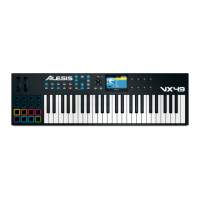
This section describes how to start using your VX49. We recommend using VX49 with the included VIP
software which you can use to perform with, create, edit, and manage multiple plugin patches simultaneously.
To learn more about how you can use VX49 in each kind of setup, please see the Operation chapter.
Make sure you have installed the software (described earlier in 1. Software/Driver Download and
Installation) and connected VX49 to your computer, external MIDI equipment, and/or other devices
(described earlier in 2. Controller Setup).
With VIP in Your DAW
To set up VX49 with VIP in your DAW:
1. Power on your VX49, and open your DAW in your computer.
2. Make sure VX49 is selected as a controller in your DAW—you can usually do this in your DAW’s
Preferences, Device Setup, or Options.
3. In your DAW, create a new MIDI track (i.e., not an audio track).
4. Open VIP in your DAW as you would open a standard VST plugin. By default, VIP is installed in [your
hard drive]
\ Program Files \ VstPlugins (Windows) or Applications (Mac OS X).
5. In VIP, click the Settings menu and select Plugin Manager.
6. At the bottom of the Plugin Manager window, click one of the Plugin Folder fields, and then select the
folder where your instrument plugins are located on your computer. You can select up to two locations
(one for each Plugin Folder field).
7. Click Scan. VIP will scan the folder/folders for available plugins, which will appear in the list. When the
process is complete, click OK to close the Settings window. VIP will return to its main window and begin
importing the patches (presets) for all of your scanned plugins. This can take several minutes.
8. On VX49, turn the Data Dial to browse your list of patches in the display (the plug-in name will appear
under the patch name). Press the Data Dial to load one.
To learn more about how you can use VX49 in this kind of setup, please see Operation > Setup Scenarios
> With VIP in Your DAW.


 To Next Page