10 | About your monitor
• Power consumption
< 0.5 W in Standby Mode.
• VESA DisplayHDR 400 True Black.
• Optimize eye comfort with a flicker-free
screen and low blue light feature.
• The Monitor uses Low Blue Light panel and is compliant with TÜV
Rheinland (Ha
rdware Solution) at factory reset or default setting. This built-
in low blue light solution reduces hazardous blue light emissions by
adjusting display parameters, without sacrificing true-to-life colors.
WARNING: The possible long-term effec
ts of blue light emission from
the monitor may cause damage to the eyes, including eye fatigue, digital
eye strain, and so on. ComfortView Plus feature is designed to reduce the
amount of blue light emitted from the monitor to optimize eye comfort.
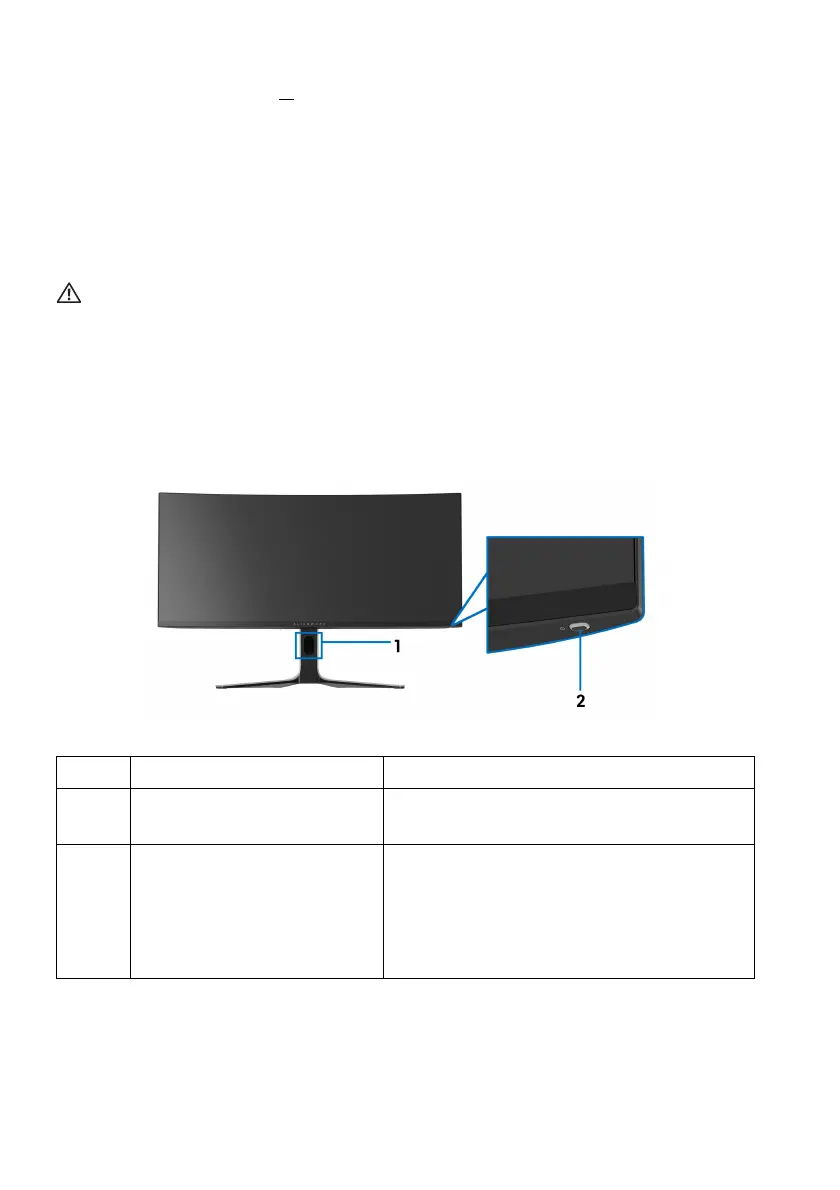
Identifying parts and controls
Front view
Label Description Use
1 Cable-management slot (on
the front side
of the stand)
To organize the cables neatly.
2 Power button (with LED
indi
cator)
To turn the monitor on or off.
Solid blue light indicates that the monitor
is turned
on and functioning normally.
Blinking white light indicates that the
monitor is in Standby Mode.








 To Next Page