66 | Using AlienFX application
Creating a theme
To create a theme with your preferred lighting settings:
1. Launch AW
CC.
2. Cl
ick FX in the top menu bar to access the home screen of AlienFX.
3. In the top-left
corner of the window, click to create a new theme.
4. In the
CREATE NEW THEME text box, type the theme name.
5. Sp
ecify the lighting zone(s) for which you want to make lighting
adjustments by:
• selecting the zone check box(es) above the live preview area, or
•
clicking the numbered callout on the image of monitor
6. In the LIGHTING p
anel, select your preferred lighting effects from the
drop-down list. See Setting lighting effects for details.
NOTE: Some effects are available for All Zones only, such as Spectrum,
Static Default Blue, Rainbow Cycle, Blink, Comet, Breathing RGB, and
Racing.
7. Repeat step 5 and step 6 to make more configuration options available to
your preference.
8. Wh
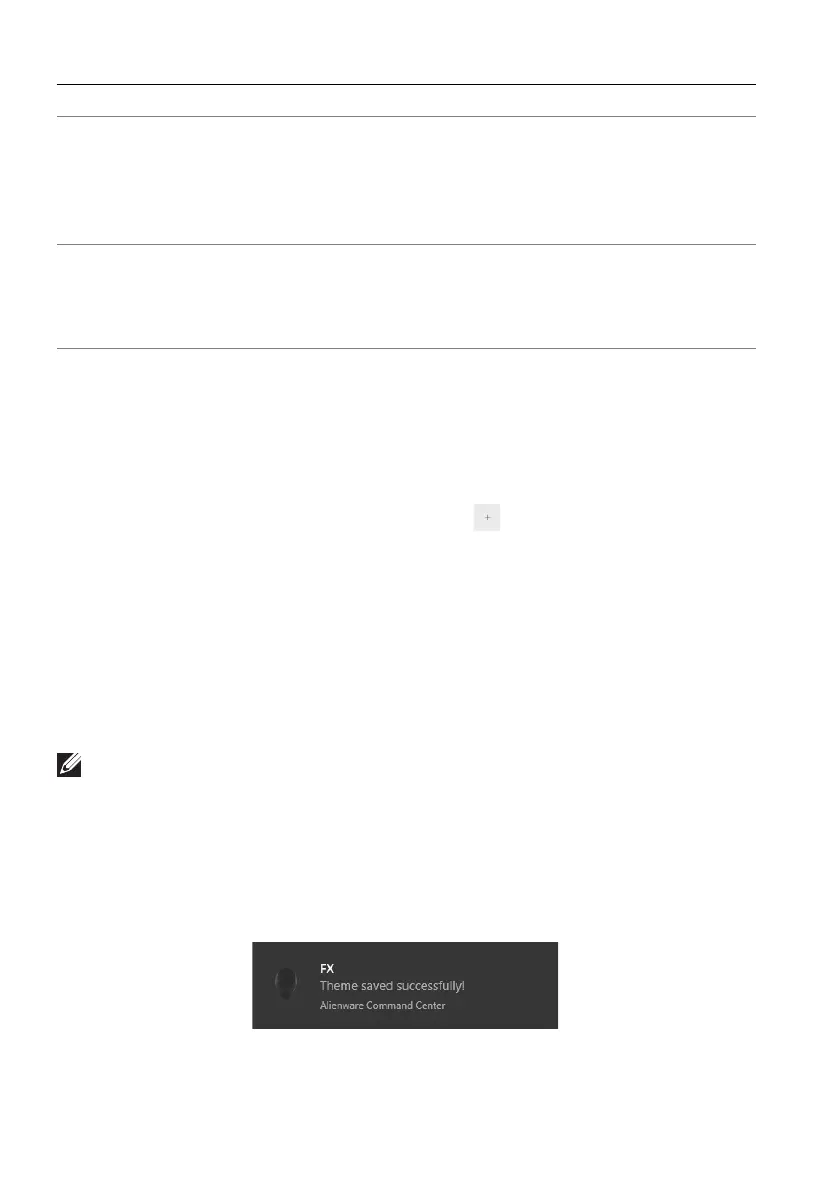
en done, click SAVE THEME. A toast notification appears in the right-
bottom corner of the screen.
K Live preview The lighting zones are with numbered callouts.
You may select a single zone by clicking the
number on the image. When you make lighting
adjustments, the preview of the monitor displays
the new effects simultaneously.
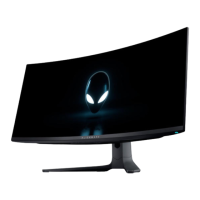
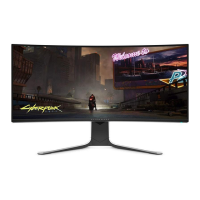
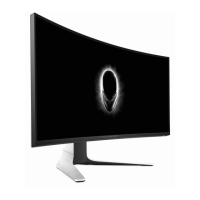
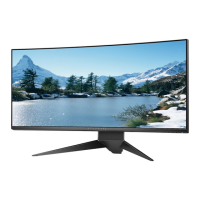
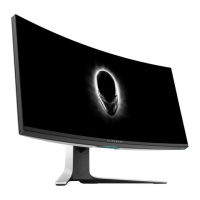
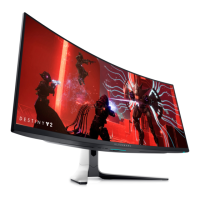
L Thumbnails Displays the thumbnails of the Alienware monitors
conne
cted to your computer. The image
displayed in the live preview area is selected from
this thumbnail list.
Callout Function Description








 To Next Page