88 | Troubleshooting
Screen flickering There are some
noticeable flickering
in the displayed
pictures
• Use the native resolution of your
monitor (3440 x 1440 at
60
Hz) or higher refresh rate.
• If the variable refresh rate (VRR)
of your device is turned on, turn
off variable refresh rate (VRR).
• If you are using an NVIDIA
graphics card and G-Sync is
turned on, turn off G-Sync.
• If you are using an AMD
graphics card and Free-Sync is
turned on, turn off Free-Sync.
• Update the graphics card driver
and firmware to the latest
version.
• Change the cable connecting
the monitor to the computer. A
defective cable can cause the
signal to break while being
transmitted across the wire.
• Check the surroundings.
Electromagnetic fields can
cause screen flickering. If there
is another device plugged into
the same power strip as the
monitor, try to remove it.
Image retention
from a static image
left on the monitor
for a long period of
time
Faint shadow from the
static image displayed
appears on the screen
• Set the screen to turn off after a
few minutes of screen idle time.
These can be adjusted in
Windows Power Options or
Mac Energy Saver setting.
• Alternatively, use a dynamically
changing screensaver.
• Perform the function of Pixel
Refresh or Panel Refresh. For
more information, see
OLED
Panel Maintenance.
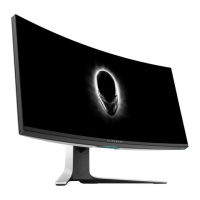
Unevenness in
luminance or color
of the screen images
Visible spots (bright
or dark) or lines or
Mura appear on the
screen
Specific symptoms What you experience Possible solutions








 To Next Page