20 | Alienware Command Center (AWCC)
Updating the firmware
NOTE: For best performance, update your mouse and USB wireless
dongle firmware to the latest version.
Updating the mouse firmware automatically through AWCC
1. Connect your mouse to your computer through the USB cable.
2. Launch AWCC software and click the FX tab.
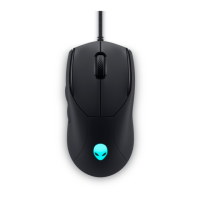
3. Under SETTINGS, select Alienware AW720M Tri-Mode Wireless
Gaming Mouse from the EDIT DEVICE SETTINGS drop-down list.
4. Click the Settings tab.
5. In the Update tab, and then click the Update button. Once the rmware
update is complete, the “Firmware updated successfully” message is
displayed.
6. Click OK.
NOTE: Disconnecting the USB cable from the computer, closing the
AWCC software, or shut down of computer during firmware update
may damage the mouse.
Updating the USB wireless dongle firmware automatically through AWCC
1. Connect your mouse to your computer through 2.4GHz Wireless mode.
2. Launch AWCC software and click the FX tab.
3. Under SETTINGS, select Alienware AW720M Tri-Mode Wireless
Gaming Mouse from the EDIT DEVICE SETTINGS drop-down list.
4. Click the Settings tab.
5. In the Update tab, and then click Update button. Once the rmware
update is complete, the “Firmware updated successfully” message is
displayed.
6. Click OK.
NOTE: Disconnecting the USB wireless dongle, closing the AWCC
software, or shut down of computer during firmware update may
damage the USB wireless dongle.


 To Next Page