Wireless-N Broadband Router User Guide
Home Screen
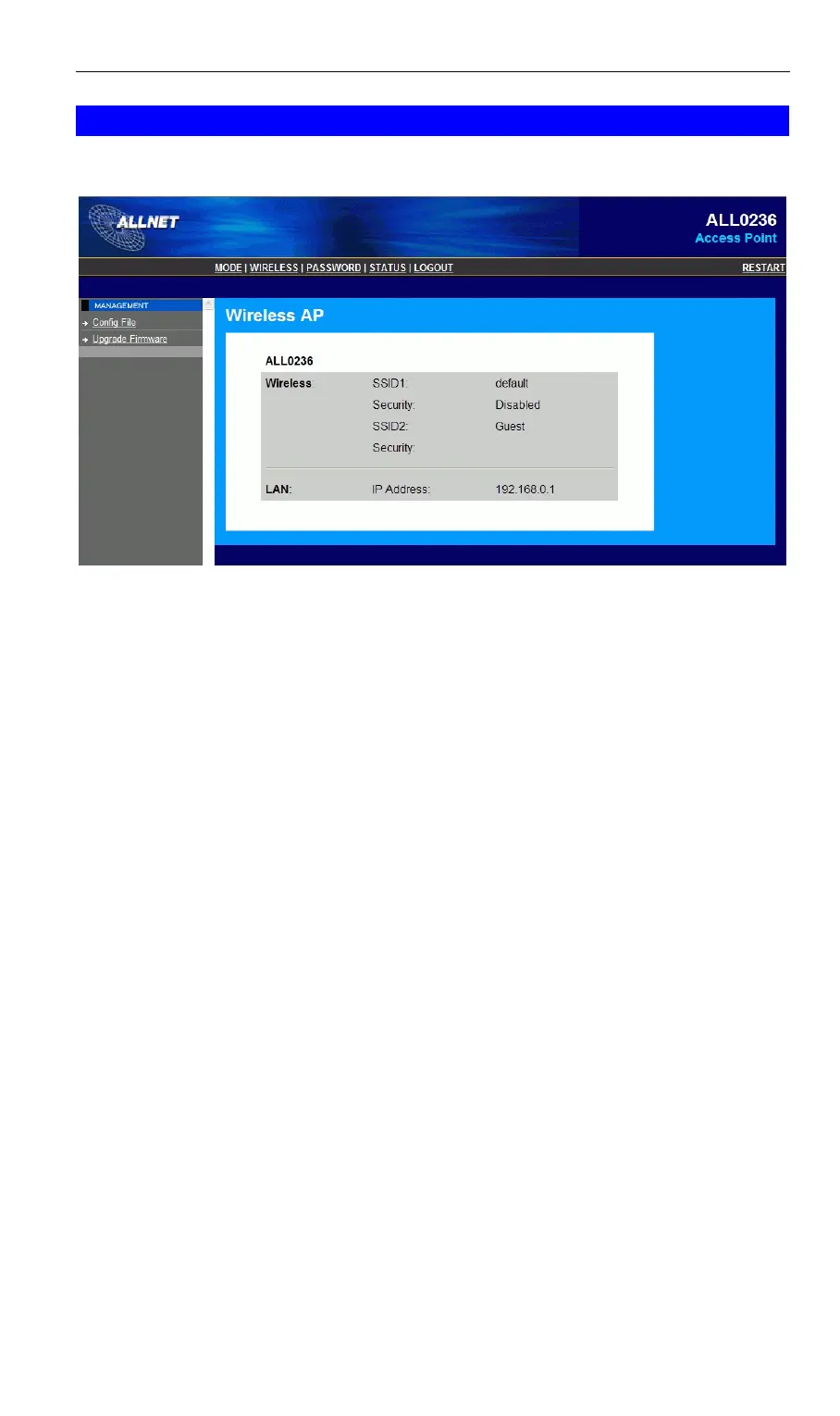
If in Access Point mode, the home screen will look like the example below.
Figure 66: Home Screen - Wireless AP Mode
Note that the menu has changed, many of the options in Router mode are not available. The
screens available are:
• Mode - change back to Router mode, if desired.
• Wireless - this screen, and related sub-screens, is the same as in Router mode.
• Password - this screen is the same as in Router mode.
• Status - displays current settings and status. See the following section for details.
• Config File - this screen is the same as in Router mode.
• Upgrade Firmware - this screen is the same as in Router mode.
92



 To Next Page