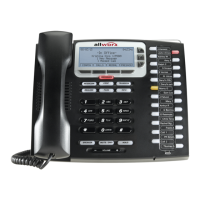
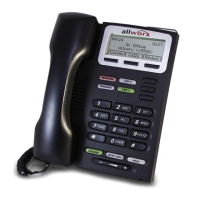
Allworx Phone Model 9212/9212L User Guide
Page 14 +1 866 ALLWORX * +1 585 421 3850
www.allworx.com
Version: J Revised: March 2, 2017
4.3 Place a Call
To place an outbound call, lift the handset or press the SPEAKER button. Dial the extension or press the
SpDial soft key to automatically dial a programmed number. The phone configuration enables users to
dial without lifting the handset or pressing a button. Dialing automatically activates the speaker phone
or headset.
• Call Appearance PFK: place extension-to-extension calls or obtain an outside line (must dial 9
1
first).
• Line Appearance PFK: seizes the outside line without dialing 9
1
first.
• Speed Dial PFK: automatically dials the programmed number. This PFK is only available when
using Allworx System Software 8.1 and earlier.
• Contact PFK (available using Allworx system software 8.2 or higher): automatically dials the
Allworx User, System, or Public number programmed by the Allworx Server Administrator. For
more information about Contacts, see “Contacts” on page 23 for more information.
• Shared Call Appearance PFK: place extension-to-extension calls or obtain an outside line
(must dial 9
1
first). If the PFK LED is solid red, the line is in use “remotely” on another assigned
handset of the same Shared Call Appearance.
4.4 Receive a Call
The following programmable button LEDs indicate an incoming call:
To manage the incoming call:
Do one of the following:
• Lift the handset, press the Headset PFK or the Speaker phone function button.
• Press the flashing PFK.
• Press the IGNORE soft key to stop the audible ringing and the PFK continues to flash until the
user answers the call or the caller hangs up.
• Press the SILENT soft key to stop the audible ringing; the phone screen displays the incoming
call information. The PFK continues to flash until the user answers the call or the caller hangs up.
1. Digits may vary. Check the phone functions tab of the My Allworx Manager page or contact the Allworx Server
Administrator.
• Call Appearance • Shared Call Appearance • Call Queue
• Line Appearance
• Ring Group
1
• Appearance
1
Calls to a single extension route to and ring multiple phones where calls are answered in the first in, first out order.


 To Next Page