10
EVOS™ User Guide
OPERATION
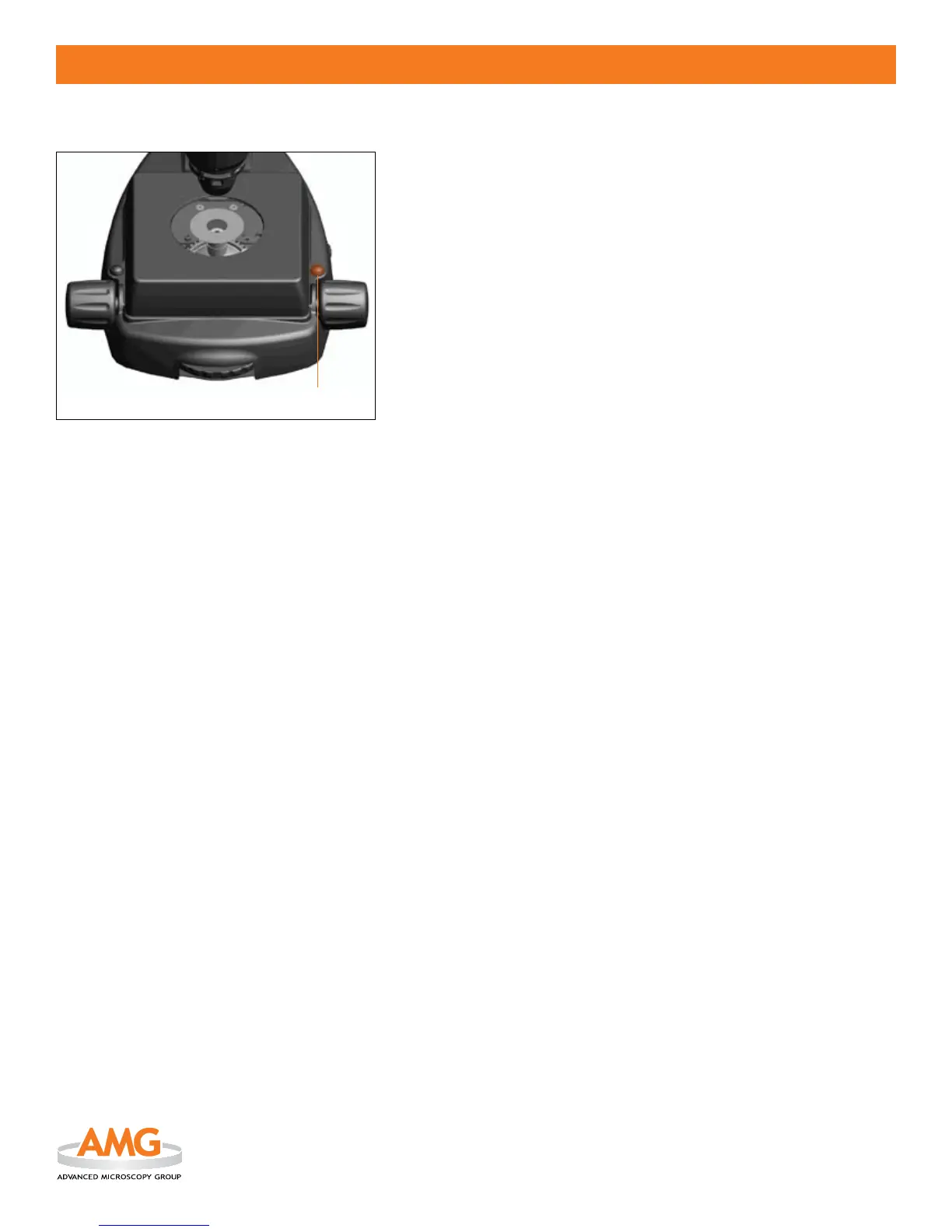
IMAGE CAPTURE BUTTON (Figure 1)
The image capture button
is located on the right-hand side of the
microscope, directly behind the right focus control.
TO SAVE AN IMAGE ON AN SD™ CARD:
To capture/save an image on an SD card,1. insert the card into the
card slot located on top of the LCD display as described on page 9.
Focus the image on screen to desired view.
2.
Press the 3. image capture button
located behind the right focus
control.
A
4. “STORING:EVOS0000.DNG” display will ash on the LCD screen
beneath the SD card slot for about 3 seconds to indicate that EVOS is
saving the image onto the memory card.
TO SAVE AN IMAGE ON A PC VIA MICRONEVOS:
To capture/save an image on a PC via Micron(EVOS),1. remove the
SD™ card from the card slot (SD card is set as default for saving images).
Connect the USB cable after the software has been installed as
2.
described on page 11.
Launch Micron(EVOS).
3.
Focus the image on screen to desired view.4.
Press the 5. image capture button
located above the right focus
control.
Choose le name and le location when prompted.
6.
Note: Images are saved as Digital Negative (DNG) les that can be opened with
Micron(EVOS) or other Adobe® imaging applications. Files are 2048 x 1536
pixels in dimension and approximately 3MB in size.
Figure 1


 To Next Page