12
EVOS™ User Guide
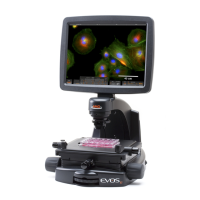
LCD POSITIONING (Figure 2)
There are 2 LCD positioning knobs
located on either side of the
microscope that control the vertical placement of the LCD screen and 1 LCD
tilt knob
that controls the angle of the LCD screen. Loosen and tighten as
necessary to get the desired position for optimal view.
Figure 2
WORKING WITH DNG FILES IN MICRONEVOS
DNG (Digital Negative) les saved on the SD™ card using EVOS can be opened in
Micron(EVOS) or other Adobe imaging applications (for installation procedures, see
Installing Micron(EVOS) Software on page 11).
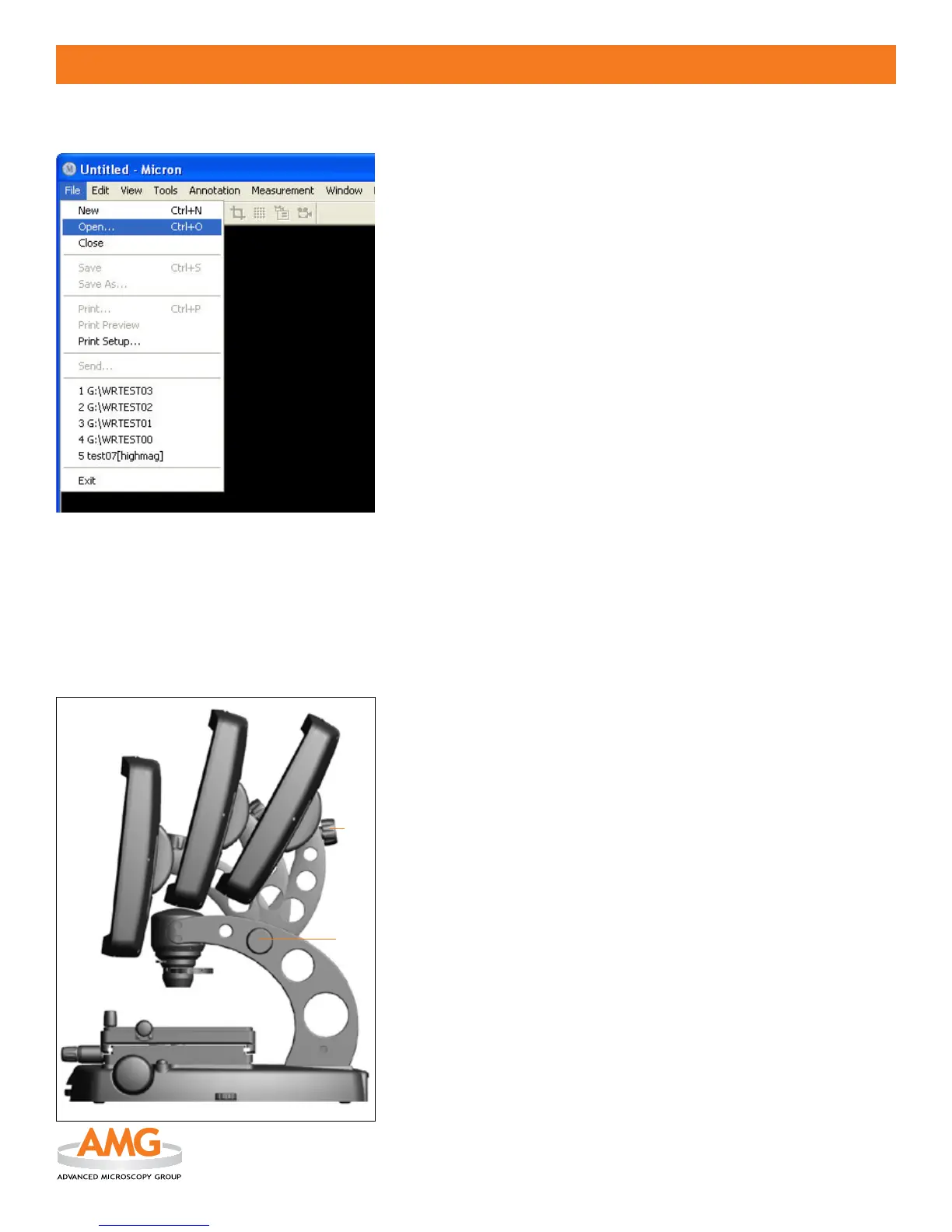
TO OPEN DNG FILES SAVED IN EVOS: (Figure 1)
Insert the SD card with the saved image(s) into the card reader on your 1.
PC.
Open/launch Micron(EVOS).
2.
Select 3. File > Open from the menu toolbar (see Figure 1).
Select
4. Other Image Files from Files of type: drop-down list.
Once the image is opened, select
5. File > Save As... and choose a
format option to save the image:
.png• (Portable Network Graphic)
.jpg
• (JPEG)
.bmp
• (Bitmap)
Note: For detailed operation procedures, go to the Micron(EVOS) User Guide
(PDF) on the Micron(EVOS) Installation CD or select
Help > User Guide... in
the Micron(EVOS) Main menu toolbar to access the guide.
Figure 1
OPERATION


 To Next Page