amgmicro.com 11
EVOS™ User Guide
OPERATION
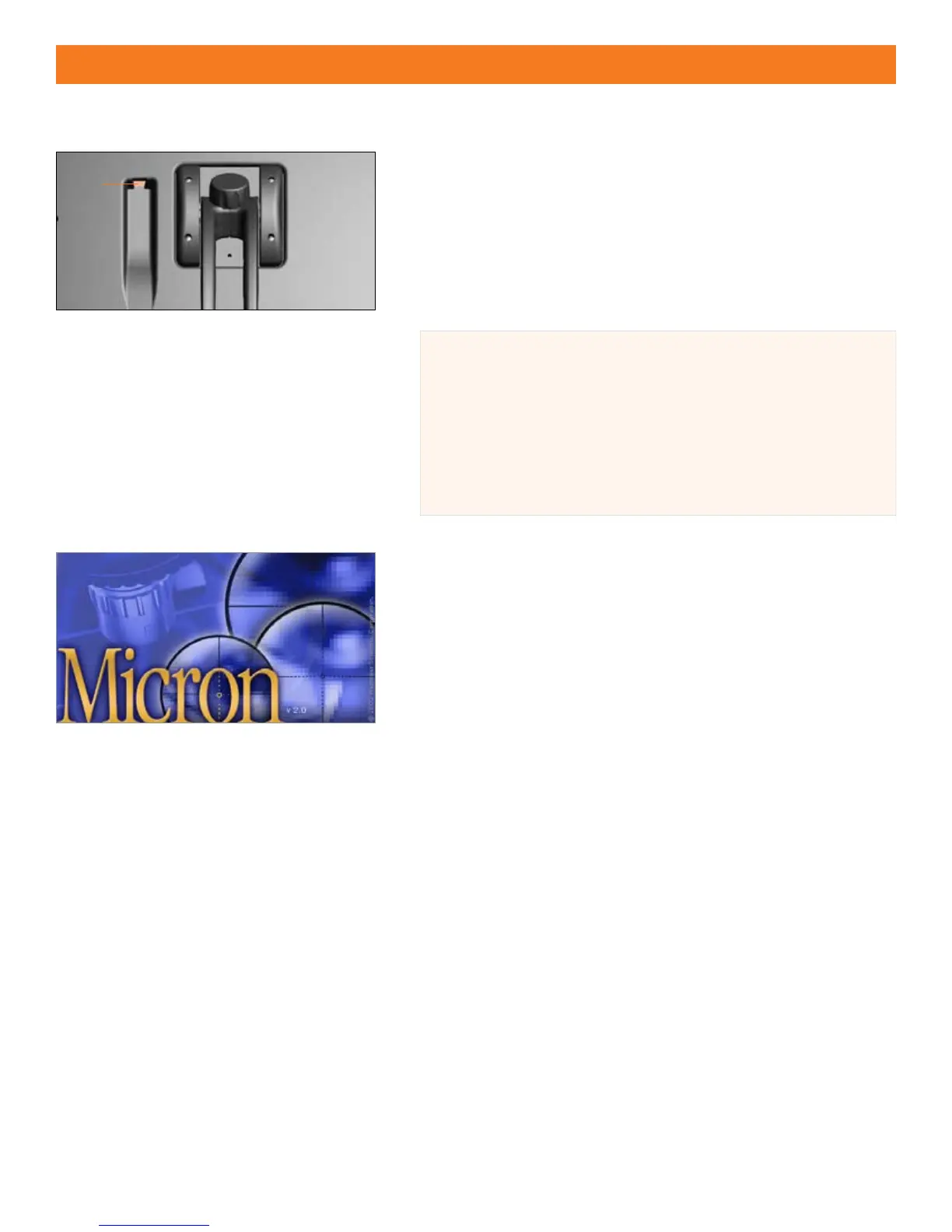
MICRONEVOS via USB CONNECTION (Figure 1)
The USB connection port
allows images to be viewed, captured, saved,
edited, and analyzed directly on a PC via a USB2 cable (included) with AMG’s
Micron(EVOS) imaging software (included)
Figure 1
System Requirements (Minimum)
PC with Pentium® IV 1.8 Ghz CPU or higher X
Windows® XP Operating System X
30 MB of hard drive space for application software X
One open USB 2.0 port X (Intel® chipset preferred)
256 MB RAM X
IMPORTANT! Install the software before attaching the
microscope to PC.
INSTALLING MICRONEVOS SOFTWARE
Insert Micron(EVOS) software CD into CD drive1.
At the 2. Welcome dialog, click Next to continue.
At the
3. License Agreement dialog, select “I accept the agreement” to
continue.
At the 4. Select Destination Location dialog, click Next to accept the
default application location to continue.
At the 5. Select Additional Tasks menu, choose desired placement of
available icons and click
Next to continue.
At the
6. Ready to Install dialog, review and verify install settings and
click
Install to continue.
At the
7. Information screen, click Next to continue.
At the
8. Completion screen, click Finish to nalize software installation.
INSTALLING DRIVER
After installing Micron(EVOS), connect the microscope to a PC using 1.
the USB2 cable (included).
When prompted, browse to the Micron CD and select the installation
2.
disk folder: CD Drive:\Westover USB2 EVOS Installation Disk.


 To Next Page