18°C
3
6
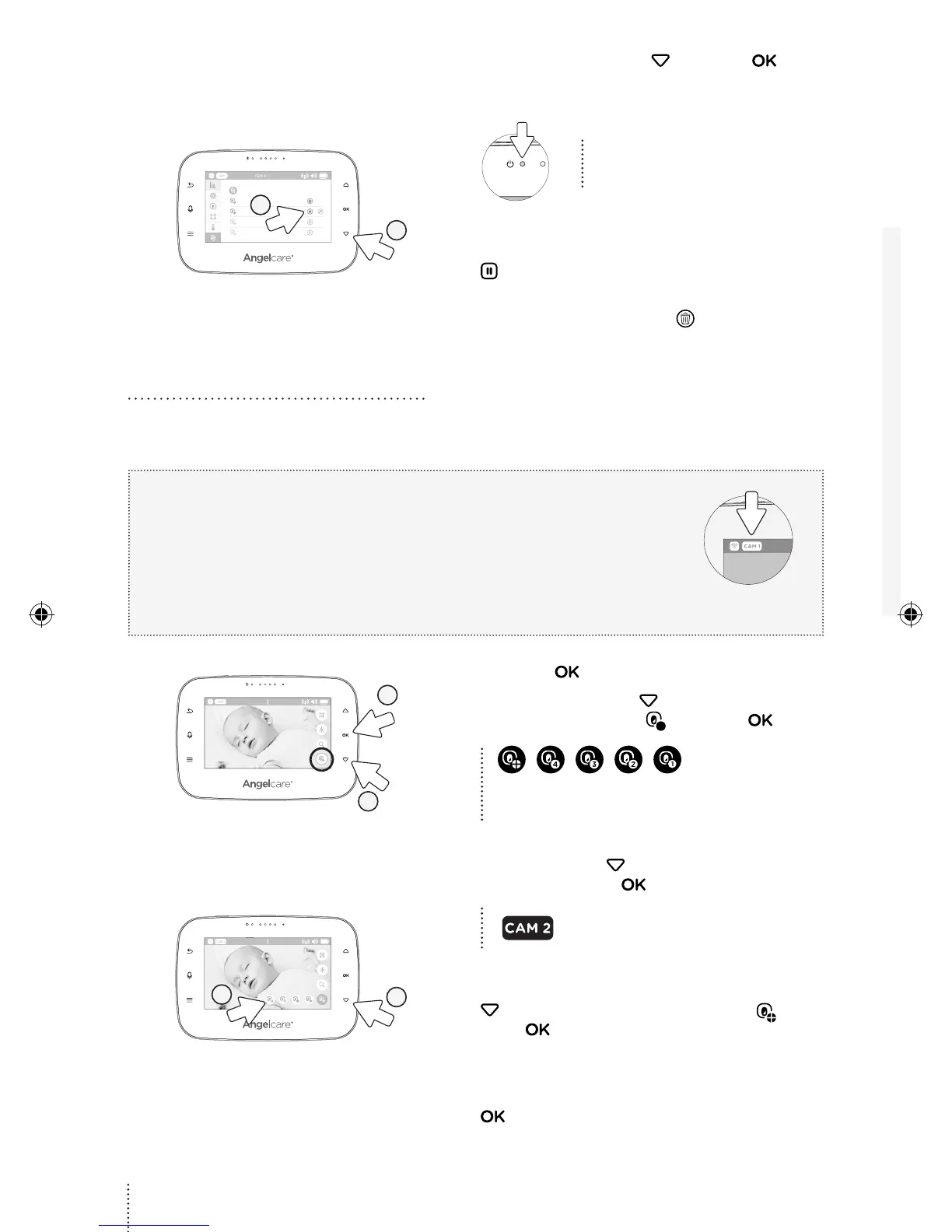
3) Press the down arrow and press to
select/highlight CAMERA 2 (icon will be
grayed out).
The Parent Unit Power Indicator
will flash to indicate it’s in
linking mode.
4) Plug in and turn your Camera ON.
5) Press and hold the Pause / Pairing button
on the top right of the Camera for 2-3
seconds.
6) When the Trash Can icon shows up, the
Camera is now paired.
3.2 VIEWING MULTIPLE CAMERAS
With more than one camera you can view each camera individually or use the split screen
mode to view up-to four cameras connected simultaneously.
IMPORTANT
• If you have a Sensor Pad connected to your Angelcare Monitor, it can
ONLY be paired with Camera 1. The alarm on the Parent Unit will only
sound if Camera 1 is selected or in split view. If another Camera is
selected only the Camera 1 will sound the alarm.
• You will only be able to hear audio from one camera at a time.
When in split screen, the sound transmitted from the Parent Unit will
be from the Camera number highlighted in the info bar.
02:04 18°C
1
2
1) Press the key on your Parent Unit.
2) Use the down arrow to select the
Camera icon number and press .
The Camera Select Menu will popup and
active cameras will have an icon with a camera
number (inactive cameras will be grayed out).
02:04 18°C
3
4
3) To select an individual Camera to view, use
the down arrow to highlight the desired
Camera and press .
The CAM # icon will appear in the
left hand side of the info bar.
4) To view the split screen option, from the
Camera Select Menu, use the down arrow
to highlight the last Camera icon and
press .
5) To return to single video display, from the
Camera Select Menu, use the down arrow
to highlight the prefred Camera and press
.
6
01m3A_Manuel_AC-CAM_ROW_12699.indd 6 18-01-31 12:13


 To Next Page