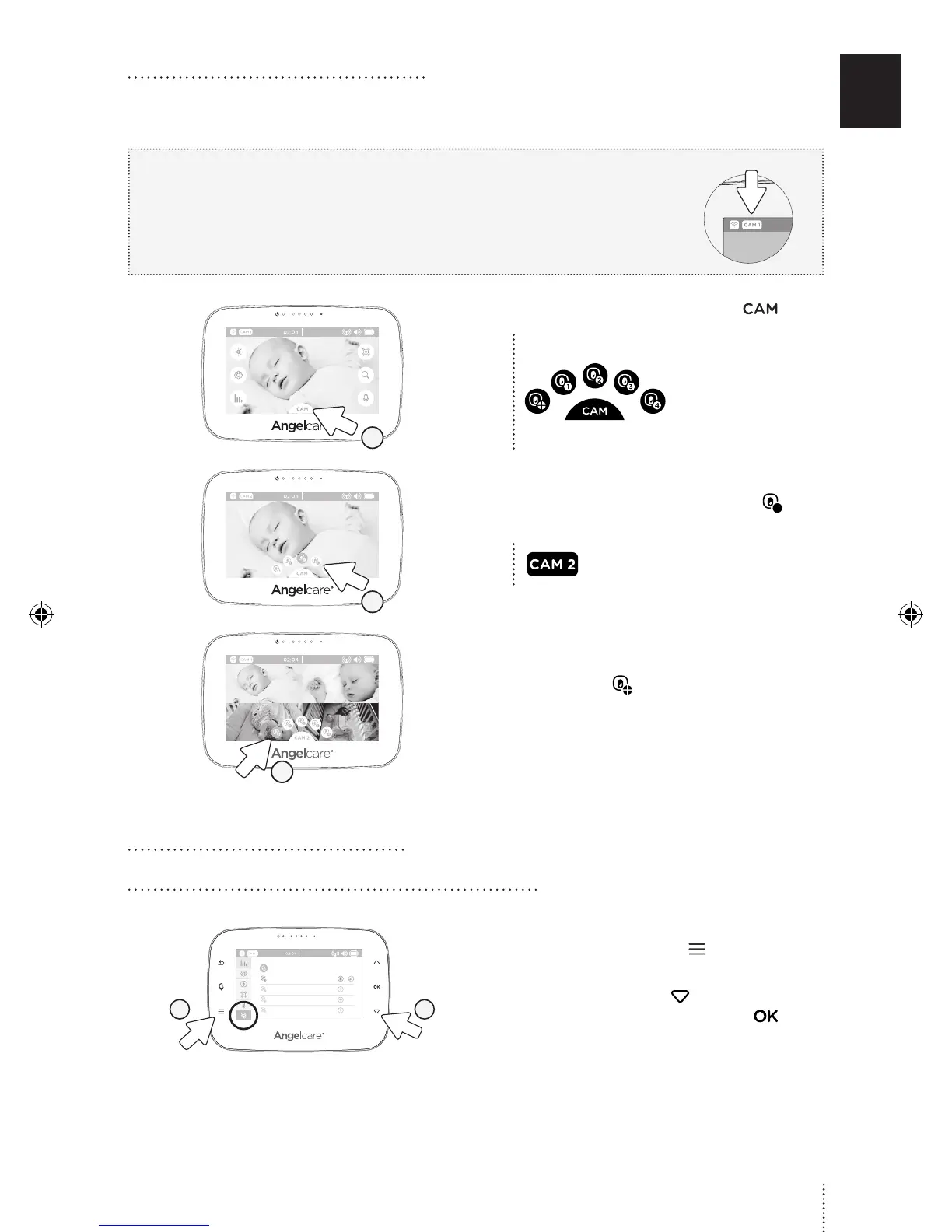
2.2 VIEWING MULTIPLE CAMERAS
With more than one camera you can view each camera individually or use the split screen
mode to view up-to four cameras connected simultaneously.
IMPORTANT
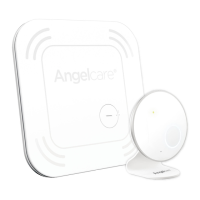
• If you have a Sensor Pad connected to your Angelcare Monitor, it can
ONLY be paired with Camera 1.
• You will only be able to hear audio from one camera at a time.
When in split screen, the sound transmitted from the Parent Unit will
be from the Camera number highlighted in the info bar.
18°C
1
1) Tap the camera selection icon .
The Camera Select
Menu will pop up and
active cameras will
have an icon with
a camera number
(inactive cameras will
be grayed out).
18°C
2
2) Tap on the Camera icon number you
would like to view (the icon turns blue).
The CAM # icon will appear in the
left hand side of the info bar.
18°C
3
3) To view the split screen option, tap the
Camera icon .
4) To return to single video display/
settings press any Camera image on
screen.
FOR MODEL AC310 & 315
3.1 PAIR THE CAMERA WITH THE PARENT UNIT
18°C
2
1
1) Press the Menu button to access the
main menu.
2) Use the down arrow to select the
pairing settings menu and then to
access it.
5


 To Next Page