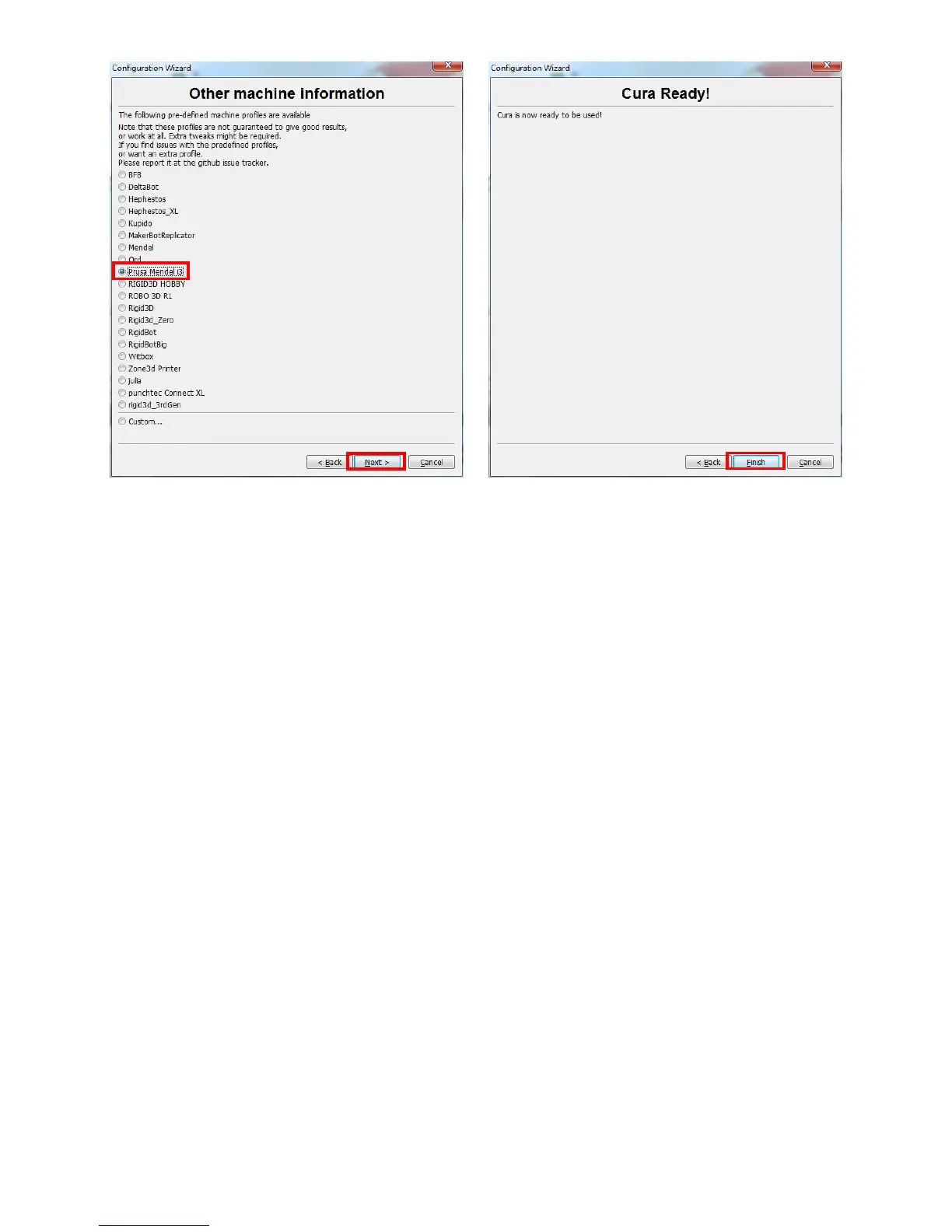
23
(Figure 23)
Upon finish, and run Cura for the first time, there will be a default model, customers may
click “File”--->“Clear platform” to delete it.
5.2.1 Load 3D model into Cura
(1) Clear the platform by clicking “File”--->“Clear platform”
(2) Load 3D files onto the platform by “File”--->“Load model file…”. Files with extension
such as “STL”, “OBJ”, “DAE” and “AMF” can be loaded.
**Files in grey are outside of the print area and need to be moved or scaled to fit in.
5.2.2 Manipulate 3D model in Cura
(1) Zoom in/out: scroll the mouse wheel
(2) Change viewing angle: right click the model and hold on and move the mouse
(3) Position change: left click on the model and hold on and drag the model to move.
(4) Rotate: single left click on the model and a few icons will appear in the bottom left of
the window (Fig. 24). Click the rotate button, 3 circles will surround the model. Rotate
the model by move the circle lines.




 To Next Page