19
4. After leveling, please refer to Step 8 in “Assisted Leveling” to insert the SD card and
print the “owl pair” to check out the results.
5. Software installation
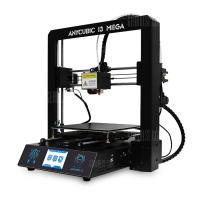
There are two working mode for ANYCUBIC i3 MEGA 3D printer, print offline (SD card)
and print online (controlled by PC via USB).
Print offline: After leveling the platform, insert SD card, click “Print” at the Home
menu and select a file (gcode file) to print.
Print online: Install CP2102 driver to bridging PC and machine, and install Cura for
slicing and control the machine via USB.
Generally, it is suggested to use Print offline to minimize the noisy signal from USB
connection.
5.1 Driver installation
Firstly, power on the machine and connect it to PC via USB cable.
ANYCUBIC i3 MEGA 3D printer uses TriGorilla mainboard which has CP2102 chip for
communication. So, it is required to install CP2102 driver so the 3D printer could be
recognized by PC.
CP2102 driver has been stored in the SD card. “Files_Engish_Mega”--->
“Driver_CP2102”. There are two versions, Windows and Mac version.
For Windows, specifically, “CP210xVCPInstaller_x64” is for 64 bit system and
“CP210xVCPInstaller_x86” is for 32 bit system.
Here we take Windows 7-64 bit PC system for example. (There is a PDF “Installation
for Mac PC” in SD card explains how to install the driver and software for Mac).



 To Next Page