Apogee Jam X User’s Guide
Configuring Your DAW
Find below detailed information to configure Jam X with popular DAWs:
● Configure the DAW to use Jam X
● Configure the DAW for Direct or Software monitoring
● Access Jam X inputs & outputs in the DAW
● Additional DAW-specific notes
Apple Logic Pro
To configure Apple Logic Pro to use Jam X:
1. In the Logic Pro menu bar, choose Logic Pro >
Preferences > Audio in the menu bar, then click the
Device tab.
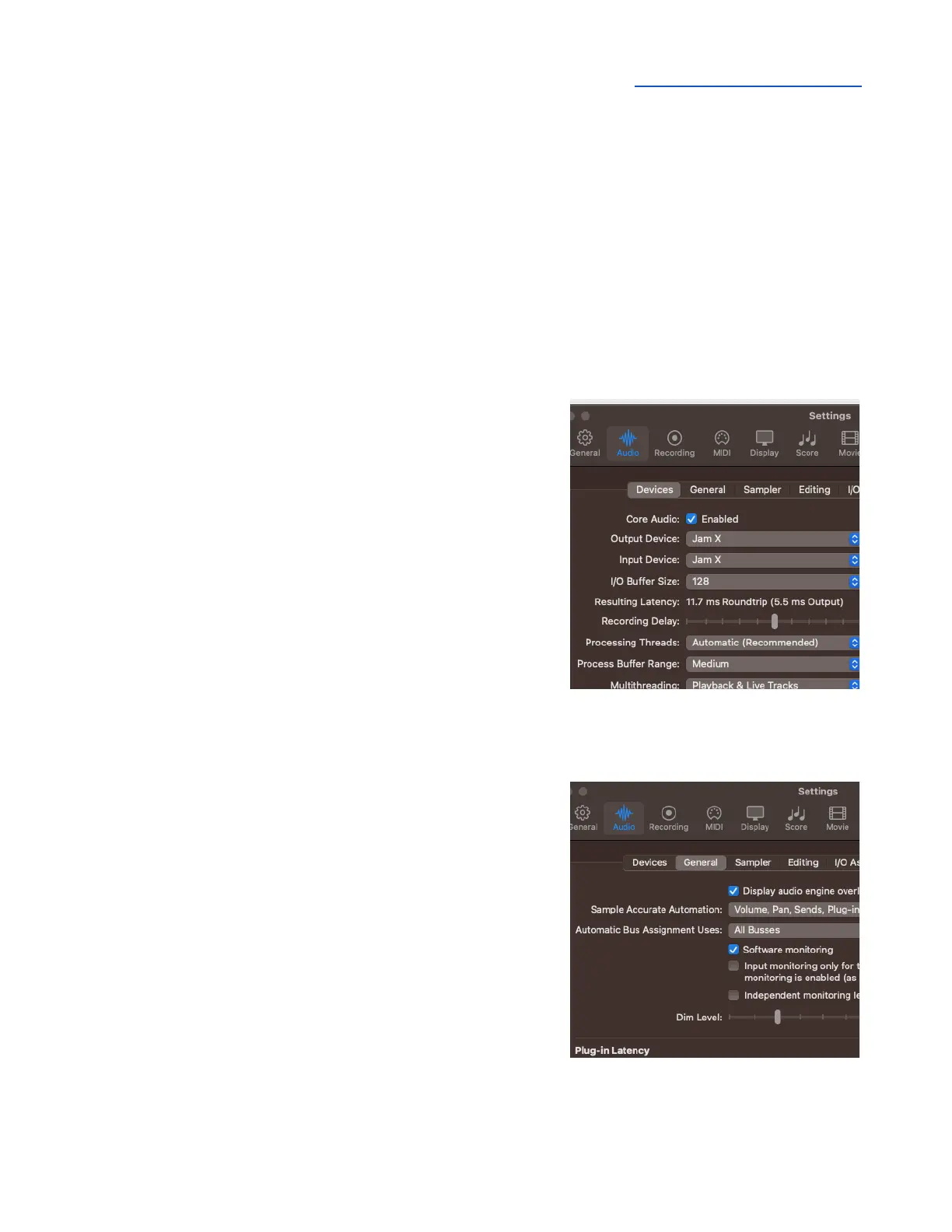
2. Check the Core Audio checkbox; set Output Device and
Input Device to Jam X.
3. Set I/O Buffer Size
4. Click Apply.
To configure Logic Pro for Direct or Software Monitoring Workflow:
1. In the Logic Pro menu bar, choose Logic Pro >
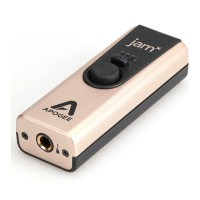
Preferences > Audio, then click the General tab.
● Check the Software Monitoring box to monitor through
Logic while recording.
● Leave the Software Monitoring box unchecked for
Direct monitoring through the Blend function of the
Jam X
2. On the Jam X, press the Blend button:
● Turn Blend off for Software monitoring.
● Turn Blend on for Direct monitoring through the Jam
X.


 To Next Page