MANAGEMENT
SYSTEMS
Assessed to ISO 9001:2008
Cert/LPCB ref. 010
Assessed to ISO 14001:2004
Cert/LPCB ref. 010 EMS
MANAGEMENT
SYSTEMS
Cert/LPCB ref. 010
PRODUCT
CERTIFICATION
Apollo Test Set - User Manual
7
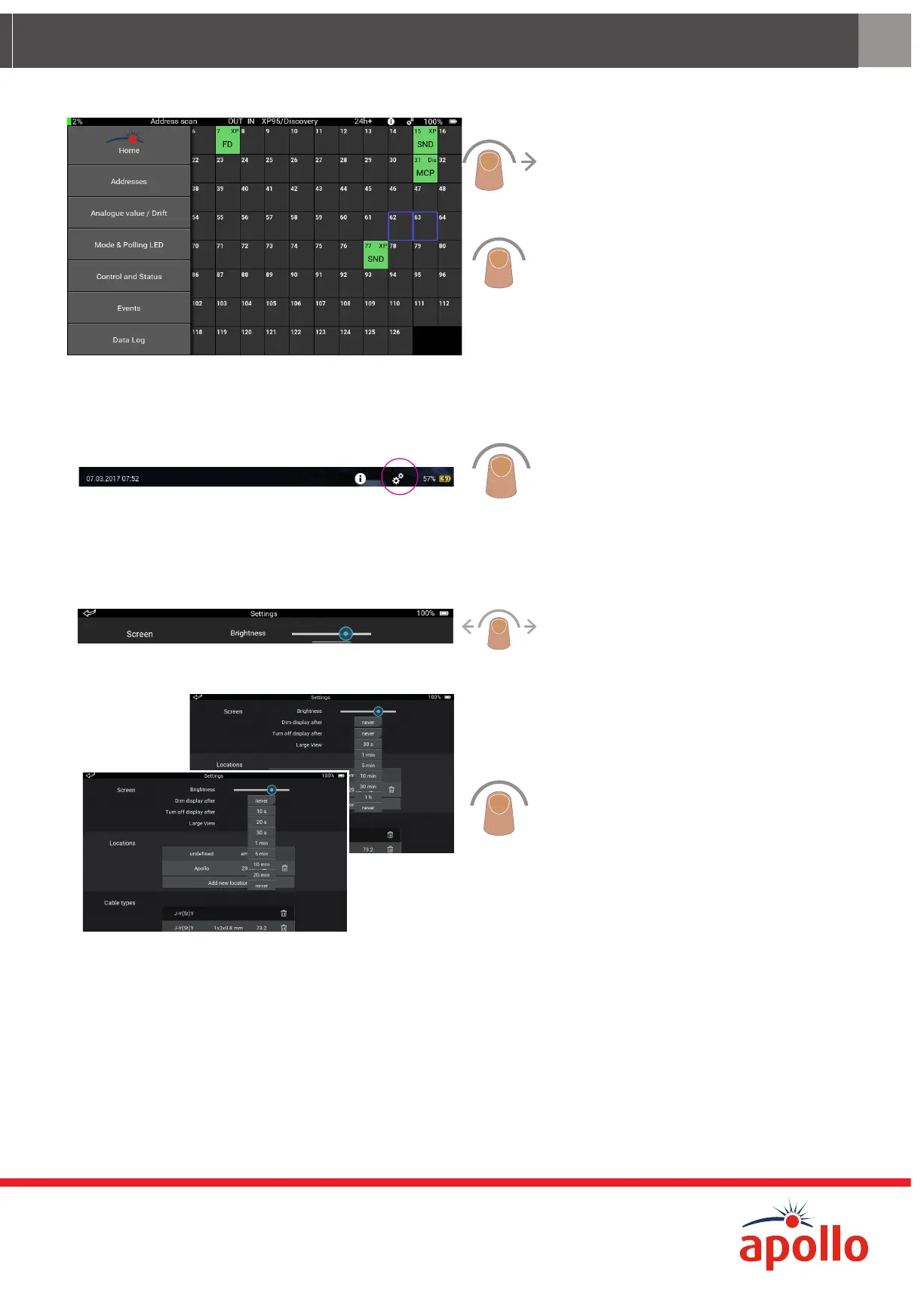
How do I navigate through the various menu screens?
By swiping right on the left of the screen the
menu selection bar appears.
Tap the menu you want to move to and the
main screen changes. Tap Home to return to
the Home Screen. The menu selection bar
moves out of view after you have made your
selection.
How do I use the Settings?
To access the Settings, tap the Settings icon
on the top bar. Settings are divided into five
groups:
• Screen
• Locations
• Cable types
• Date and Time
• Language
Screen settings
To adjust the screen brightness, press and
hold the slider. Move it to the right to make the
screen brighter, move it to the left to make the
screen less bright.
It is also possible to adjust the length of
time after which the screen brightness is
automatically reduced and when the display is
turned o.
Tap the box next to either ‘Dim display after’
or ‘Turn o display after’. A drop down menu
appears. Tap the time that you require. The
drop down menu closes.
Tap ‘Large View’ to increase the screen font
size.


 To Next Page